Set pre-appointment reminders for yourself and your customers using Calendar automations
Set automatic reminders before or after appointments via notifications or automations.
Written By CrocoTeam
Last updated 7 months ago
A prospect who forgets an appointment is a lost opportunity. A customer who is not followed up after a call is a relationship that is cooling off.
Fortunately, with CrocoClick, you can set up simple and effective reminders for yourself and your customers to maintain contact, avoid no-shows, and professionalize your customer relationships.
There are two ways to set up these reminders:
The first, quick and integrated, allows you to configure automatic emails directly from the calendar.
The second, more advanced and recommended, allows you to build a customized automation with multi-channel reminders (SMS, email, WhatsApp, etc.).
Here's how to choose the method that's right for you... and never miss an appointment again.
Method 1: Use the notifications built into the calendar
You can send personalized emails automatically at each stage of an appointment (booking, cancellation, modification, reminder, follow-up, etc.).
1. Access the calendar settings
Go to Calendar > Calendar settings
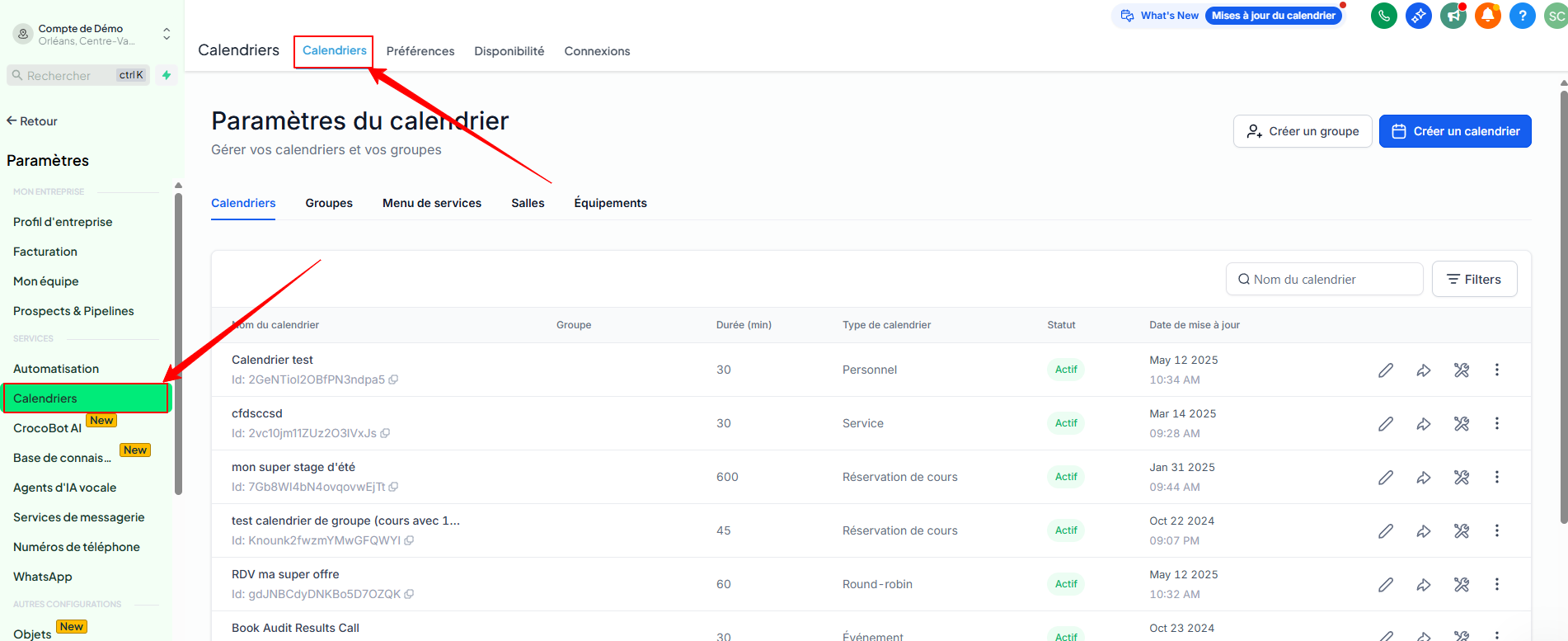
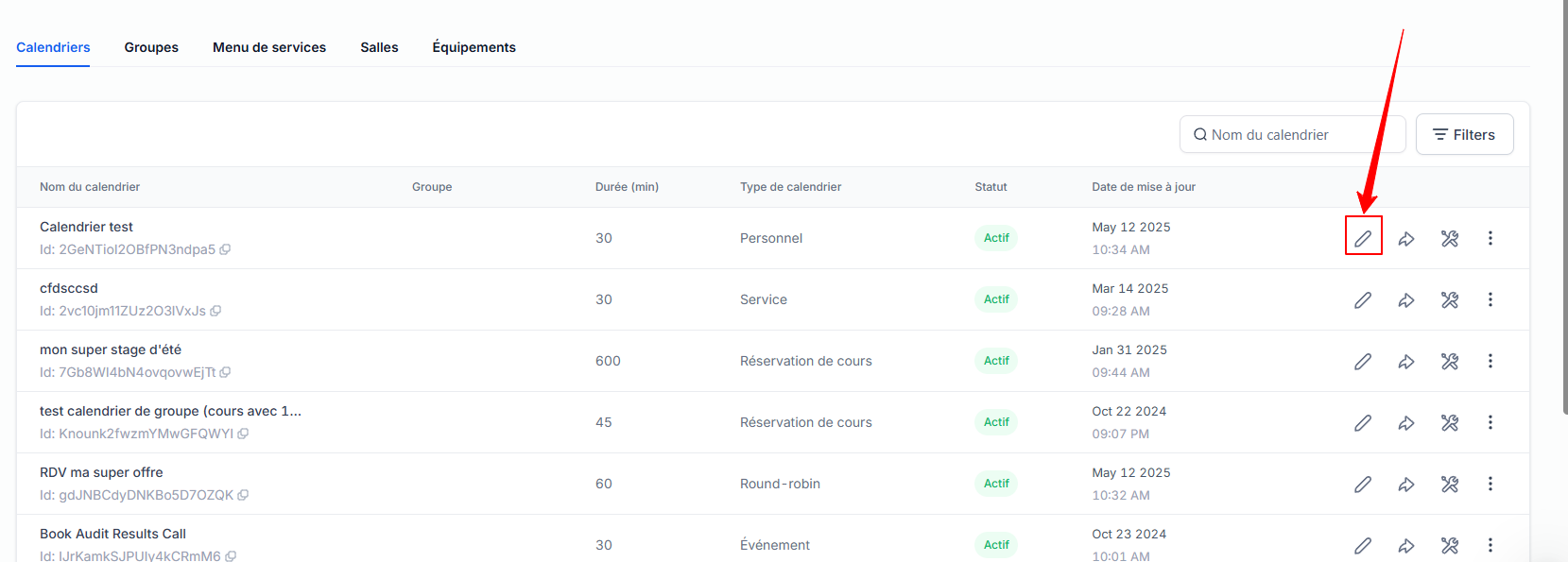
Select the calendar you want to configure
Click on the Notifications and Additional Options tab
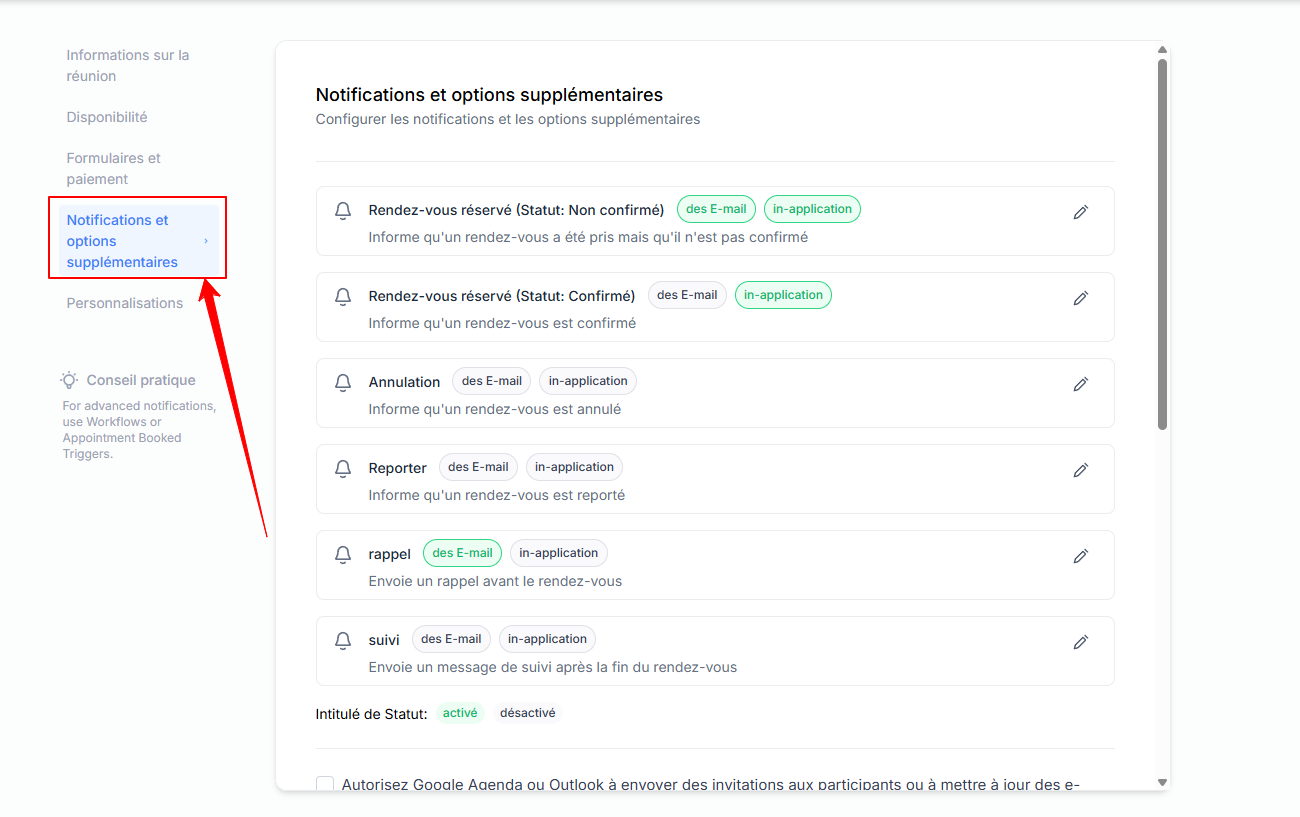
2. Choose the types of notifications to send
Available types:
Confirmation (unconfirmed)
Confirmation (confirmed)
Cancellation
Rescheduling
Reminder (before appointment)
Follow-up (after appointment)
You can enable or disable these notifications for:
The customer (contact)
The assigned user (you or a member of your team)
A custom email address
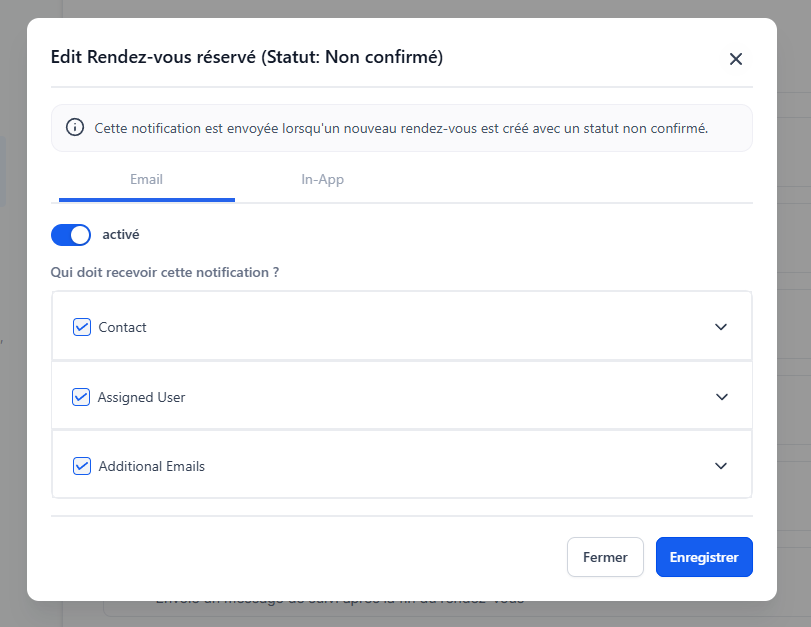
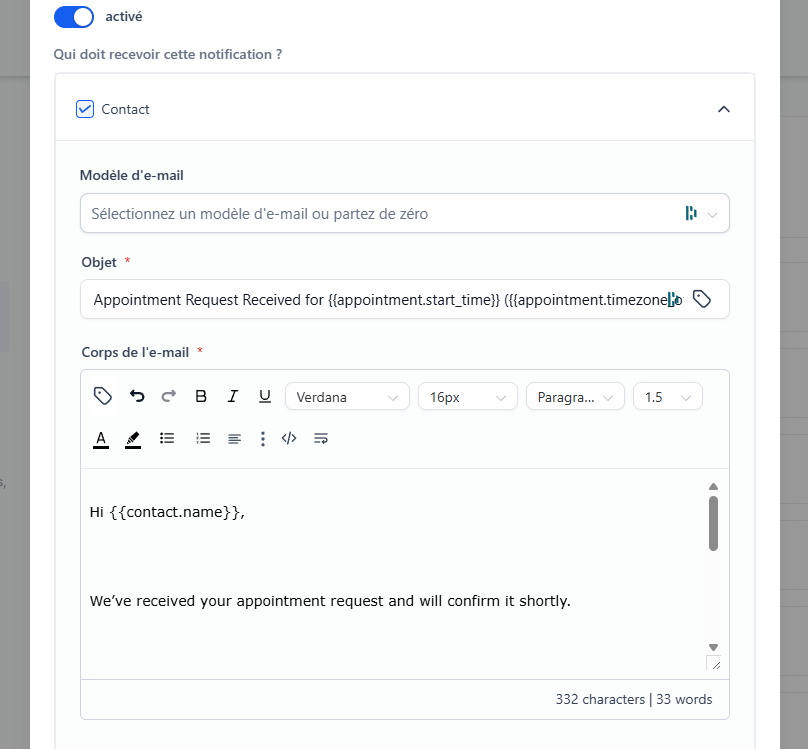
3. Customize the content of each message
Click on a notification (e.g., Reminder)
Enable the email option
Choose a template or write a message directly
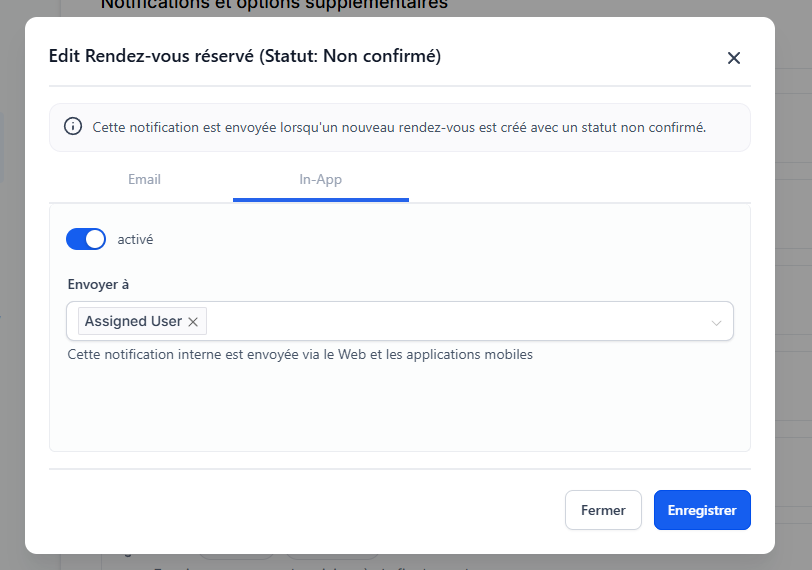
🔔 In-App Notifications:
In-app notifications are customizable.
For example, you can enable confirmation notifications for the calendar while disabling other types.For event calendars, account administrators will receive notifications by default.
For other types of calendars, the assigned user is selected by default to receive notifications.
Method 2: Create a custom reminder automation (recommended)
For advanced management, you can create an automated workflow with multiple reminders (SMS, email, WhatsApp, etc.) before and after the appointment.
1. Define the trigger
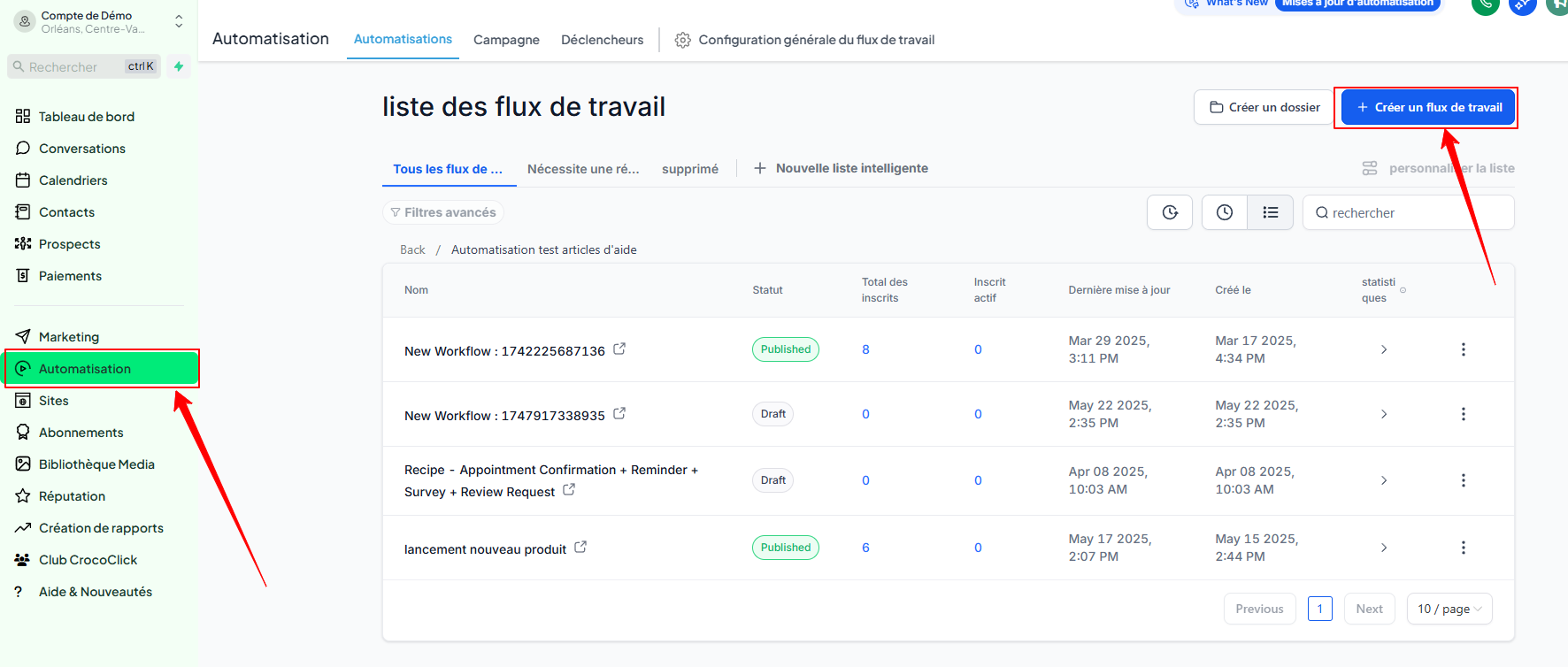
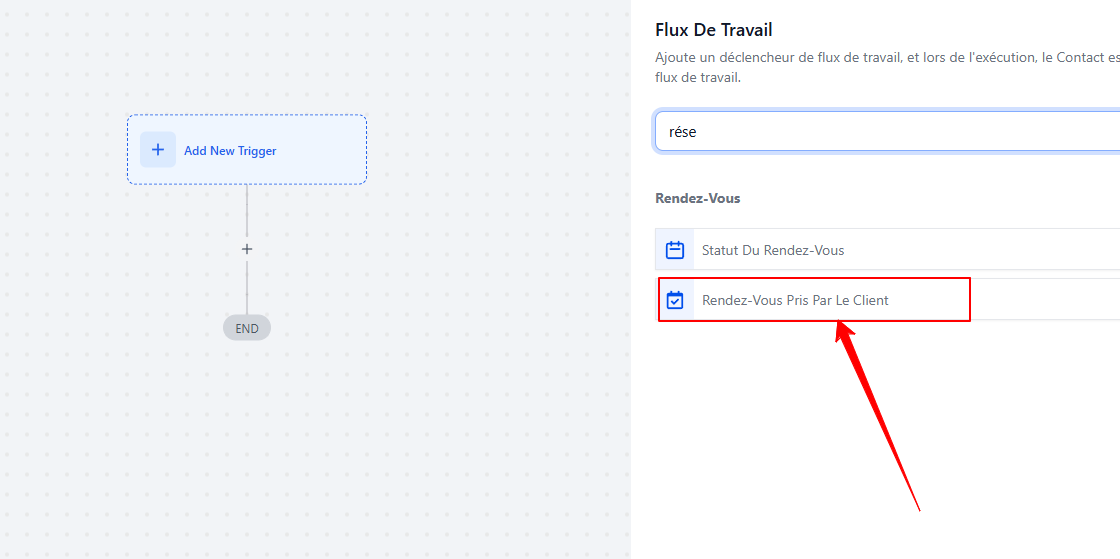
Go to Automations > + Create a workflow
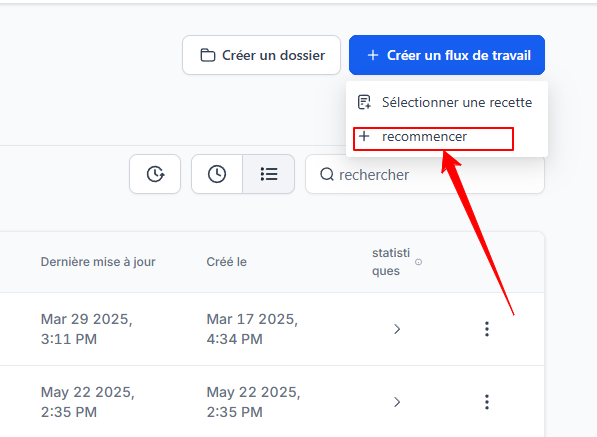
Choose to start over
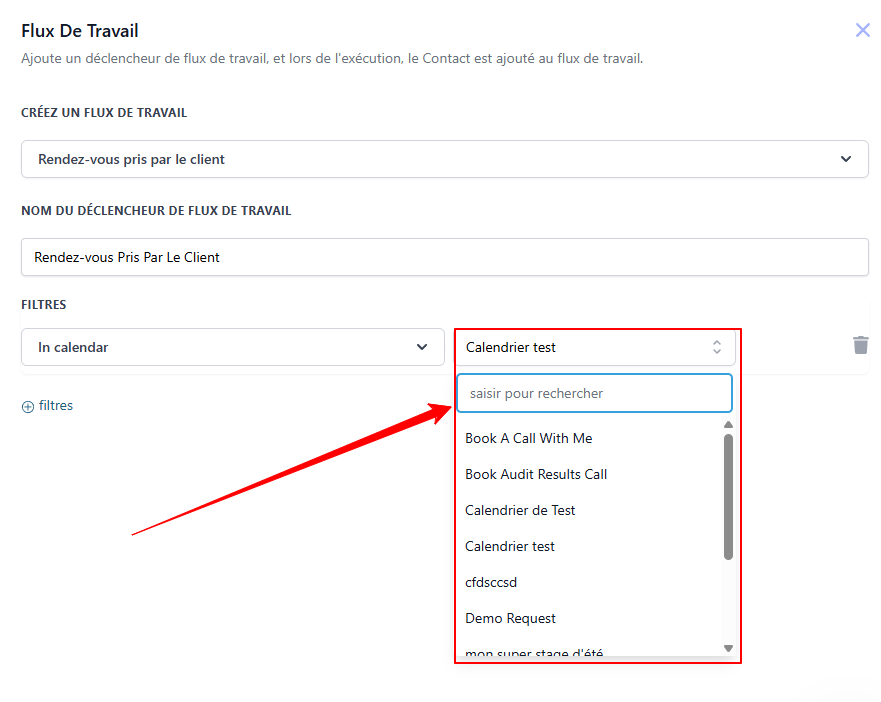
Add the trigger Appointment Made By Customer. Alternatively, you can choose the "appointment status" trigger and filter so that the automation is triggered when the status is "confirmed." This way, even if you make an appointment for the customer, the automation will be triggered
(optional) Select a specific calendar. If no calendar is selected, the automation will be "universal," meaning it will trigger regardless of the calendar.
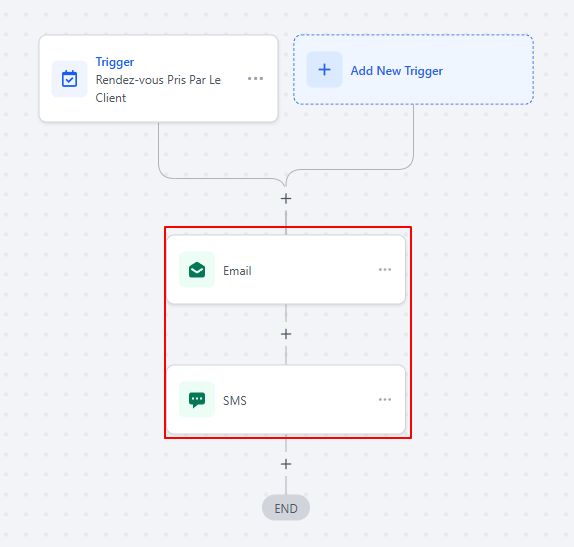
2. Add confirmation messages
Confirmation email with appointment details
Confirmation SMS
💡 TIP: Use dynamic variables (name, date, time, location, etc.) to automatically personalize messages.
3. Create reminders
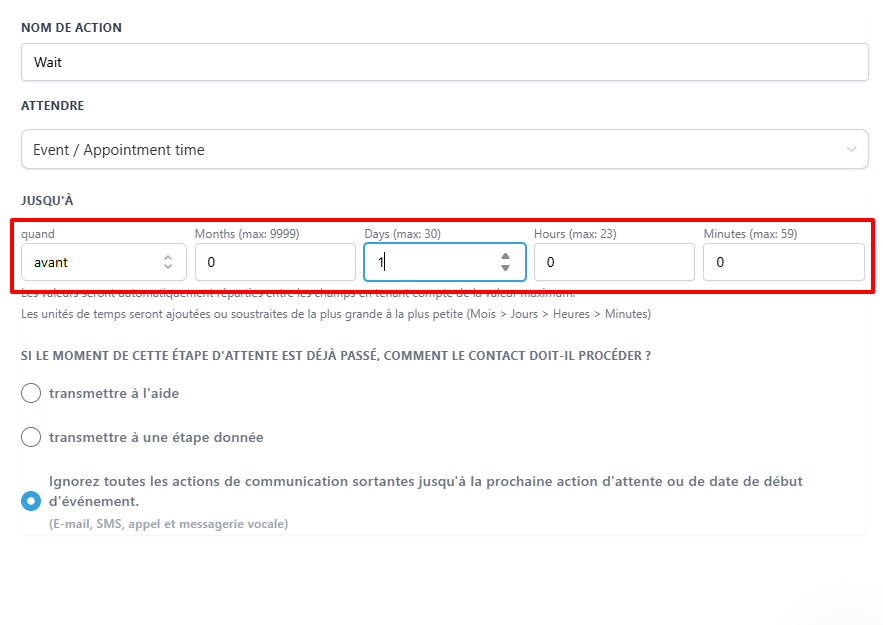
Add the Wait action
In the wait action, select Event / Appointment
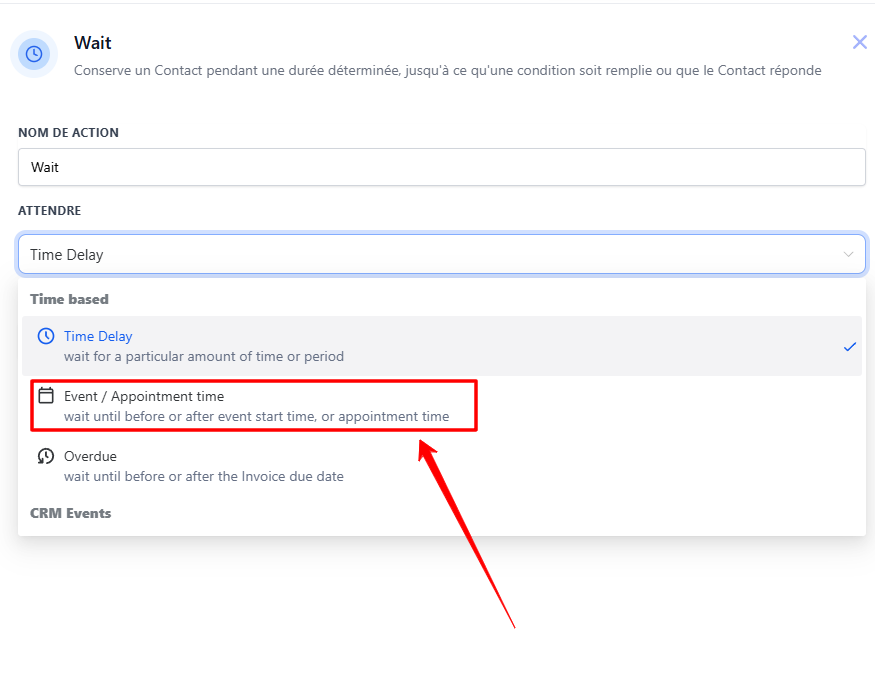
Set the wait time (reminder 2 days before/1 day before/1 hour before, etc.)
Send a reminder email or text message
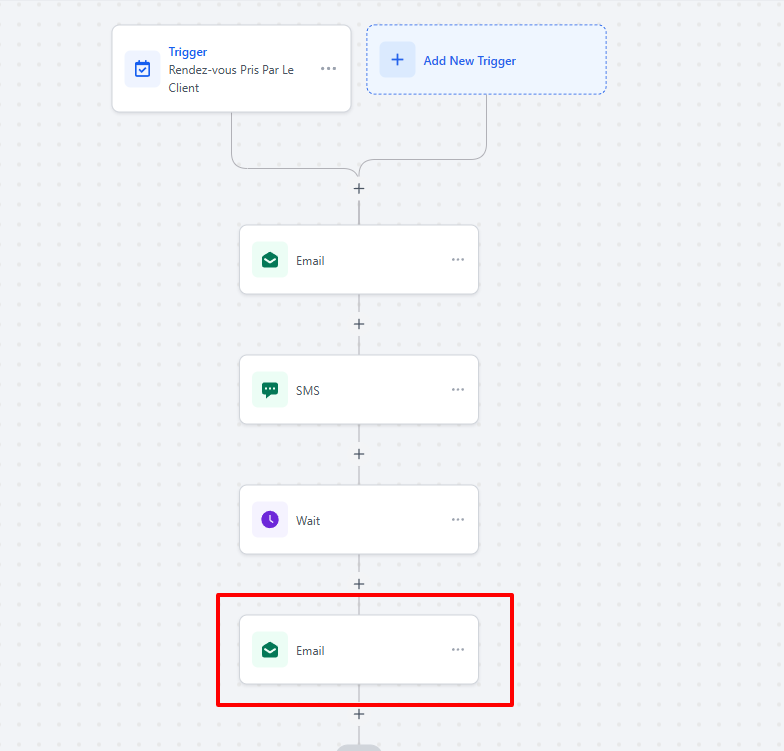
💡 TIP: You can repeat the "wait" and "send an email" actions as many times as necessary.
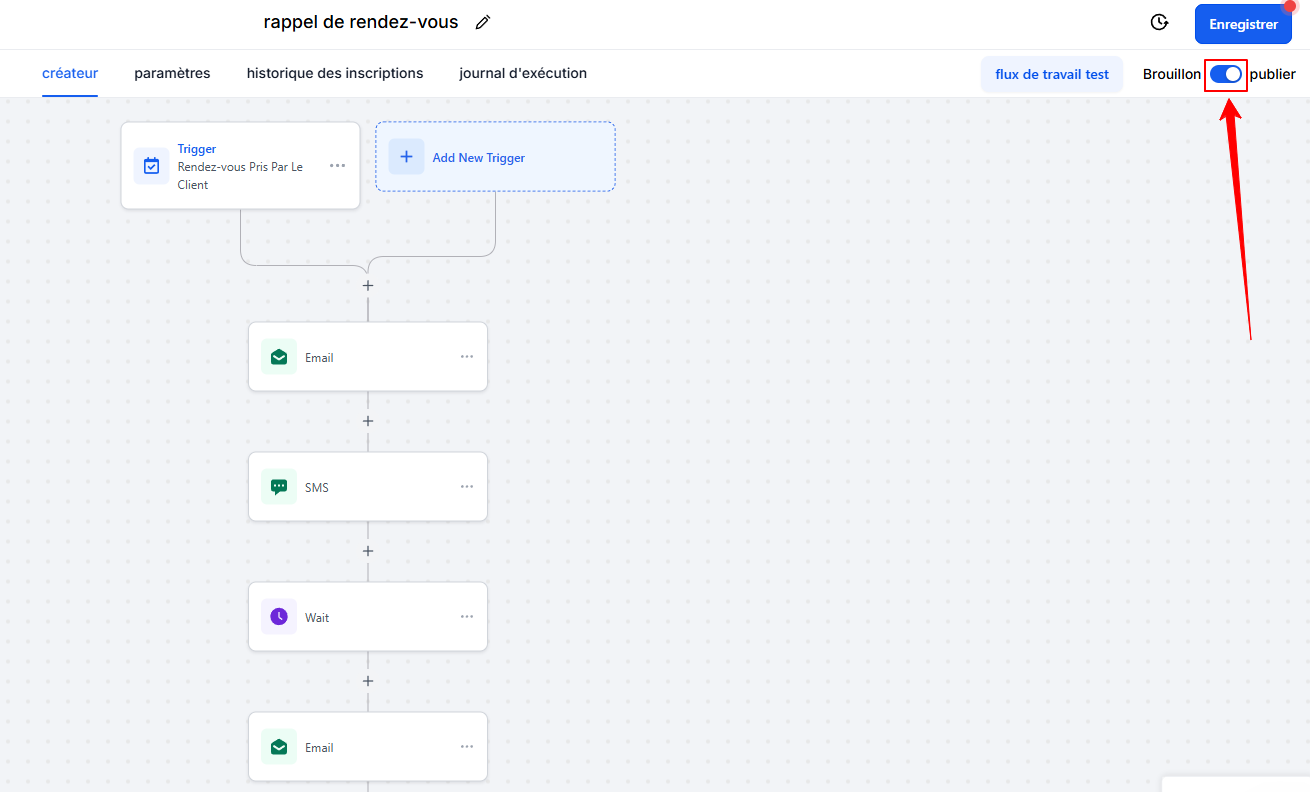
4. Publish your automation
Once everything is configured, click Publish and save.
Conclusion
With CrocoClick, you have a choice:
Use built-in notifications for simple reminders
Create a workflow for a more advanced customer journey
In both cases, you reduce missed appointments, improve the customer experience, and enhance your professionalism.