Connect Microsoft Teams to your CrocoClick Calendar (visio)
Connect Microsoft Teams to your CrocoClick calendars and automatically generate unique meeting links for each appointment.
Written By CrocoTeam
Last updated 7 months ago
By integrating Microsoft Teams with CrocoClick, each new appointment automatically generates a unique videoconference link: no more copying and pasting!
Overview
Auto-generation: select "Microsoft Teams" as the meeting location for your calendar and a Teams link is sent with the invitation.
Time savings: no manual handling, no risk of link errors, possibility of automation.
Steps
1. Connect Microsoft Teams
Two possible paths: via "My Profile" or via "Calendars."
Option A — From My Profile
Open Settings > My Profile.
In "Video Conferencing," click Add.
Select Microsoft Teams, then Connect.
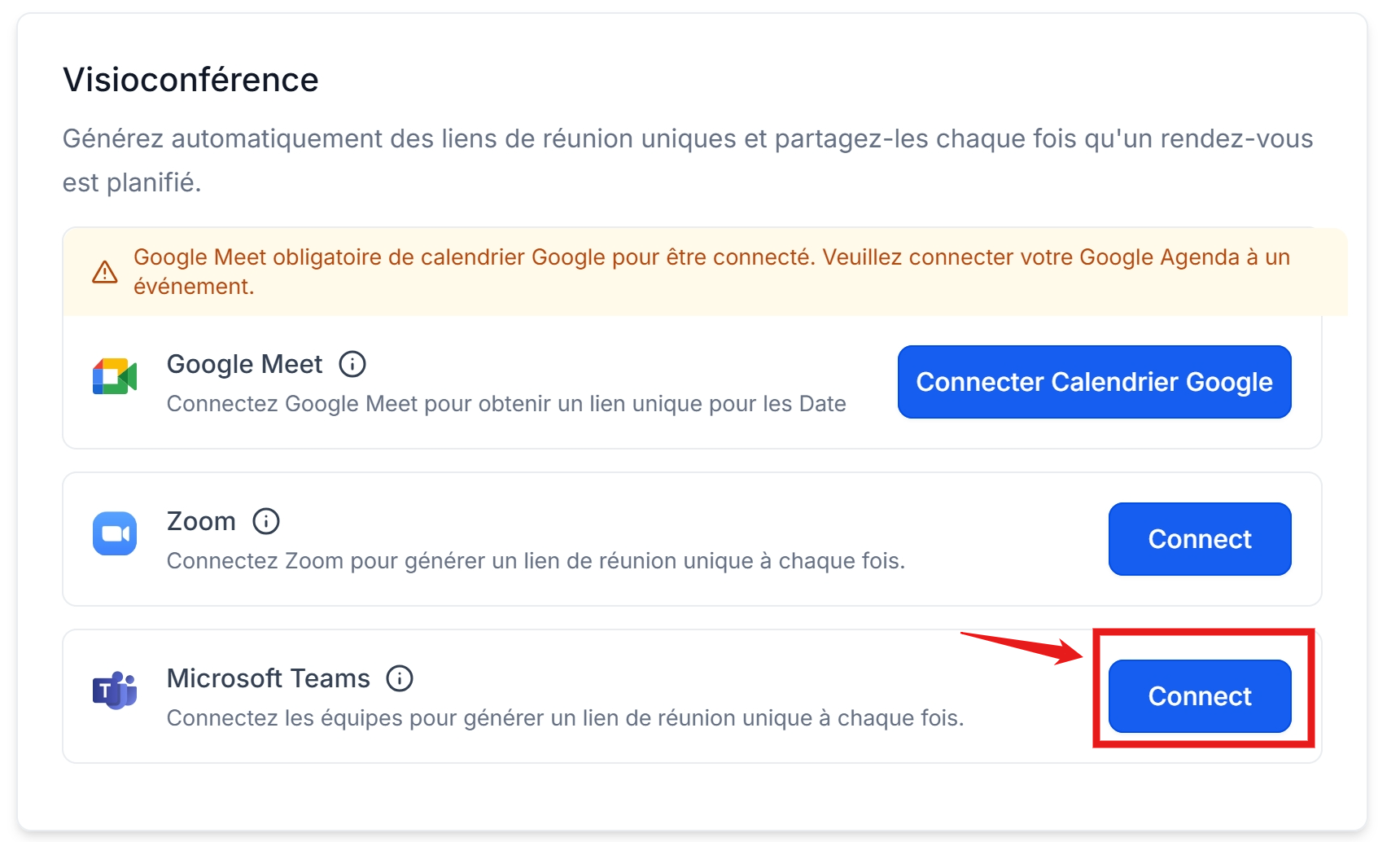
Sign in with your Microsoft credentials.
✅ Your Teams account is now linked.
Option B — From Calendars
Go to Calendars > Calendar settings > Connections.
Video Conferencing tab.
Click Add, then Connect next to Microsoft Teams.
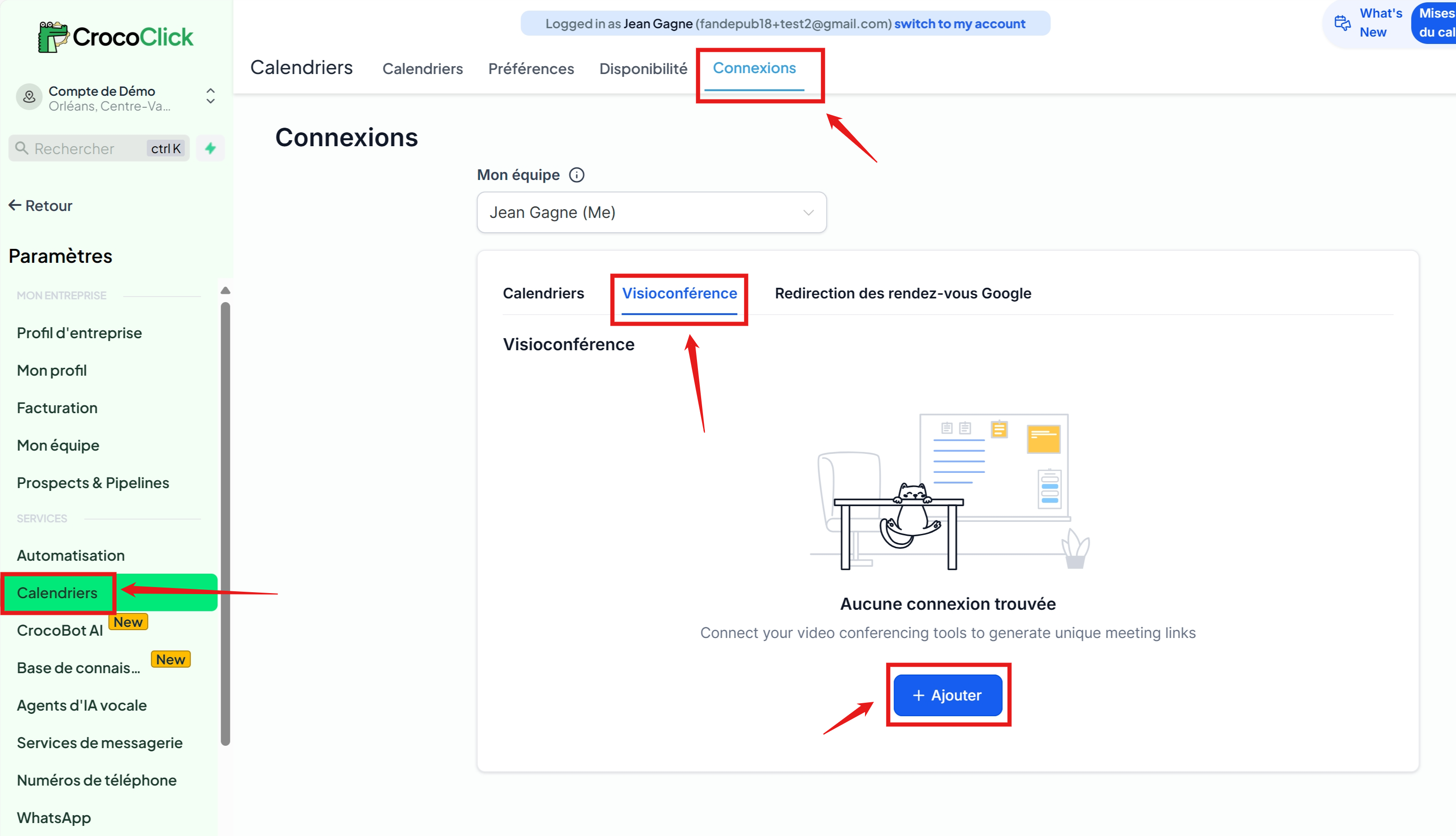
Sign in to Microsoft.
✅ Teams is linked to your profile.
💡 TIP: Only one Teams account can be linked per user.
2. Add dynamic Teams links to a calendar
Verify that the Teams integration is active in Video Conferencing Connections.
In Calendars, open the calendar you want to edit and click Edit.
Meeting Details tab > Members section.
Select the relevant user (they must be logged into Teams).
In Meeting Location, select Microsoft Teams.
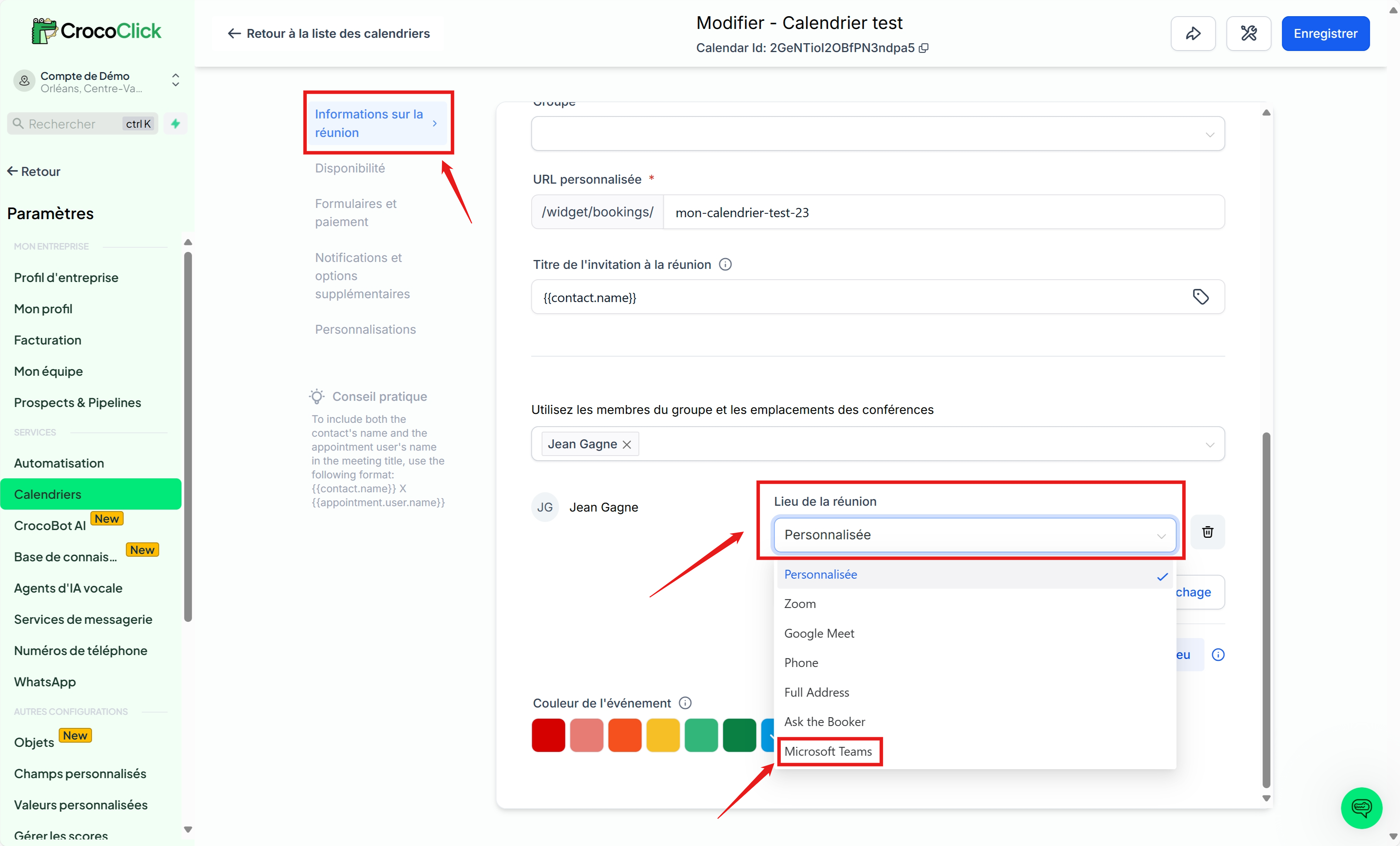
Save. ➜ Each new reservation will now generate a unique Teams link as the meeting location.
Important notes
Difference between Outlook and Teams
Outlook ≠ Teams: connecting your Outlook calendar is not enough. You also need to add Teams in Connections > Video conferencing.
To see your appointments in Outlook, make sure your Outlook calendar is connected and selected as a linked calendar.
Current limitations
Quick FAQ
What types of calendars generate an automatic Teams link?
▶️ Personal, Round Robin, Group, and Service calendars. (Support for Courses/Classes coming soon.)
How do I use Teams with an Event calendar?
▶️ Create a Teams link manually > In "Location," choose Custom > paste the link. (Static link shared with all registrants.)