How to integrate a form, survey or calendar into your training course
Find out how to easily integrate a form, survey or calendar into your courses and training on CrocoClick.
Written By CrocoTeam
Last updated 7 months ago
Adding forms, surveys, or a calendar to your CrocoClick training course improves interactivity and optimizes the learning experience.
This allows you to:
Easily collect student feedback via surveys
Allow students to schedule appointments directly from a lesson
Collect information with forms without leaving the lesson
Here is a quick and easy way to integrate these tools directly into your lessons.
Step 1: Copy the integration code
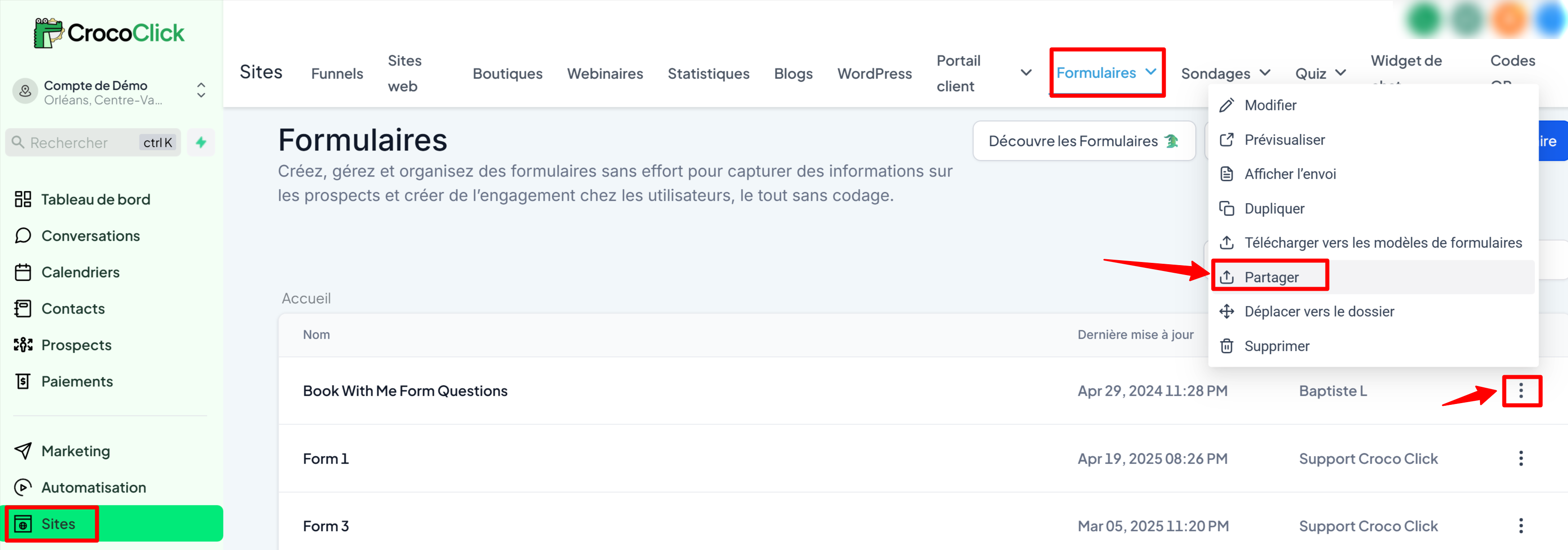
Form or Survey: Go to the Forms or Surveys tab in CrocoClick.
Select the desired form or survey by clicking on "...", click on "Share," then copy the embed code.
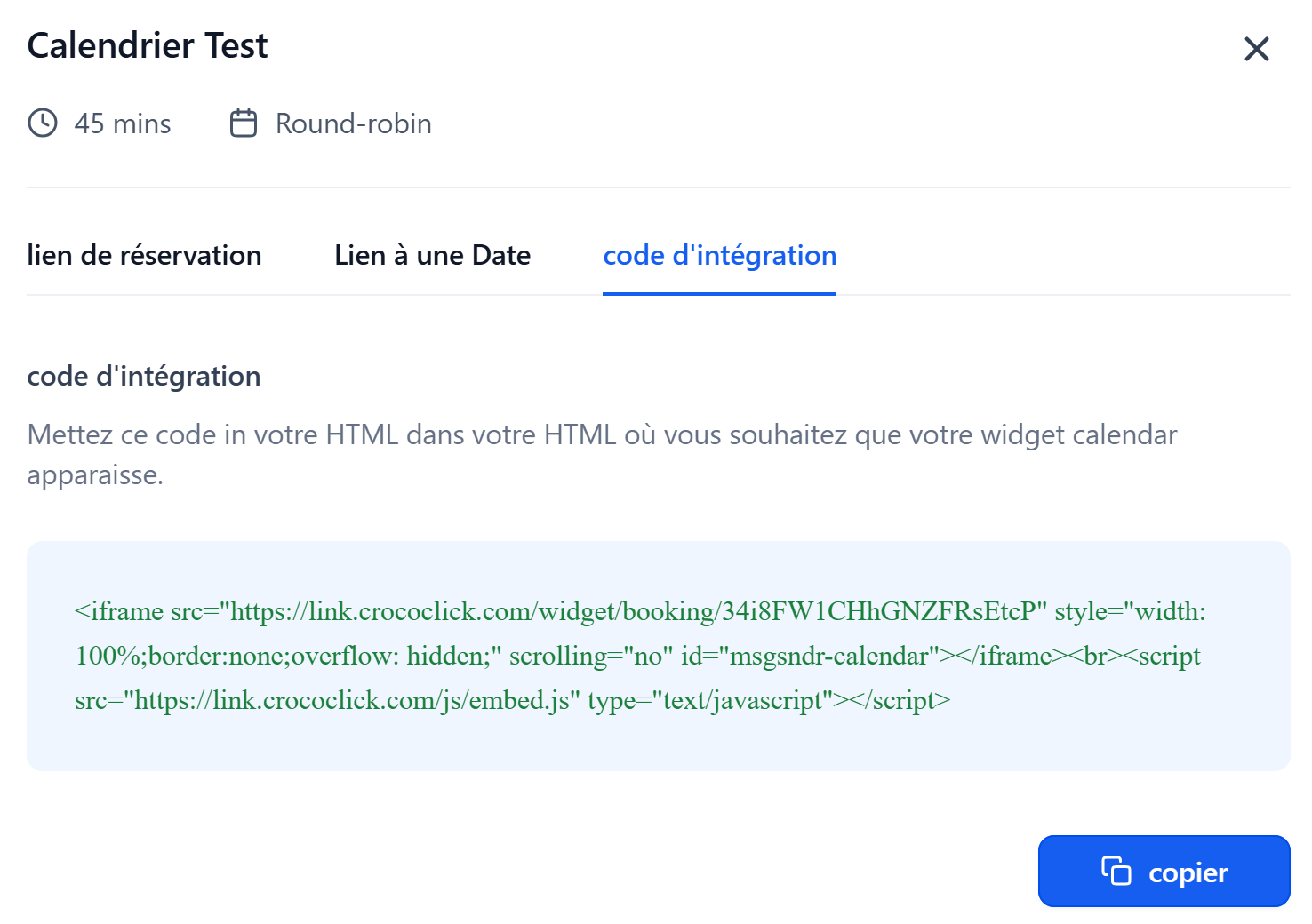
Calendar: Go to Calendars, choose the desired calendar, click on "Embed," then copy the code provided.

Step 2: Access the lesson editor
Go to Membership > Training > Products.
Select the relevant training course, then open the lesson where you want to embed your code.
Step 3: Add the HTML code to the lesson description
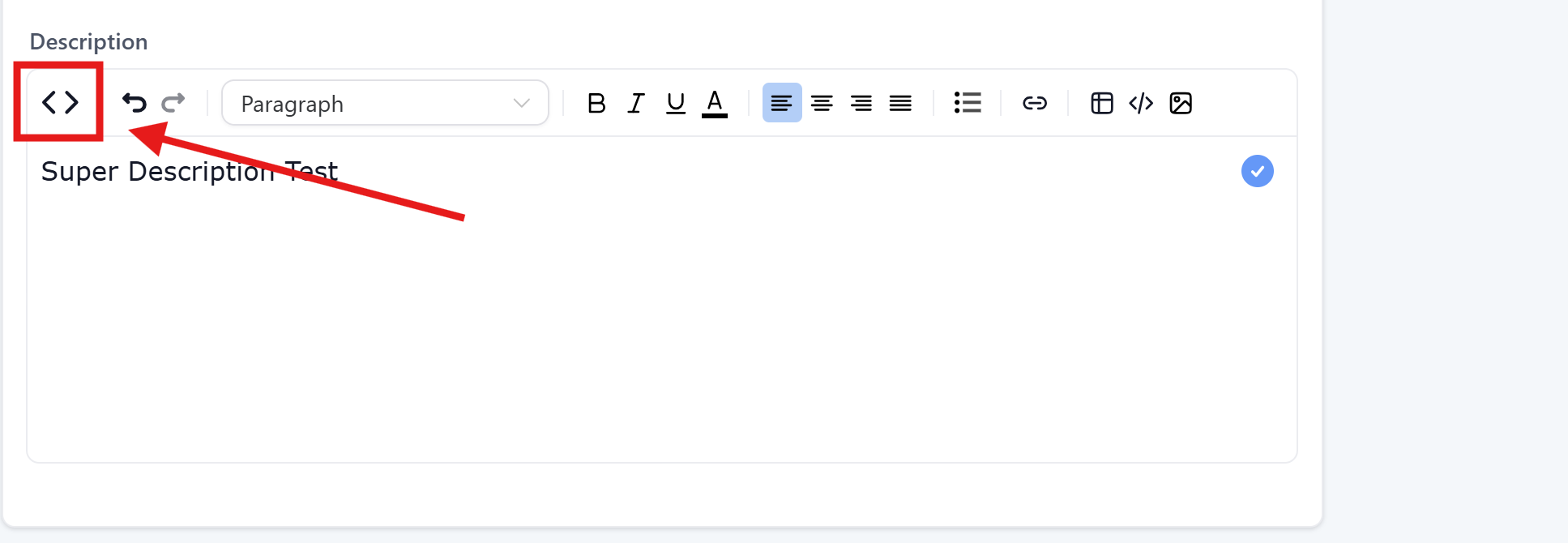
In the lesson editor, click on the <> icon to open the HTML editor.
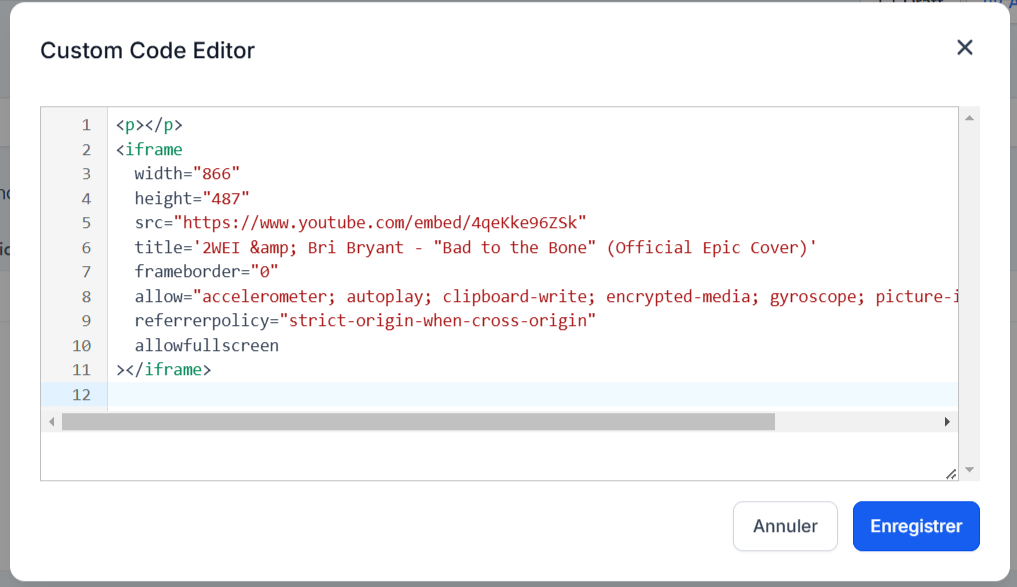
Paste the code you copied earlier.
Step 4: Preview your lesson and adjust the dimensions
Adjust the dimensions by changing the "width" and "height" values for a perfect integration.
This is particularly useful if your calendar or form is not displayed in its entirety.
💡TIP: In most cases, we recommend setting the width to "width: 100%;" and modifying the height to "height: [VOTRE TAILLE]px;".
This way, the widget will take up the entire width and adjust to the height.
If "height" is not in the integration code, you can add it to match the photo above.
Step 5: Check the display
Save your changes.
Preview your lesson to make sure the integration is displayed correctly.
Adjust the size if necessary until you get the ideal result.
After embedding, always preview your lesson to ensure an optimal user experience.
Thanks to this simple method, your participants will enjoy a smooth and interactive learning experience without ever leaving their CrocoClick training space.
Frequently Asked Questions
My survey/form is truncated and does not appear in its entirety...
Don't worry, this problem is simply related to the height defined in the integration code.
By default, some forms or surveys may have a height that is too low, which cuts off the display and prevents your students from seeing the entire content.
👉 The solution is to change the value of height directly in the code (see step 4 of this article).
For example, if you see:
<iframe src="..." width="100%" height="600px"></iframe>You can increase the value of height (e.g., 900px or 1200px) until the survey displays correctly.
💡 TIP: Always set width="100%" so that the integration takes up the entire width, and only adjust the height until you get the perfect result.
Once you have changed the value, save and preview your lesson. Repeat the adjustment if necessary: a few tests are enough to find the right height and provide a smooth experience for your participants.