Use the "Internal Notification" action to receive an alert following an action by one of your contacts
Learn how to set up a notification in CrocoClick to be automatically alerted by email, SMS or notification in the event of a key action
Written By CrocoTeam
Last updated 3 months ago
When an important action occurs in your CrocoClick system (new lead, form filled out, message left, etc.), you can receive an automatic alert—by email, text message, or in-app notification.
This is called an Internal Notification.
Why use the "Internal Notification" action?
An internal notification allows you to stay on top of everything important without having to constantly monitor your channels.
For example:
You want to notify the relevant member of your team every time a new appointment is made.
You want to receive a text message as soon as a hot lead arrives via a Facebook ad.
You want to send an alert to a team member in the event of a specific request in a form.
You want to receive an email as soon as a customer purchases one of your products or services.
This is possible... thanks to the "internal notification" action in automations.
Steps to set up an internal notification
1. Create a new Automation
Go to the Automations tab in CrocoClick.
Click on "+ Create" to start a new automation or open an existing automation.
2. Add the trigger of your choice
Examples of triggers:
New contact created
Form filled out
Payment received
Tag added
Appointment made
3. Add an "Internal Notification" action
In your automation scenario:
Click on the + to add an action.
Select Internal Notification.
4. Give the action a name
Example: "Alert - New Facebook prospect"
This will help you identify this step in your automation.
5. Choose the notification channel
CrocoClick offers 3 options:
A. Email
You will receive an email at the address of the selected user.
Parameters to fill in:
Sender name (optional)
Sender email (optional)
Email subject
Content (you can use tags such as
{{contact.name}})
💡 TIP: You can also use an email template if you already have one ready.
B. Internal notification (in CrocoClick)
The notification is displayed directly in the CrocoClick interface (bell icon in the top right corner).
Parameters to fill in:
Notification title
Message
Redirection (page to which the user will be sent when clicking on the notification: e.g., contact form)
C. SMS
The user receives an SMS on their phone.
Parameters to be filled in:
Personalized SMS message
Or selection of an SMS template
You can attach a link or a file
💡 TIP: The number must be correctly entered in the user profile for this to work.
4. Select recipients
You can:
Choose a specific user
Choose a role (e.g., all "Admins")
Choose a custom recipient (an email address, for example)
💡 TIP: If several people need to be notified, use a role or team to avoid duplicating the action.
Concrete example
Scenario: You want to notify your sales team when a Facebook lead arrives.
Trigger: New contact with the "Facebook Lead" tag
Next steps:
Add to a pipeline
Assign to a sales rep
Add an internal email notification
Email content:
Subject: New Facebook lead!
Message: "
A new lead has just come in via Facebook.
Name: {{contact.name}}
Email: {{contact.email}}"
Scenario 2: You want to receive a notification every time a customer fills out a purchase form.
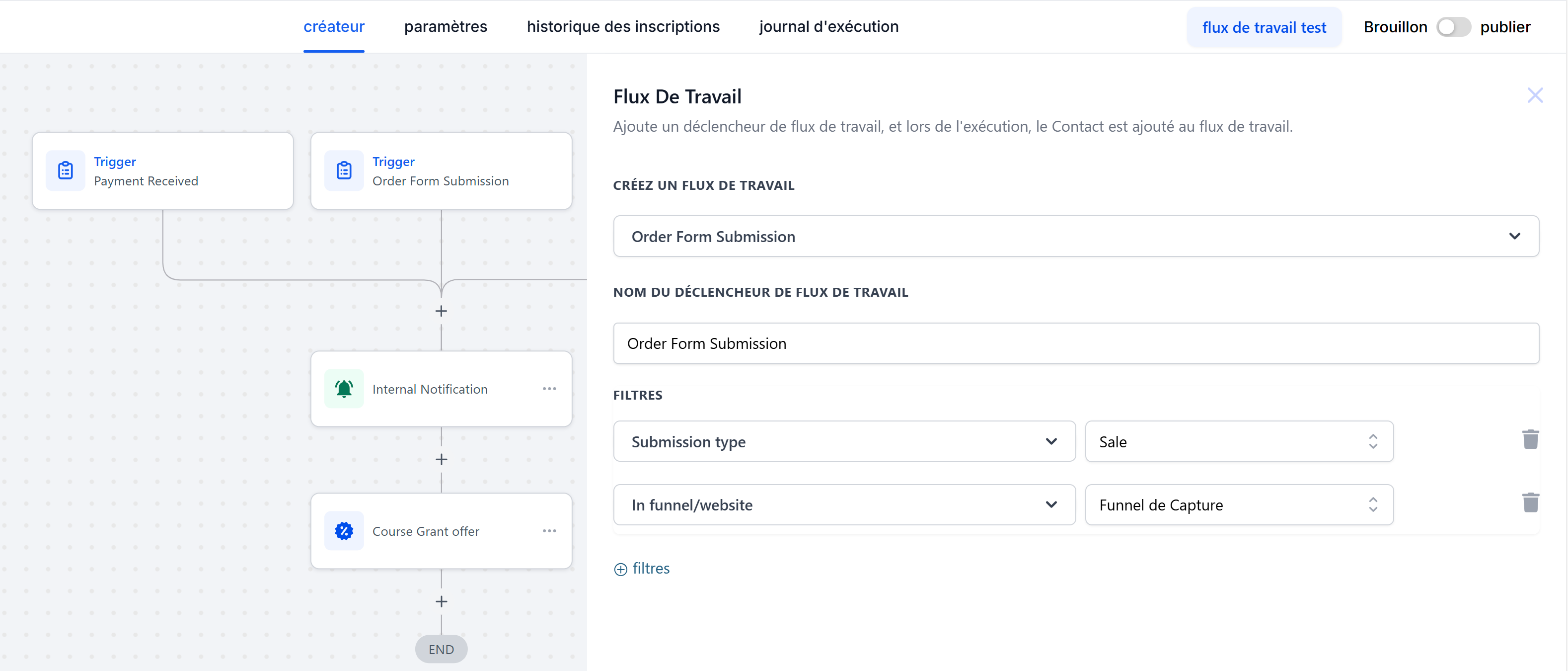
This scenario is typical for:
Being alerted immediately when an order is placed
Manually checking certain elements of the form before validation
Starting a delivery sequence or assigning a task to a team member
Automation steps:
Trigger: Order Form Submission → select your funnel and the "sale" submission type to trigger when a purchase is made on this form
Next steps:
Add a "Purchase Form Completed" tag
Send an internal email notification to the administrator or product manager
Notification content:
Subject: New order placed
Message: "
A customer has just completed the purchase form.
Name: {{contact.name}}
Email: {{contact.email}}"