Modify a date in your CrocoClick calendar from time to time (vacations, exceptional working hours, etc.)
Modify your availability in CrocoClick from time to time: vacations, specific times or appointments outside of slots, in just a few clicks.
Written By CrocoTeam
Last updated 7 months ago
Need to request time off? Adjust your schedule for a specific day?
With CrocoClick, you can modify your schedule in just a few clicks, without disrupting your entire system.
There are four ways to do this, depending on your situation:
Block a day or a time slot via your connected external calendar (to block it in ALL of the user's calendars)
Block the time slot directly in CrocoClick (to block it in ALL of the user's calendars)
Modify only a specific date in your calendar (to modify a specific date for the user in ONE calendar)
Manually add an appointment outside of the usual availability
1. Block a day or a time slot via your connected external calendar
If you use a connected external calendar (e.g., Google Calendar, Outlook Calendar, iCloud Calendar, etc.), you can block your slots directly in that calendar, and CrocoClick will automatically synchronize.
How to do it:
Open your external calendar (Google Calendar, Outlook, etc.).
Create an "Absent," "Unavailable," or similar event for the day or time slot in question.
Save.
Result: Your slot will also be blocked in CrocoClick, without any further action required.
💡 TIP: This is the fastest way to request time off or block out a half-day.
If you don't have an external calendar, go to method 2.
2. Block directly in CrocoClick (Day Off or specific time slot)
Want to manage everything from CrocoClick? You can block a day or a slot directly in the internal calendar.
How to do it:
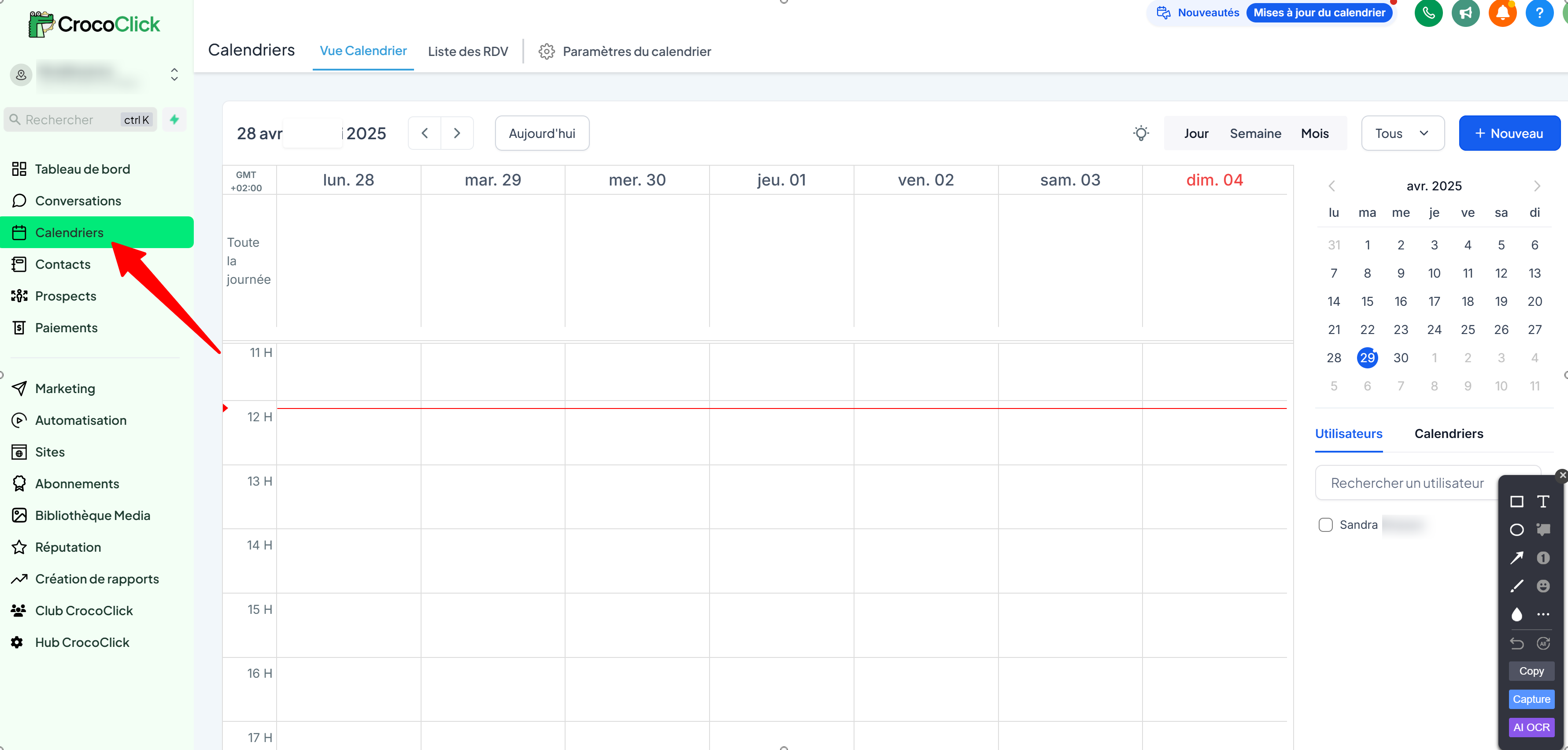
In CrocoClick, go to the Calendar tab in the sidebar
Select your user in the bottom right corner if necessary.
Click on the slot/day you want to change, as if you were manually setting an appointment
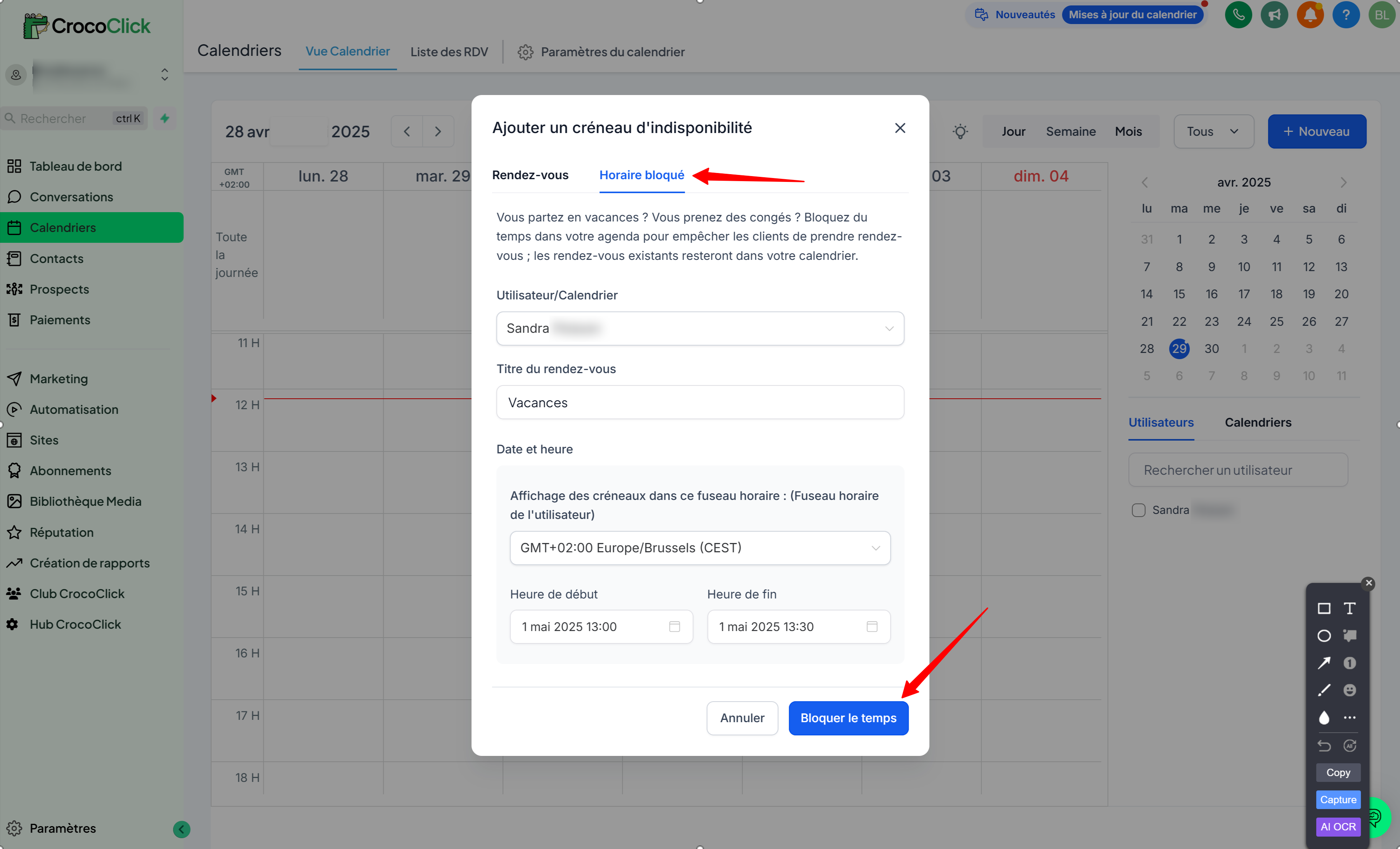
Click on "Blocked Schedule."
Choose to:
Block the entire day or several days in a row
Block only a specific time slot
💡 TIP: This is useful if you don't use an external calendar or if you want complete control from CrocoClick.
3. Change only a specific date in your calendar
Do you have recurring slots for one of your calendars (e.g., 8 a.m. to 6 p.m. Monday through Friday), but want to change a specific day?
No need to redo everything. Simply modify that specific day in your calendar
How to do it:
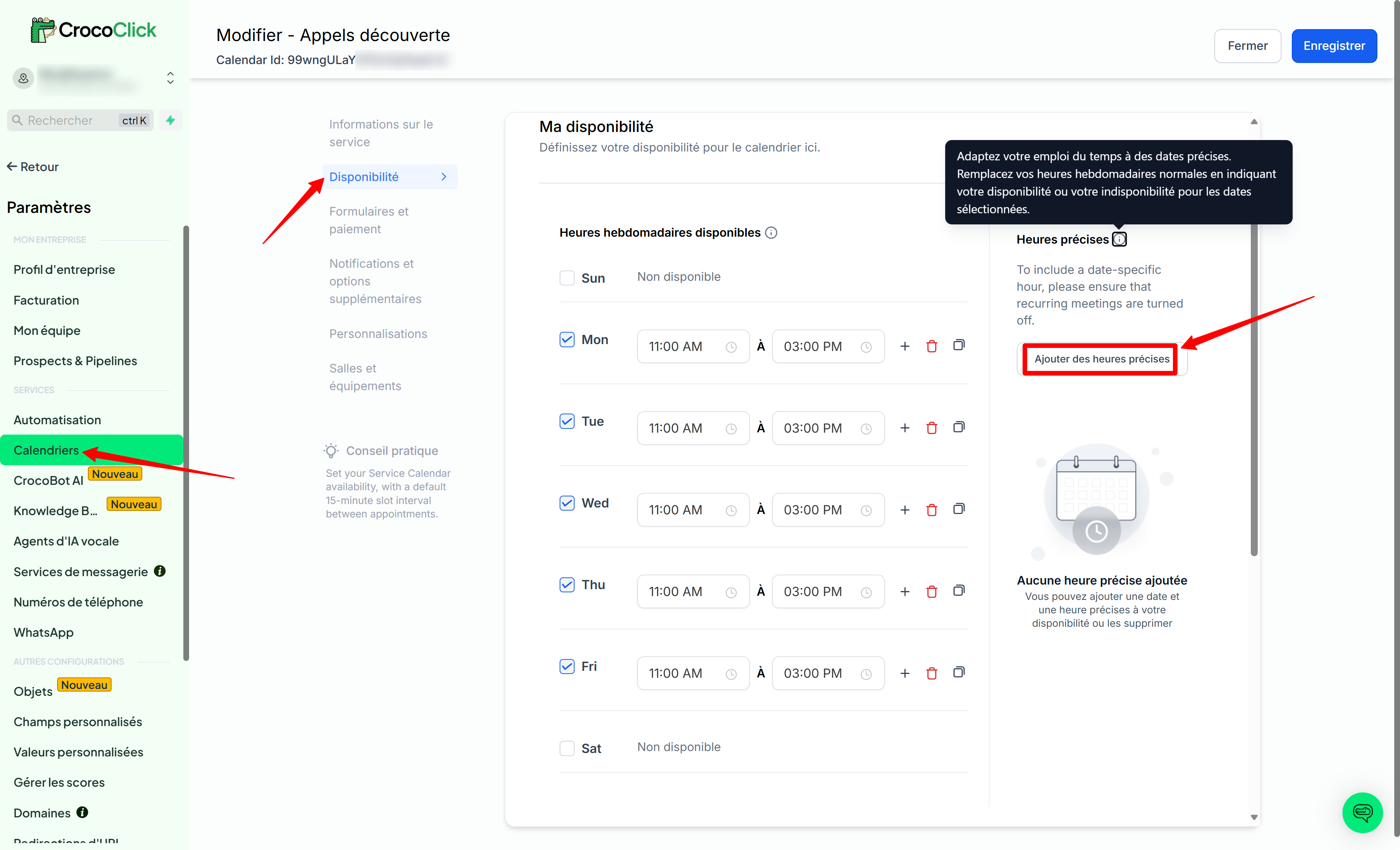
Go to Settings > Calendar and select the calendar you want to modify.
Go to Availability Then find the Specific Times section (right-hand column).
Add a new date (e.g., February 14).
Set the new hours for that day only (e.g., 10 a.m. to 2 p.m. instead of 8 a.m. to 6 p.m.).
Example: You are usually open from 8 a.m. to 6 p.m., but on February 14, you want to be open from 5 p.m. to 8 p.m. → You can do this in 30 seconds without disrupting your entire schedule.
💡 TIP: This change only replaces the selected day(s). Your overall recurrence remains intact.
4. Add an appointment outside of your schedule with a custom date
Want to manually add an appointment outside your usual hours?
This method is almost the same as method #2 (
How to do it:
In CrocoClick, go to the Calendar tab in the sidebar
Select your user in the bottom right corner if necessary.
Click on the slot to manually set an appointment
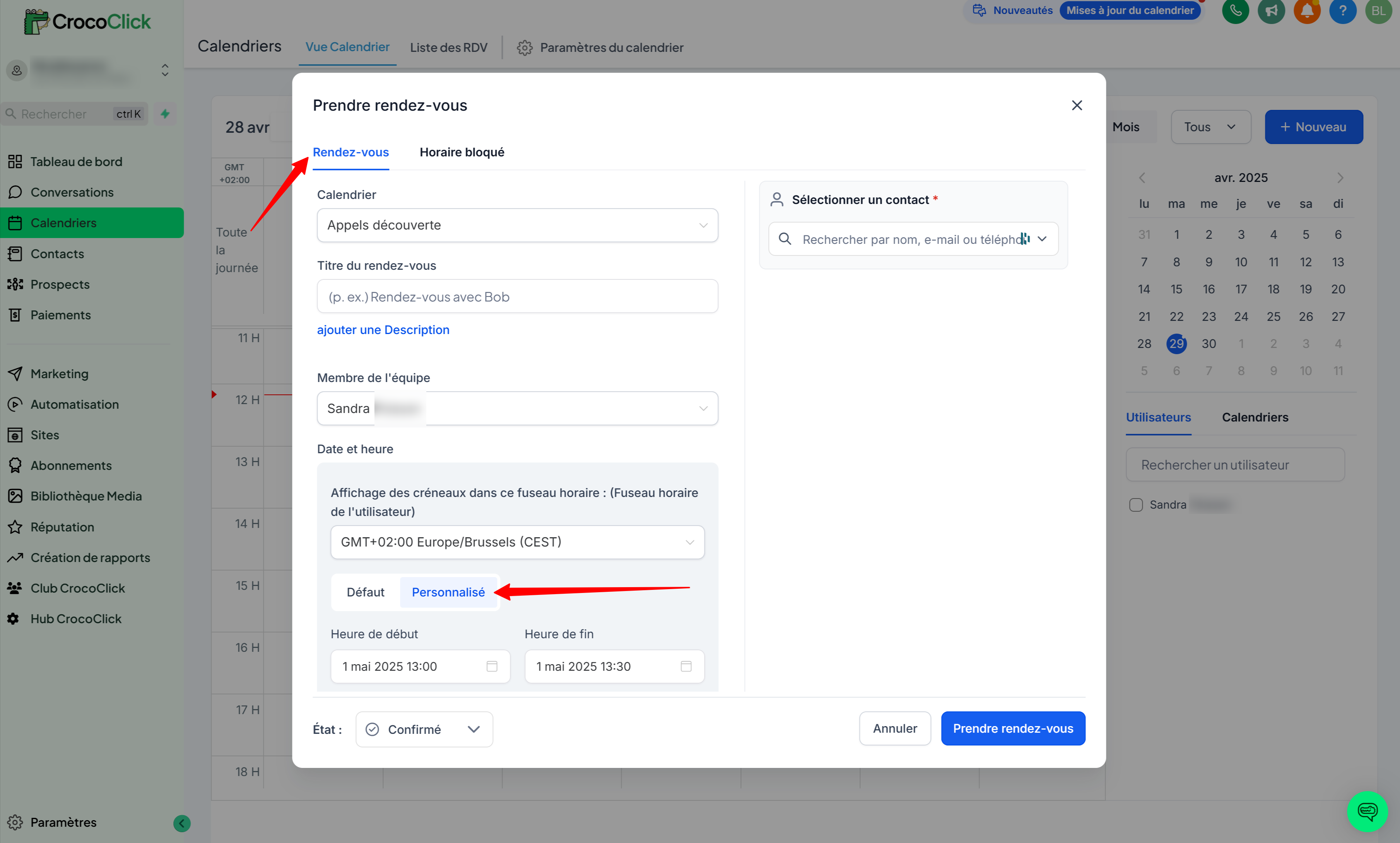
Click on "Appointment."
When you create an appointment from CrocoClick,
Then choose the Custom Slot option
Freely select the time and day, without being limited by the standard slots set by your Calendar.
💡TIP: This is the ideal solution for booking an appointment in a specific slot for a particular customer.
Conclusion:
With CrocoClick, you can easily stay in control of your schedule.
Whether you need to request time off, adjust your schedule for a special date, or add a custom appointment, everything can be done in just a few clicks.
Use the method that best suits your situation and always stay in control, without disrupting your entire system.