Use Theme Customizer 2.0 for your training courses
Customize your training sites with Theme Customizer 2.0: logos, search bar, hero section, and more.
Written By CrocoTeam
Last updated 7 months ago
CrocoClick's Theme Customizer 2.0 allows you to easily customize the appearance of your training sites, without requiring any coding skills. Thanks to an intuitive drag-and-drop interface, you can adapt all key elements—logos, search bars, hero sections, syllabi, and sidebars—to offer your learners a unique visual experience that is consistent with your brand.
Access the Theme Customizer
Select the training course you want to modify.
Click on the Customize option.
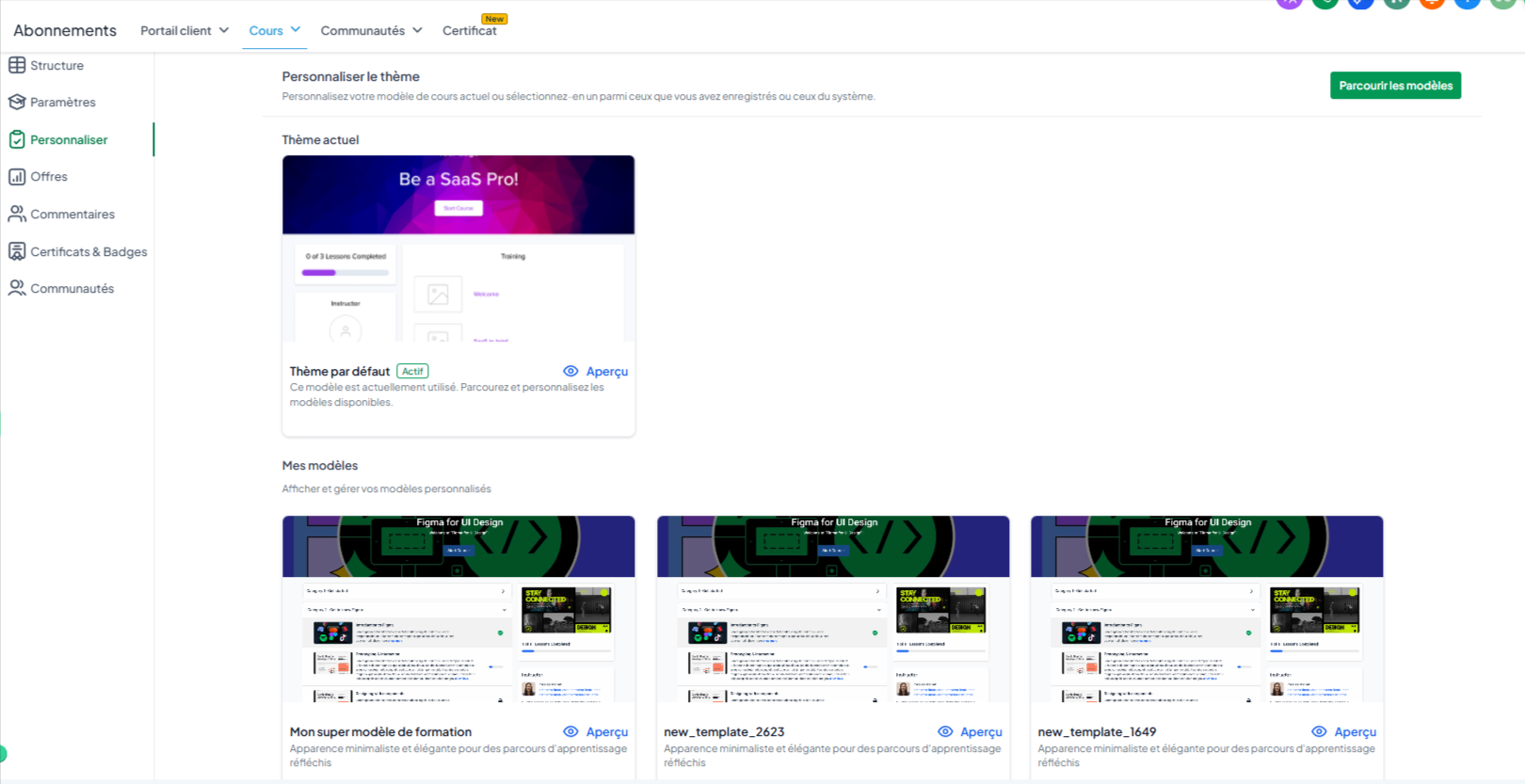
Click Browse CrocoClick Templates
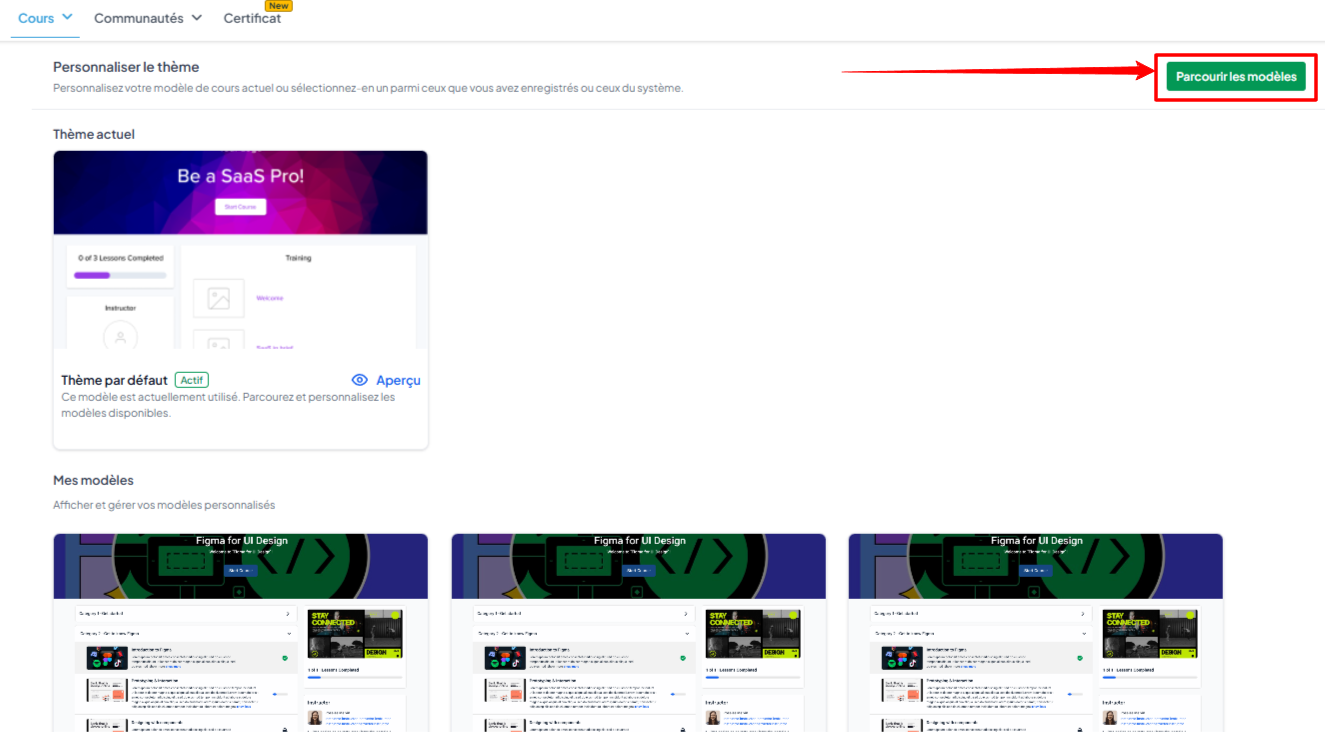
Select the "Neo Classic" theme and click on "create a template" to create your template
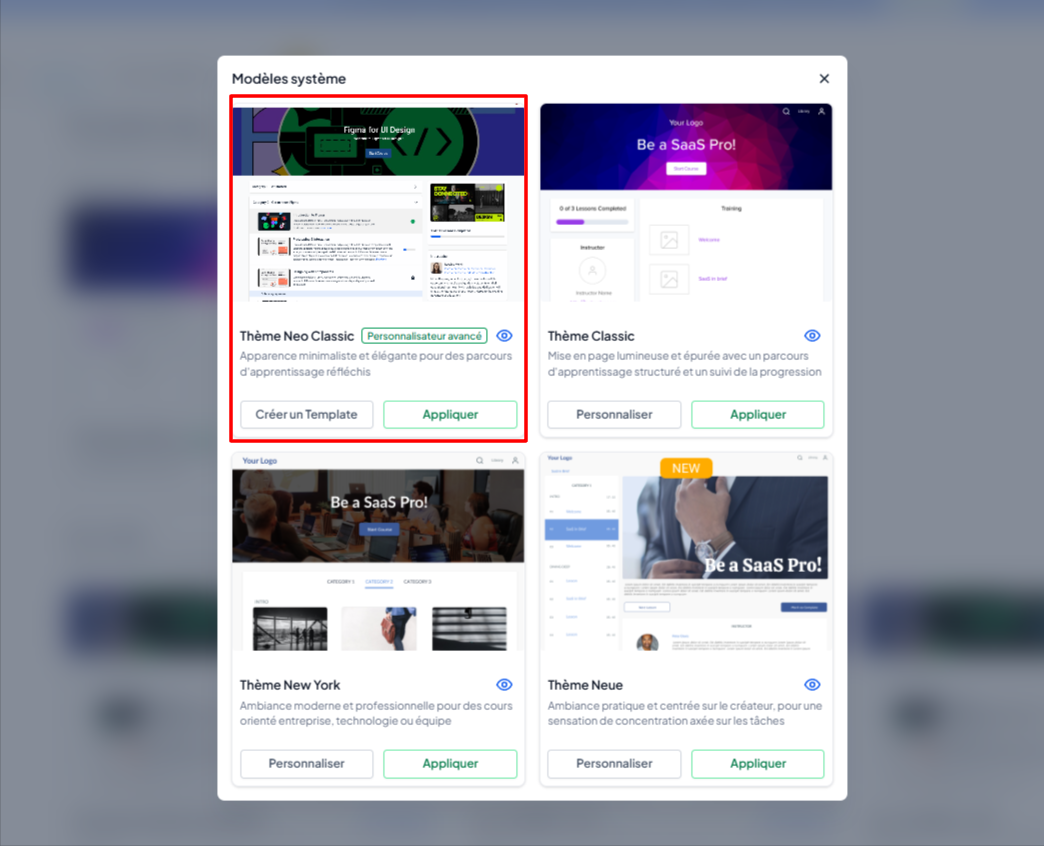
Customize your template according to your needs and rename it.
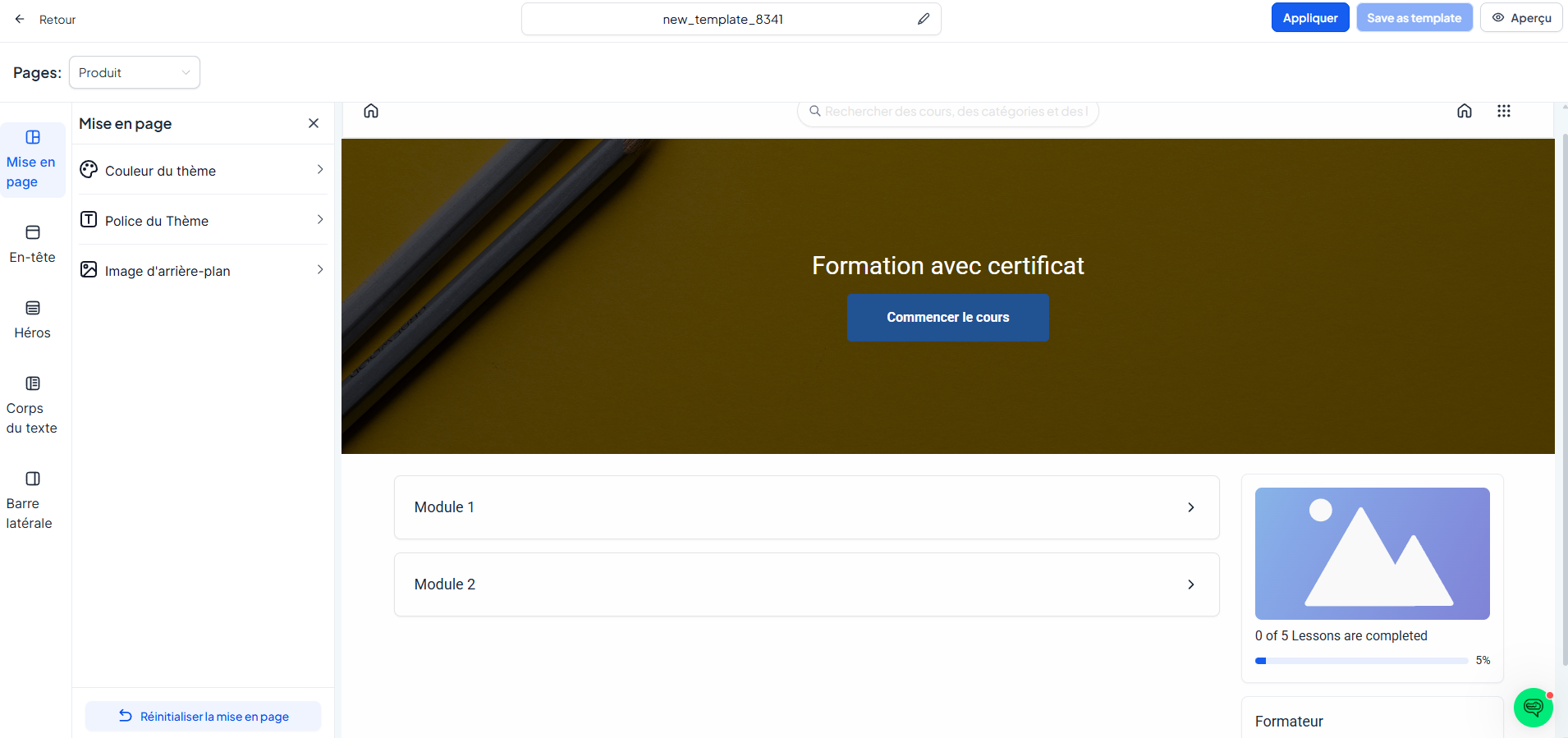
Find your customized templates under the My Templates option in the theme customizer.
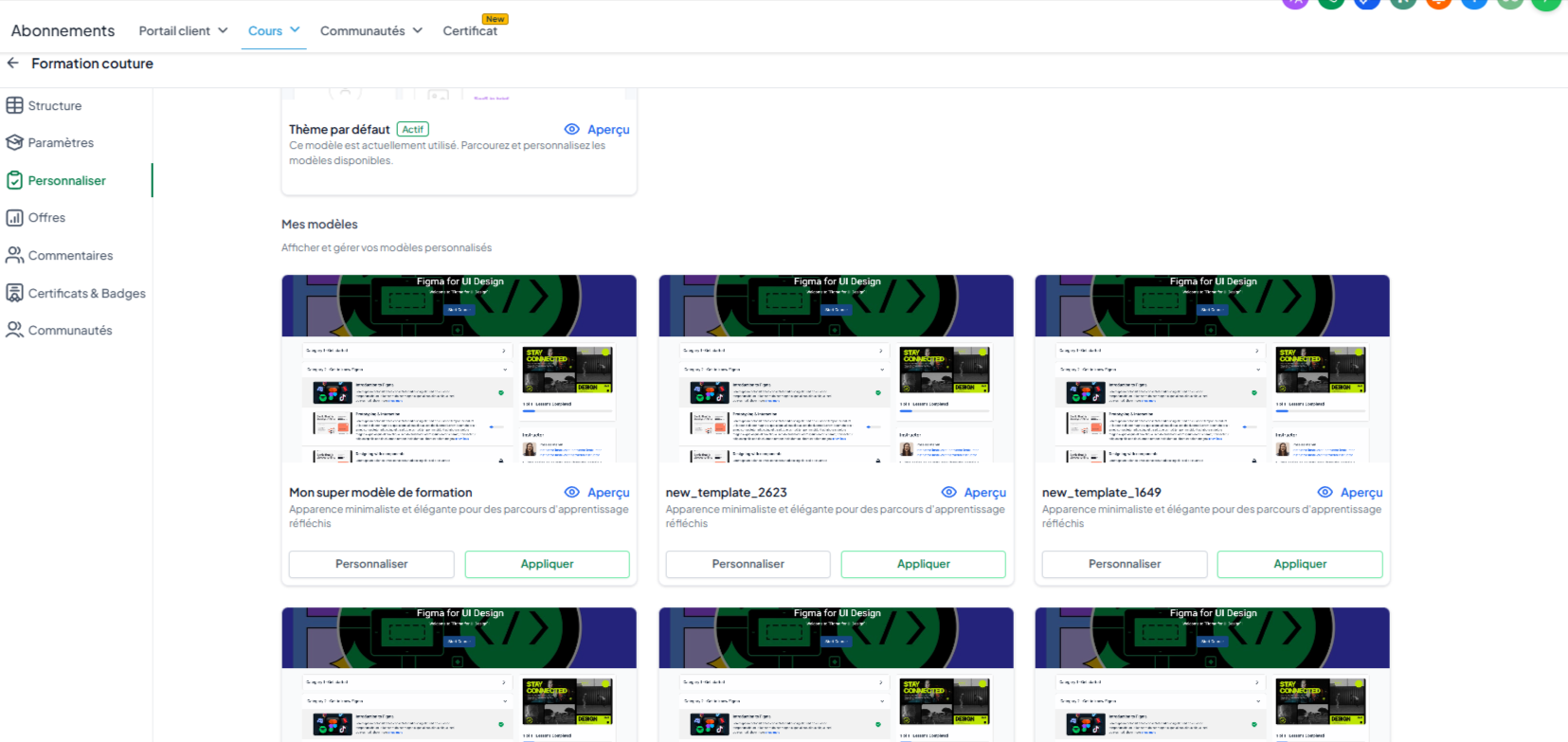
💡TIP: You can create as many theme templates as you want according to your needs and tastes.
Features and customization options
1. Logo
Visibility: Show or hide the logo.
Type: Choose between a text or image logo.
Action: Set the action when clicked (redirect to the site or product home page).
Size and placement: Options for small or medium size, usually placed at the top left or center of the header.
2. Search bar
Visibility: Enable or disable the display of the search bar.
Help text: Add a message to guide the user in their search.
Appearance: Customize the background and text color.
3. Hero Section
Visibility: Enable or disable the hero section.
Appearance: Choose between an image background or a solid color using the selector.
Overlay: Enable the overlay option and adjust the color and opacity.
Course information: Change the title and description (fonts, colors, alignment) and adjust the spacing options (full height, medium, small).
Start button: Customize the text, color, and alignment of the button.
4. Welcome body
Add content blocks (images, text, videos, CTAs) to enhance the learner welcome page.
Customize each block (alignment, colors, click actions).
5. Training syllabus
Visibility: Show or hide the training syllabus.
Syllabus type: Organize by category or display as a list of posts.
Customization: Modify labels to suit your content.
6. Training sidebar
Progress bar: Show or hide, with color and custom text options.
Instructor section: Show or hide the instructor's photo, name, title, and biography.
Cross-Sell Section: Promote a complementary offer by integrating a custom CTA.
Custom blocks: Add blocks (text, image, CTA) to display promotions, announcements, or any other relevant information.
Additional options
Lesson Page: Customize breadcrumb navigation, the lesson player, and the appearance of the lesson body.
Category Page: Customize the sidebar with progress and explanatory text.
Conclusion
CrocoClick's Theme Customizer 2.0 gives you complete flexibility to design training sites that perfectly reflect your brand identity. With its many customization options, you can create an engaging and visually consistent learning experience tailored to your educational and business goals.