Automatic certificate creation when a course or module is 100% complete
Configure and customize certificates of achievement for your CrocoClick training courses, with default and category options.
Written By CrocoTeam
Last updated 7 months ago
Certificate configuration has now been simplified. With the latest update, each new course automatically includes a default certificate of completion, ensuring that learners receive a certificate upon completion of their course. In addition, the new certificate of completion by category feature allows you to award a certificate for completing a specific section of a course.
Key benefits
Automated certificates for courses: Each new course includes a default certificate of completion, eliminating the need for manual configuration.
Flexible certificate management: You can delete or draft default certificates if you don't want to use them.
Seamless integration: Attach default or custom certificates directly in the course builder.
Category recognition: Award certificates for completing an entire category within a training course.
Using default certificates of completion
Accessing default certificates
Log in to your CrocoClick account.
Go to the Subscriptions > Courses > Products section and create a new product.
A default certificate of completion is automatically included in the new training course.
💡 TIP: If you want to modify an existing course that does not include a certificate, click on the "Add a Certificate" button to add one.
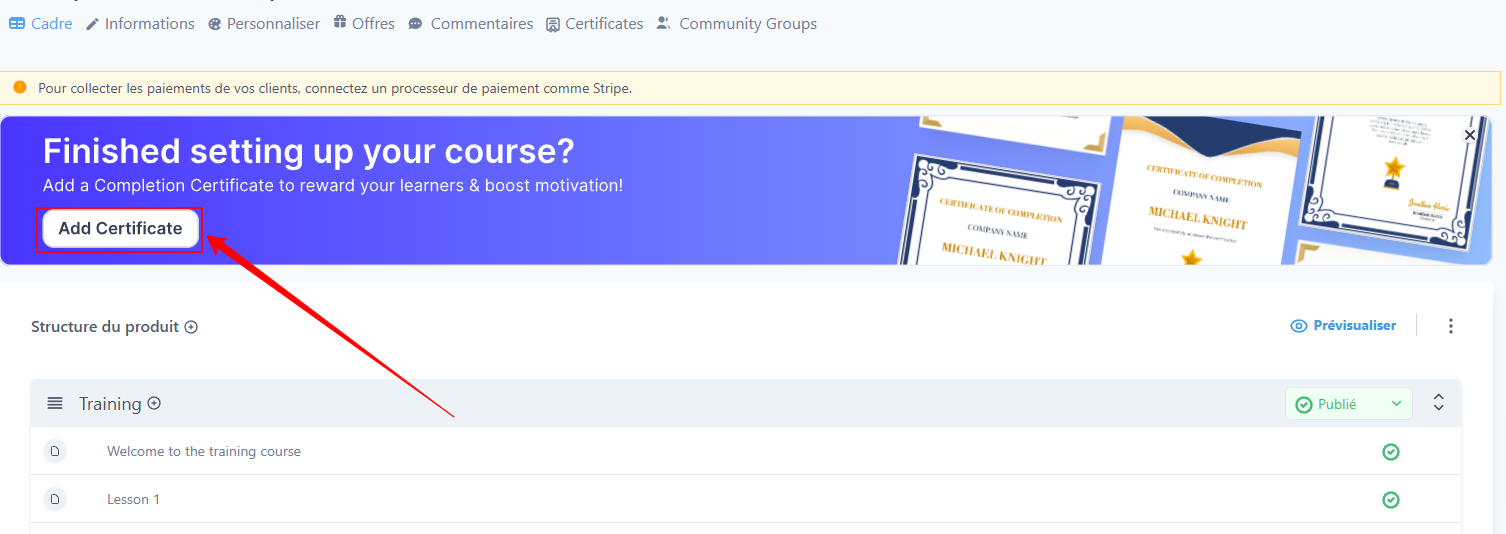
Manage default certificates
Attach a certificate template
Click on the settings icon (three dots) under the Course Certificate of Completion section.
Select Edit Certificate or Choose a Certificate.
Attach the desired certificate template to the course.
Delete or set a default certificate to draft
Click on the settings icon (three dots) and select Delete.
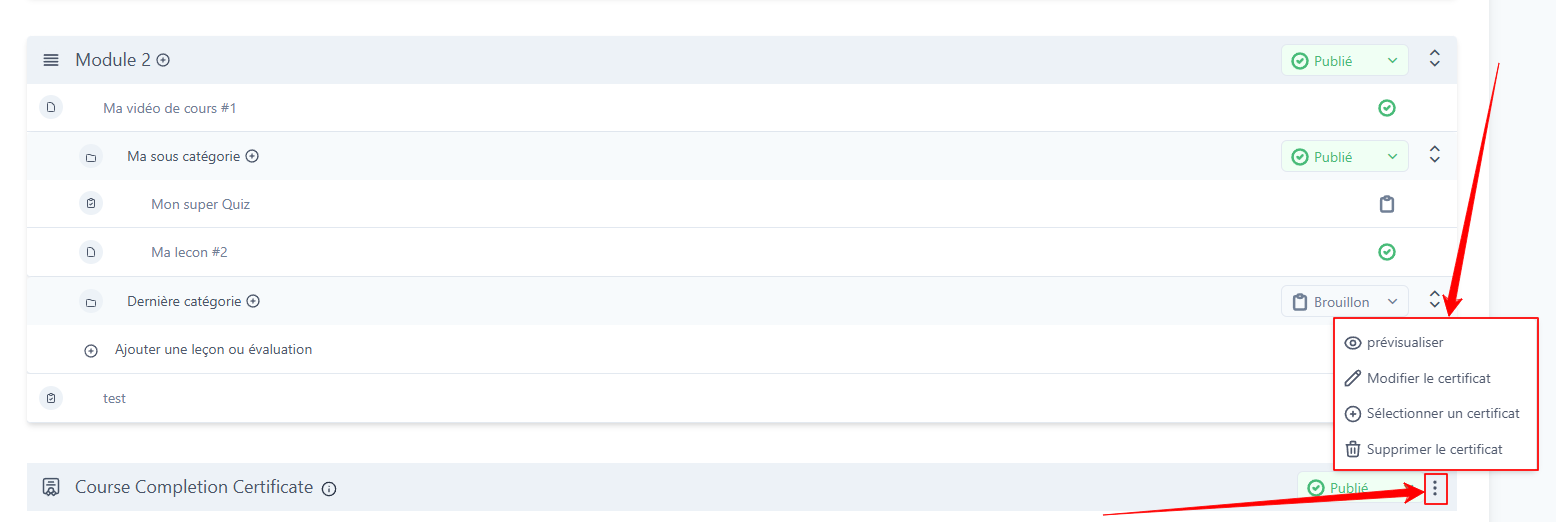
Using certificates of completion by category
Enable certificates by category
Go to a course.
Select the category to which you want to attach a certificate.
Click the plus icon to add a certificate to the category.
How certificates by category work
The certificate of completion by category appears as the last lesson in the category overview.
It is automatically awarded once all required lessons in the category have been completed.
Certificates by category are fixed and always remain at the end of the category.
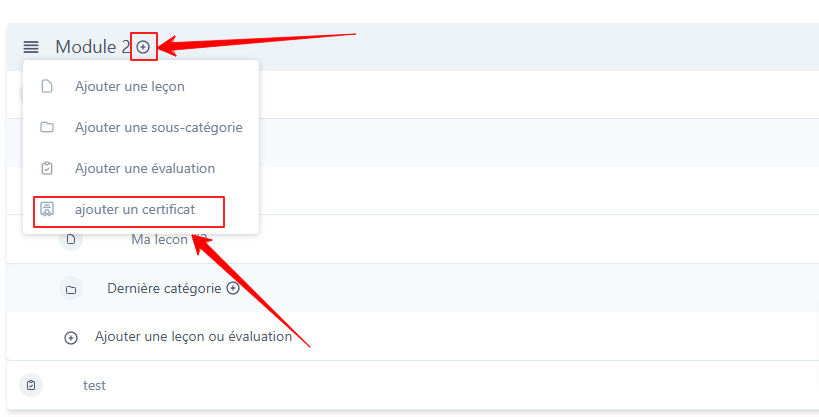
💡 TIP: Certificates are only triggered when the course or section is 100% complete.
Change the default certificate delivery email
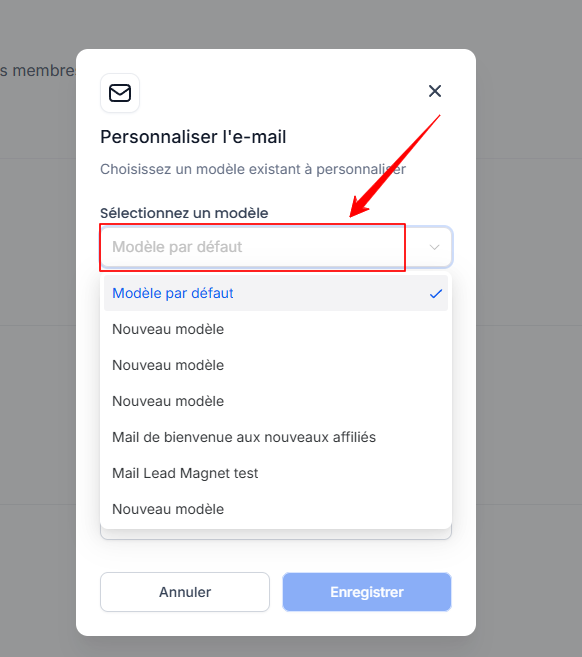
Each time a new certificate is awarded to a learner, they receive an email informing them that they have obtained a certificate, with a link to access it. Here are the steps to customize this email:
Go to Subscriptions > Customer Portal > Settings.
Click on Email Settings.
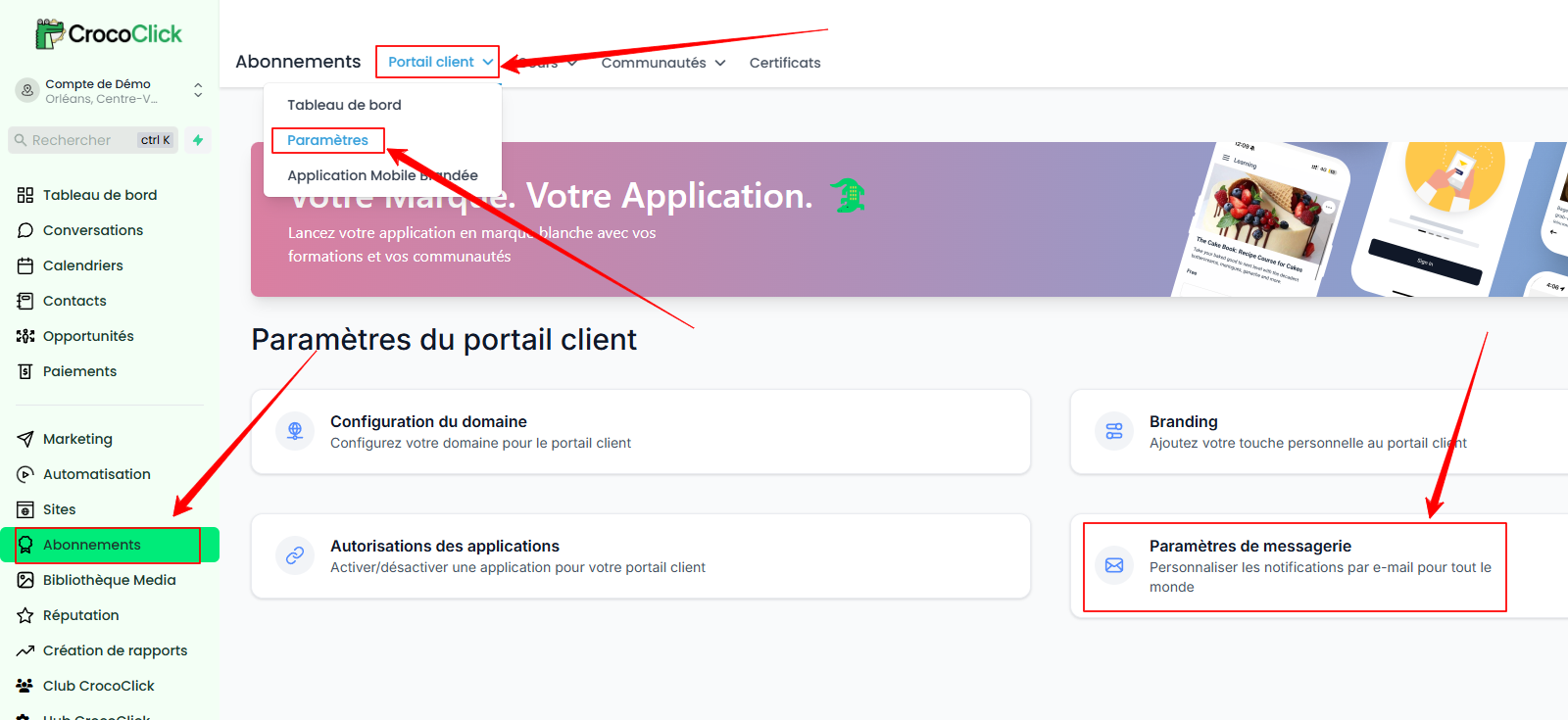
Go to the Certificates section.
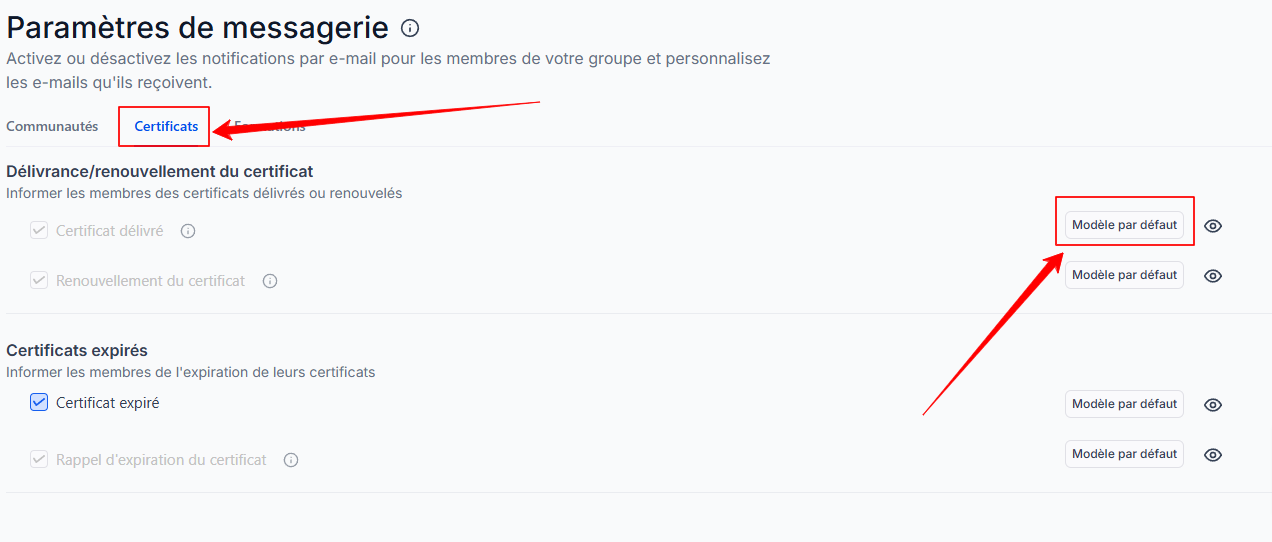
Change the default email linked to certificate delivery.
Conclusion
By following these steps, you can easily manage and customize certificates of achievement in your CrocoClick courses, providing immediate and tailored recognition to learners. For any questions or additional assistance, visit our CrocoClick help center or contact our support team.