Use the Webhook action (outgoing webhook)
Use the Webhook action to automate the sending of data to external software (Zapier or Make) and optimize your CRM workflows.
Written By CrocoTeam
Last updated 7 months ago
The Webhook Action feature allows you to automatically send information (such as form submissions or customer interactions) to external software, such as Zapier, directly from CrocoClick.
This integration makes it easier to synchronize your data with other tools and improves the overall management of your workflow.
Configuring Outgoing Webhooks
1. Create a new automation
Go to the Automation section.
Select an existing flow or create a new one.
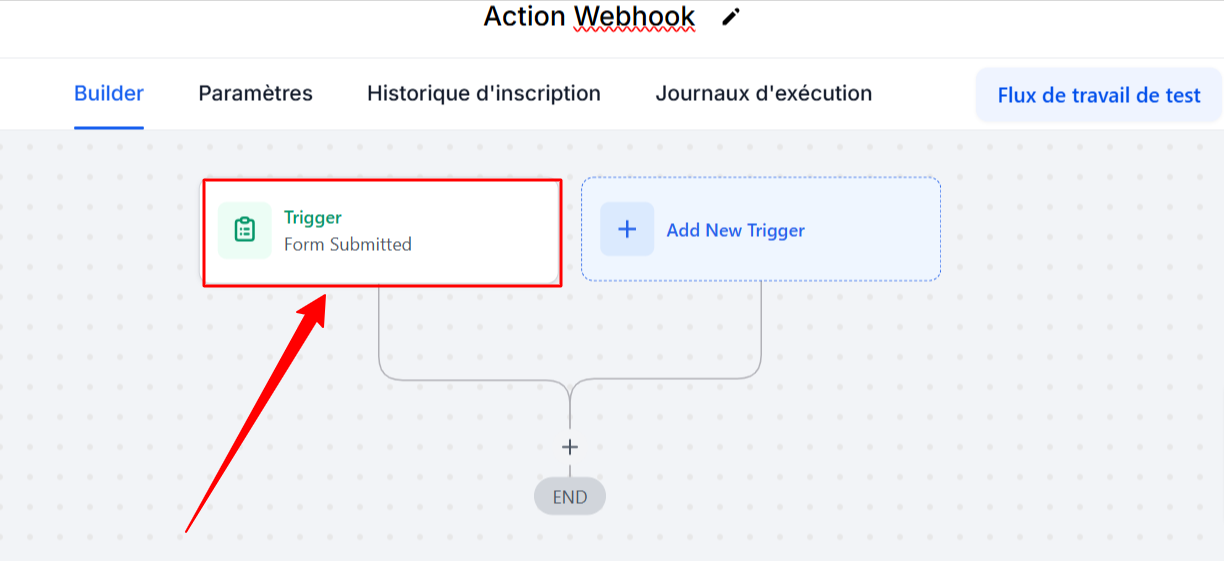
2. Identify the data to export
Determine which events or actions in your automation should trigger the sending of data (this will be the trigger).
For example, this could be an order form submission, the creation of a new contact, or a pipeline update.
3. Add the Webhook Action
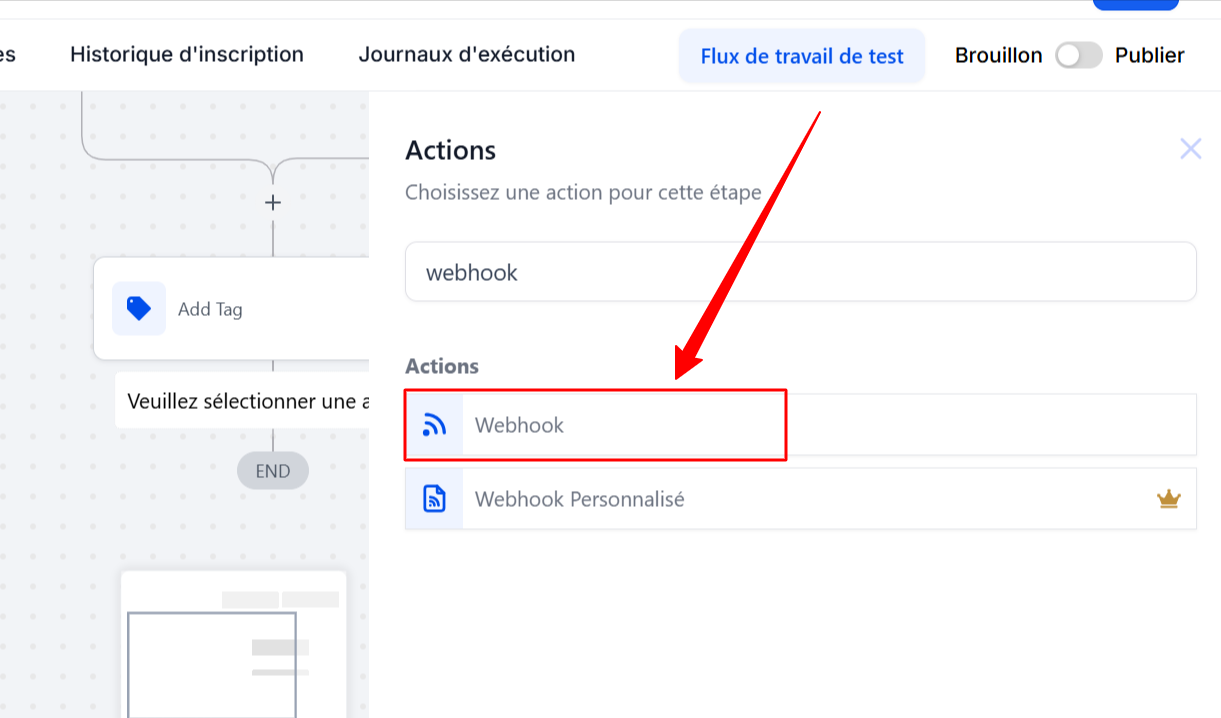
Click on the "+" to add an action to your workflow, then select Webhook as the action type.
4. Configure the Webhook Action
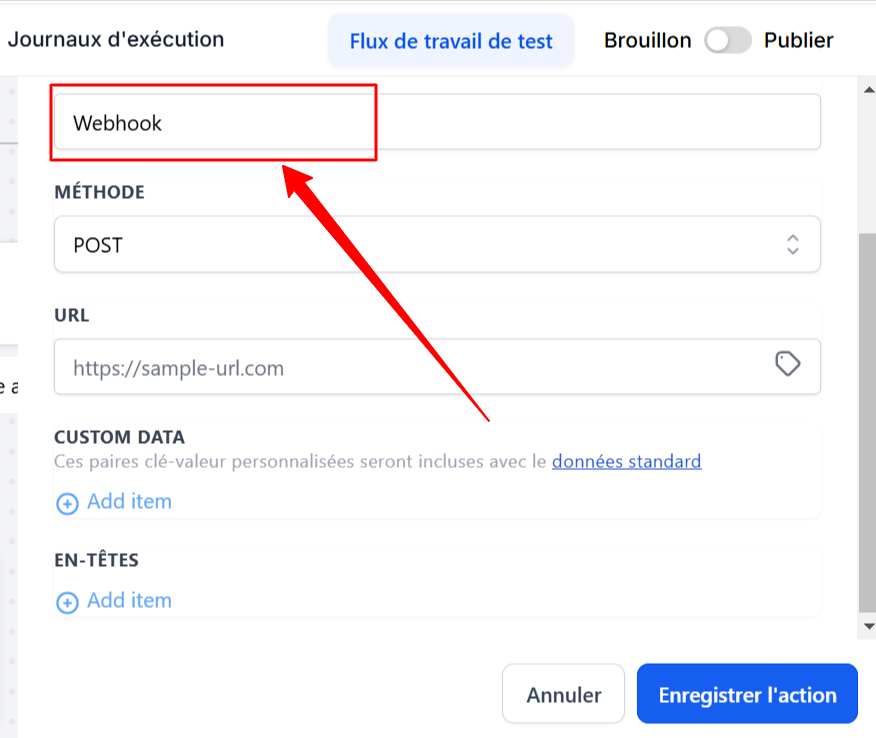
Action name:
Enter a descriptive name that reflects the purpose of this action (optional)
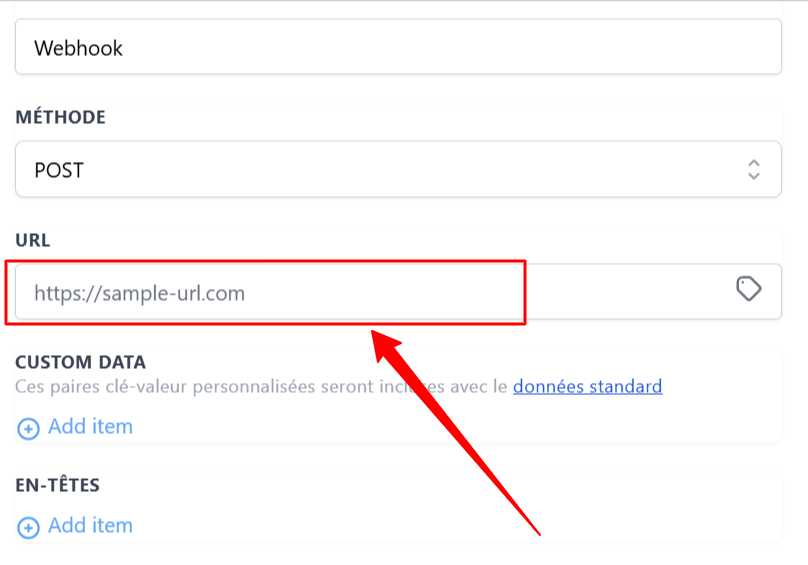
Method:
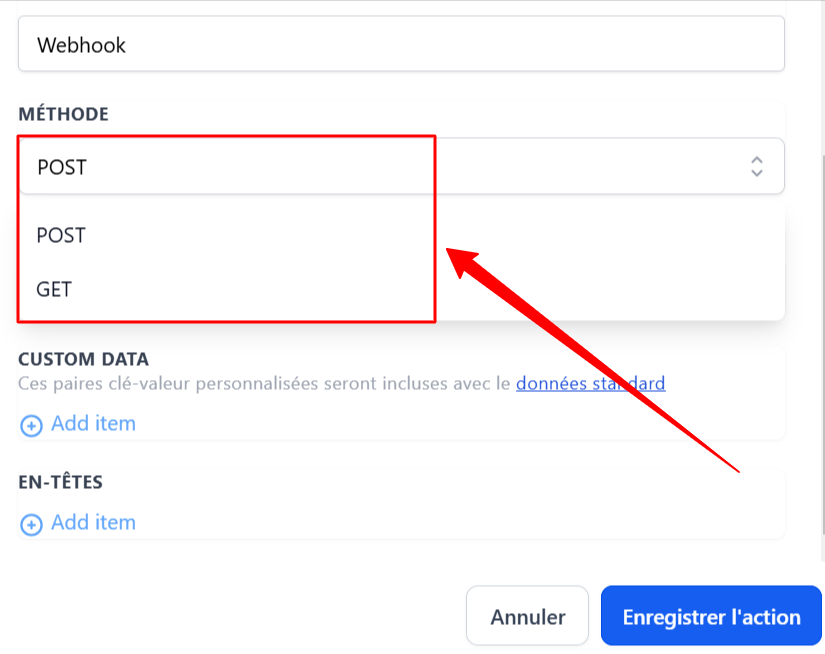
Choose between POST and GET.
The GET method is used to retrieve information.
The POST method is used to send information to another system in order to make a change. This is the method you will use in 90% of cases.
URL:
Enter the URL of the external application's webhook (e.g., Zapier) where the data should be sent.
This URL is provided by the third-party software.
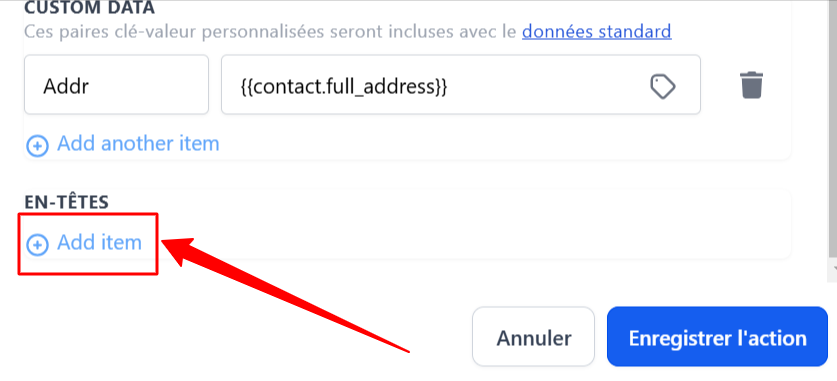
Header (optional):
If the external application requires authentication or specific headers, add them here.
4. Save
Save the action, then save and publish your workflow.
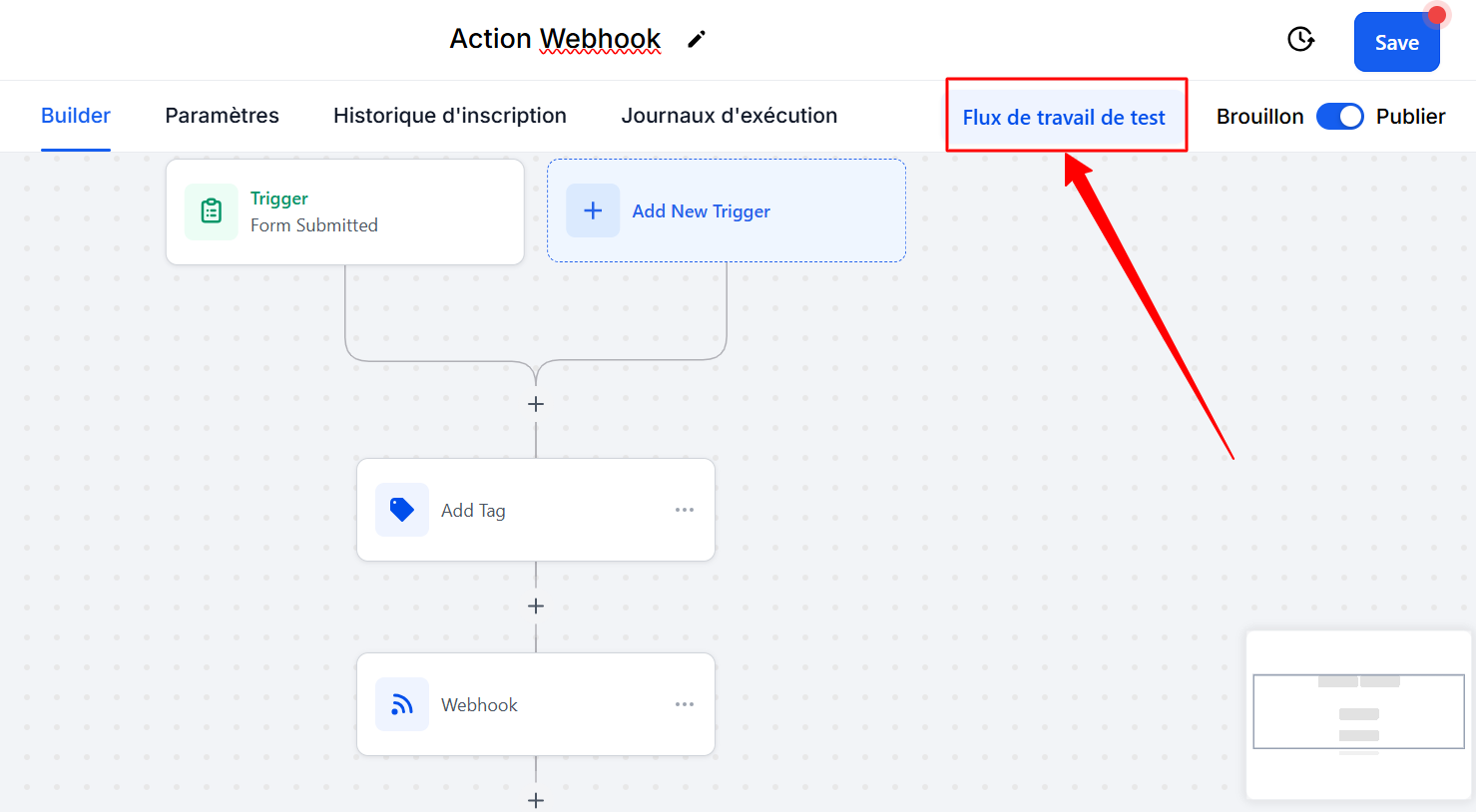
5. Test the Webhook
Perform a test by clicking on "test workflow."
Verify that the data is correctly sent and processed by the external application.
Adjust the configuration if necessary to ensure accurate data transfer.
Practical Example: Exporting Form Submissions
Imagine you have an opt-in page where visitors sign up for a free trial.
You want to automate the creation of accounts for these new registrants on an external dashboard.
Trigger Event: Form submission on the opt-in page.
Data to Export: Contact information (name, email, etc.).
Receiving Application: An external dashboard dedicated to account creation.
Webhook configuration: Configure the Webhook action in CrocoClick to capture the submission data and send it to the dashboard URL. Once the data is received, this triggers the creation of a new account.
Tips and Troubleshooting Advice
Webhook not triggered:
Verify that the trigger event is correctly defined and that the webhook URL is accurate. Test with different scenarios to isolate the problem.Data not received:
Check the receiving application for any processing errors. Ensure that the format of the data sent matches what is expected by the application.
Conclusion
Webhook actions offer a seamless way to send information to external software (such as Zapier or make) from CrocoClick, automate your tasks, and improve data accuracy in your CRM. This feature saves you time and optimizes the efficiency of your workflows.