How to import font files into the Media Library
Import font/typography files into CrocoClick to enrich your brand identity.
Written By CrocoTeam
Last updated 6 months ago
Your brand identity is essential for making a lasting impression on your future customers. Visual consistency depends in large part on your choice of fonts.
By default, CrocoClick gives you access to all Google Fonts. However, you may want to use more "rare" fonts for your projects.
With CrocoClick, it’s possible! By hosting your font files directly in CrocoClick, you avoid future complications by always having access to your files online.
Step 1: Access the Media Library
Log in to your CrocoClick account.
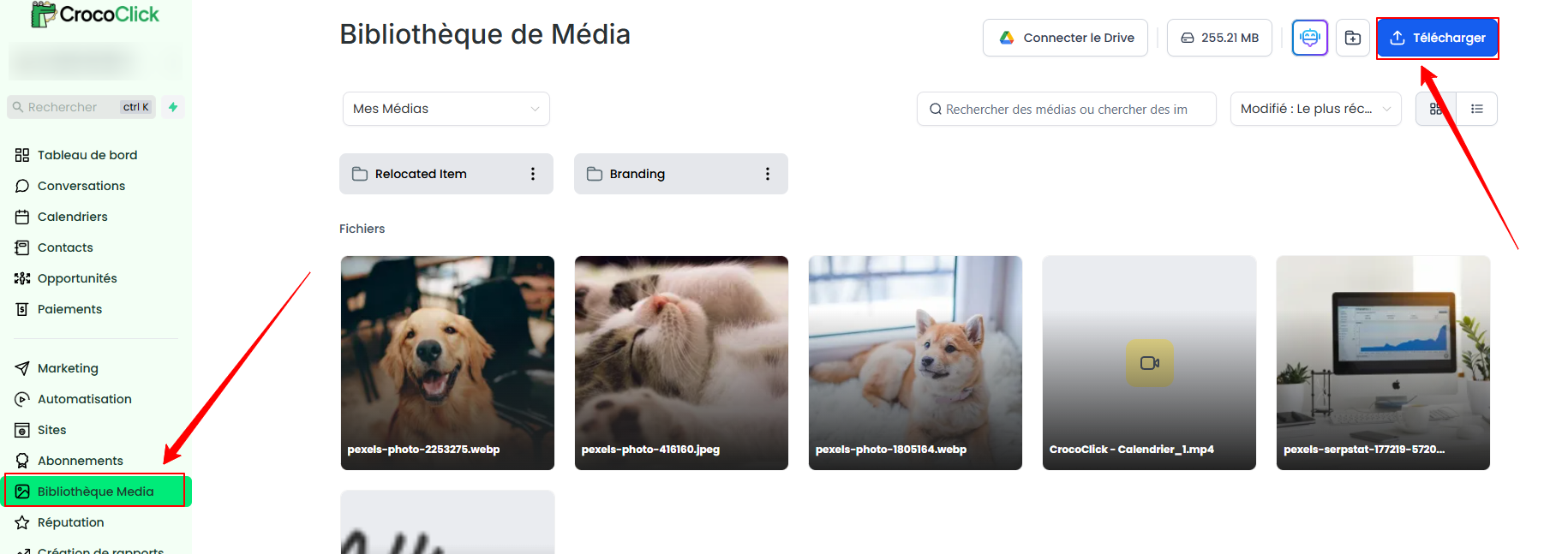
In the menu, go to the Media Library section.
Click Upload to start the upload.
Step 2: Select the font file
Select a font file from your local device.
Supported file types are: .ttf, .otf, .woff, .woff2.
Step 3: Retrieve the link to the uploaded file
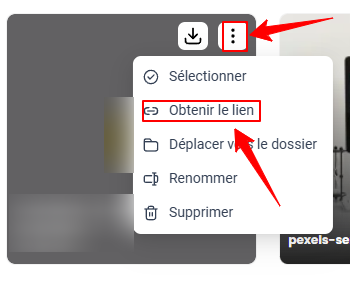
Once your font has been uploaded, hover over it with your cursor.
Click the three-dot icon that appears, then select Get Link to retrieve the file’s URL.
Important
This uploaded file will not automatically appear in the dropdown menus for selecting a font. To use it, you’ll need to add it via custom CSS. If you’re not comfortable with CSS, we recommend consulting a professional to implement it correctly.