Receipt sent automatically
Find out how to activate automatic invoices for order forms, calendars and invoice payments, so you can automatically send an order receipt to your customers
Written By CrocoTeam
Last updated 8 months ago
Automatic receipts simplify the process of sending receipts to customers after a purchase via CrocoClick order forms.
This feature supports various types of transactions: main orders, additional sales (bump and upsell) on 1- or 2-step order forms, subscriptions, payments linked to calendar appointments, and invoice payments.
By automating this process, CrocoClick aims to optimize your workflow and improve your customers' experience.
Automatic Receipt Delivery
Receipts are sent as downloadable PDF files attached to an email sent directly to your customers.
This convenient delivery method allows your customers to easily access their receipts and save them for future reference.
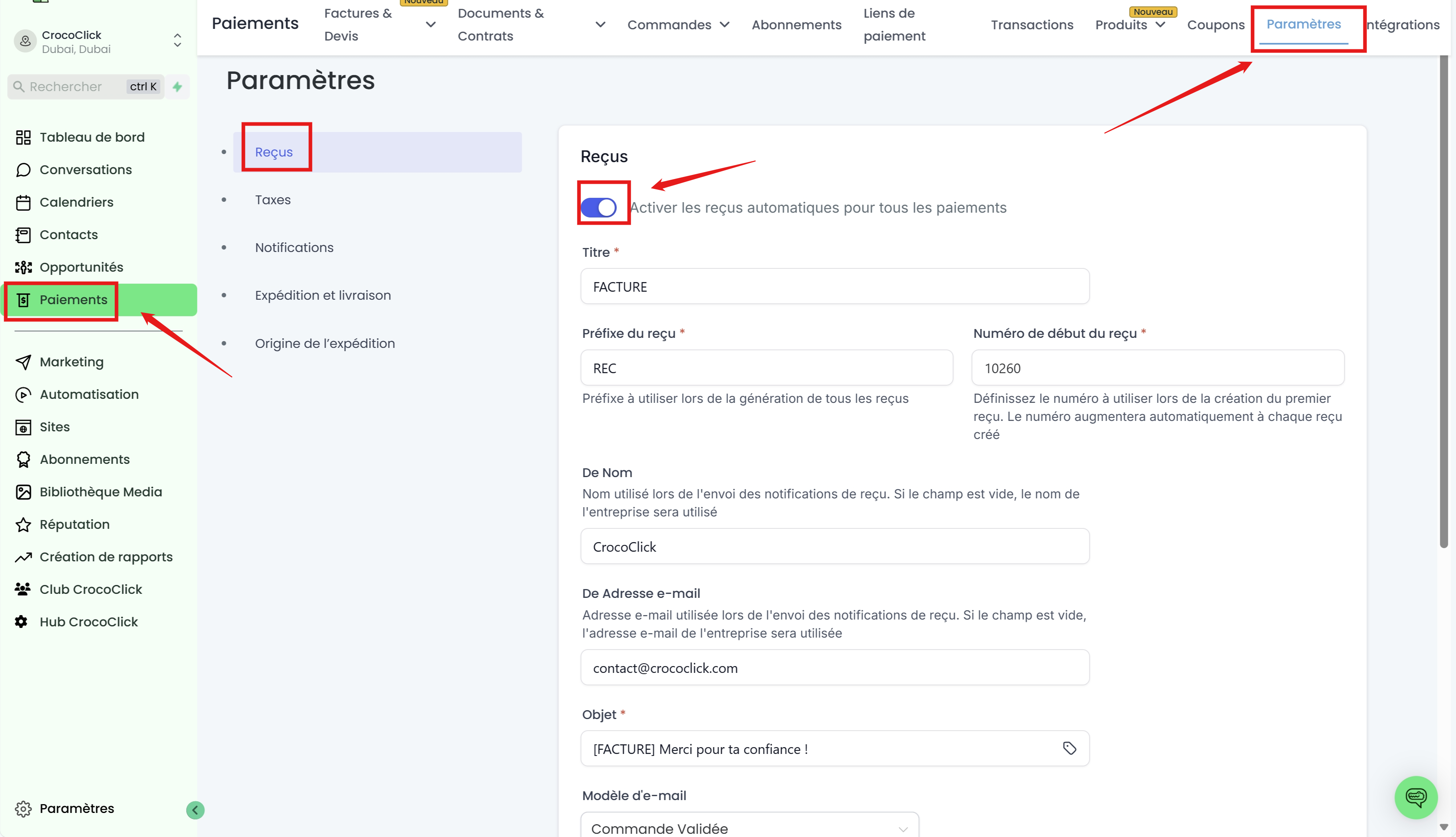
To activate this feature:
Go to the Payments section of your account.
Click Settings in the top menu.
Enable the "Enable automatic receipts for payments" option.
Customizing Your Sales Receipts
To strengthen your brand image, CrocoClick offers several customization options:
Custom title: Add a specific title to your receipts that reflects your brand.
Receipt prefix and numbering: Assign a prefix and starting number to organize your transactions.
Sender name and email: Specify a sender name and email address so that customers can clearly identify the source of the receipt.
Email subject line: Write a personalized subject line to grab attention, using dynamic values if necessary.
Email template: Customize the email containing the receipt to reflect your visual and professional identity.
Notes and conditions: Provide clear information about payment terms, add personalized messages or important reminders.
Using Custom Templates
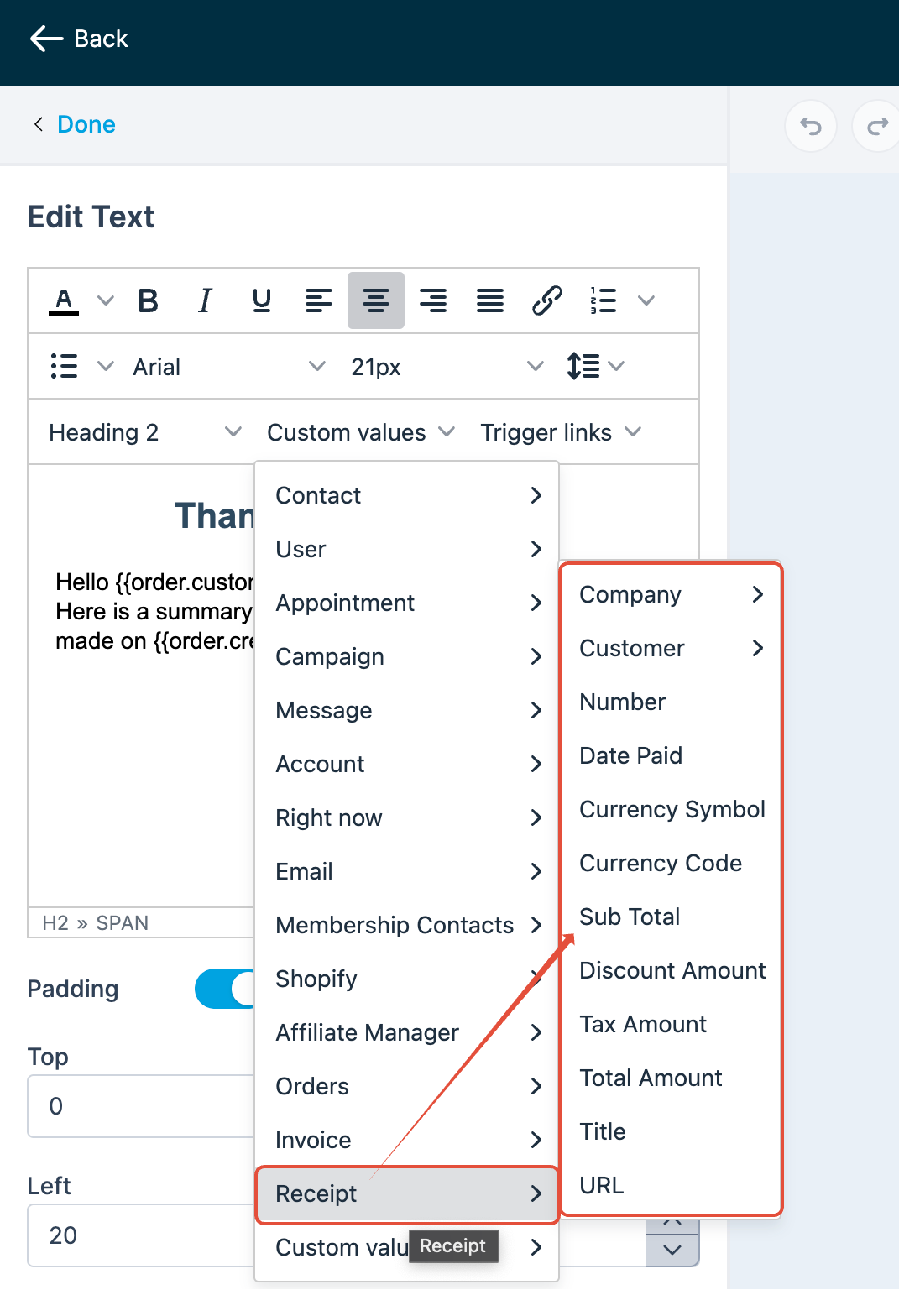
With CrocoClick's email editor, you can create personalized receipt templates tailored to your style. This allows you to design visually appealing email templates that are consistent with your company's image.
The receipt will be automatically added as an attachment to your email. You can still use custom variables related to the "Receipt" to dynamically personalize your email.
Why enable automatic receipts?
By enabling this feature, you simplify transaction confirmation and provide a seamless experience for your customers. The many customization options help you maintain your brand identity while ensuring fast and efficient receipt delivery. This feature is an essential asset for improving customer satisfaction and managing your payments optimally.
Frequently Asked Questions (FAQ)
Q: How do I enable automatic receipts for my business?
Go to the Settings section under the Payments menu, then enable the dedicated option in the Receipts section.
Q: Can I customize the content of receipts?
The content is generated automatically based on the transaction details (including any discounts). However, you can customize the title, numbering, and email template to reflect your style.
Q: Will successful payment notifications still be sent if automatic receipts are enabled?
No, enabling automatic receipts replaces successful payment notifications with the sending of receipt templates. We recommend using receipts to notify successful payments.
Q: Can I change the starting number of receipts after generating a few?
It is possible to increase the starting number, but it cannot be decreased once a receipt has been generated. Each number is unique and cannot be reused.