How to create a calendar with one-off dates (rather than recurring dates)
Create a calendar with specific dates in CrocoClick to schedule one-off appointments or organize webinars.
Written By CrocoTeam
Last updated 7 months ago
Whether you want to organize one-off appointments or plan events such as groupwebinars, or coaching sessions, CrocoClick offers options tailored to your needs. Here is a comprehensive guide to creating a calendar with specific dates.
Why use a calendar with specific dates?
One-off appointments: Ideal for freeing up specific slots, for example, only on Monday, January 20, from 10 a.m. to 2 p.m., without weekly recurrence.
Webinars or online events: Perfect for organizing sessions where several people can book the same slot, such as a class or conference.
Option 1: Schedule one-time appointments
If you want to free up specific time slots for a one-time appointment, here's how to do it:
💡TIP: You can use/create any type of CrocoClick calendar according to your needs (Individual Calendar, Round Robin, etc.).
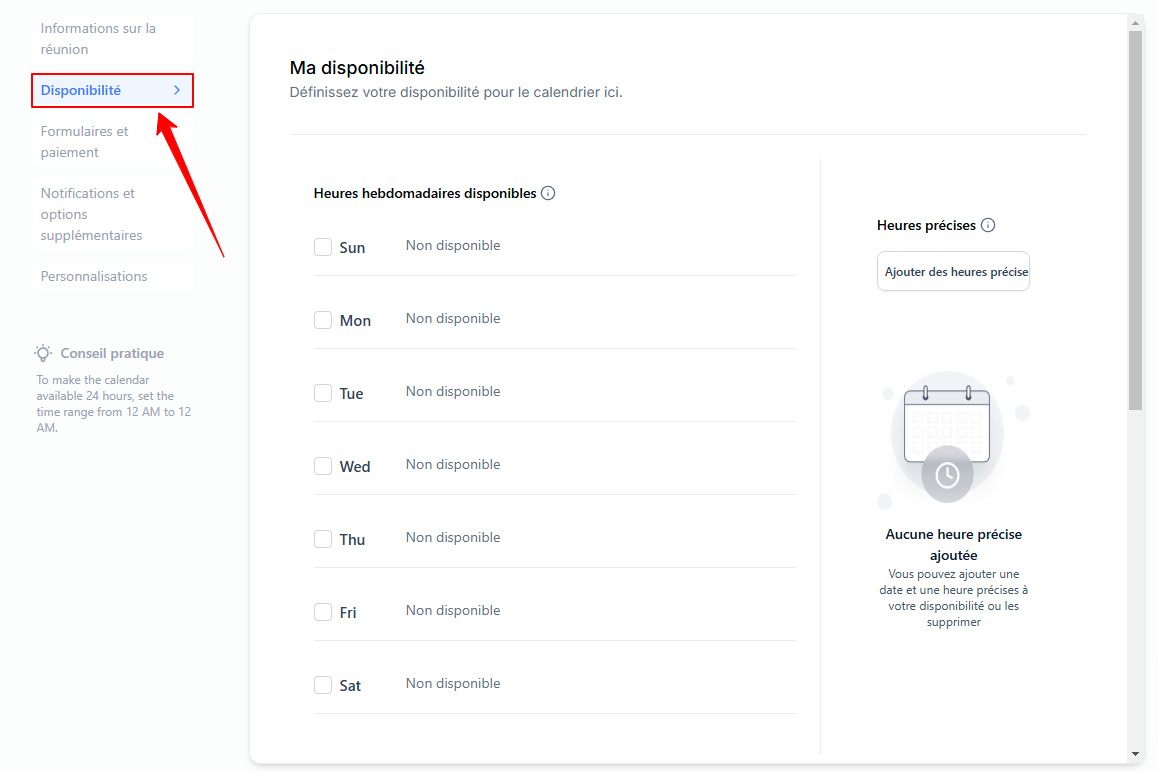
Go to the calendar availability settings.
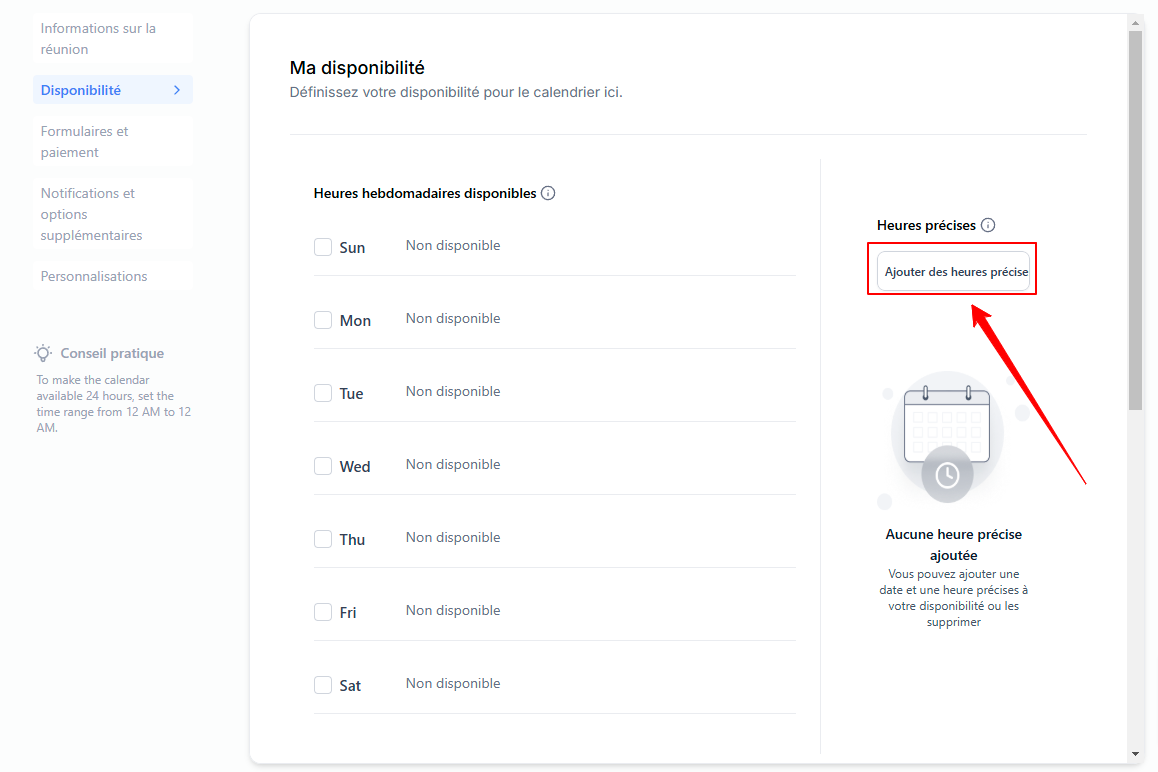
Add a specific date: Click Add specific times on the right.
Select only the desired date and time slot.
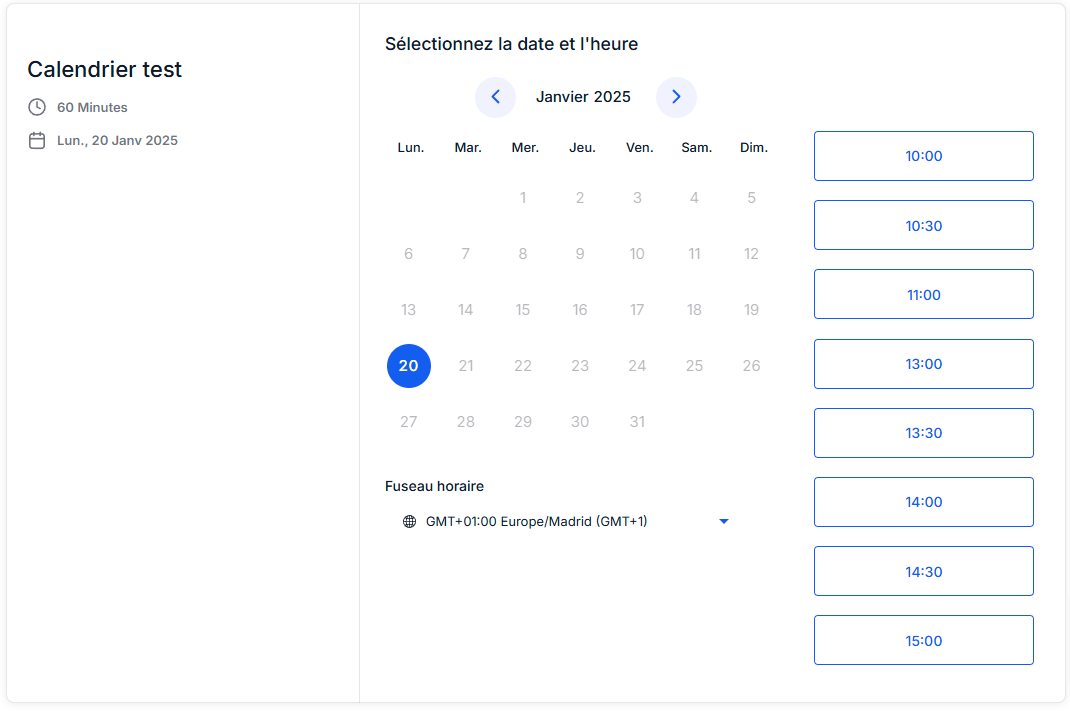
Example: If you want to open a slot only on Monday, January 20 between 10 a.m. and 2 p.m., configure this specific date and time.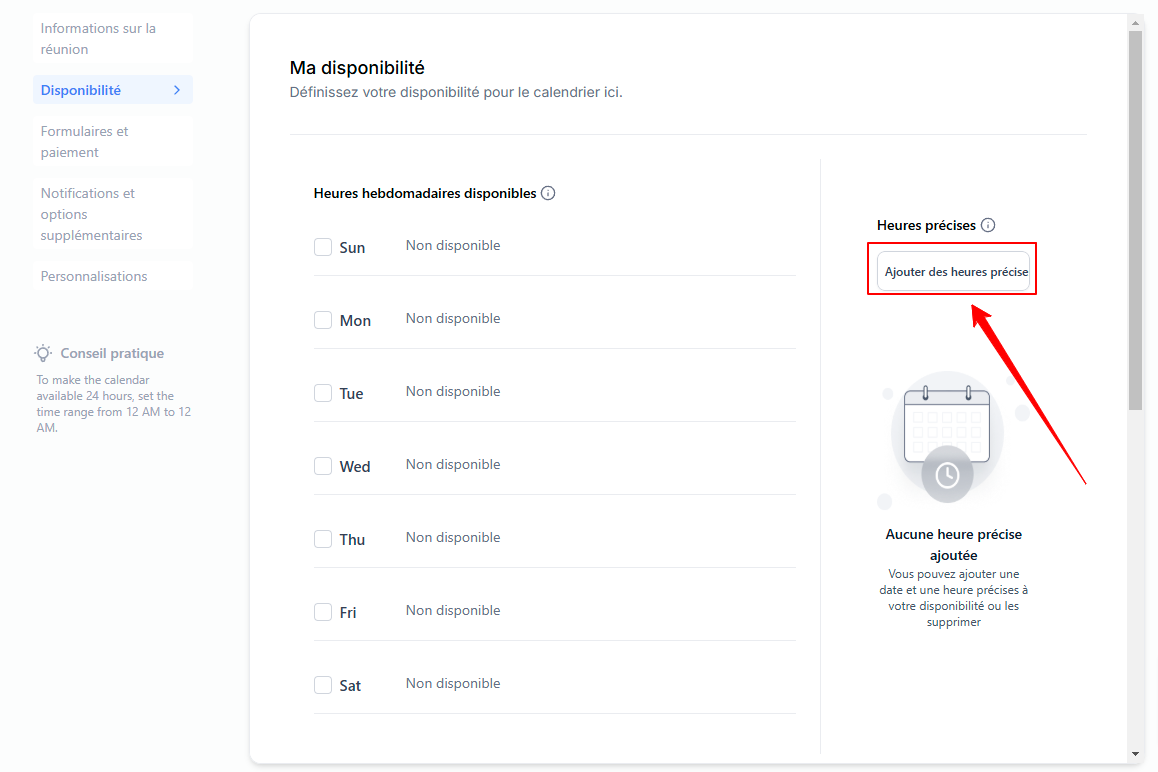
Save and preview: Once you have finished configuring, save your calendar so that it is ready to use, and preview it to check that your settings have been validated.
Option 2: Organize a webinar or conference
To allow multiple people to book the same slot (for example, for a webinar or online group coaching), follow these steps:
Create a "Class Booking" calendar:
Go to the Calendars section.
Click on Create Calendar and select the "Class Booking" type.
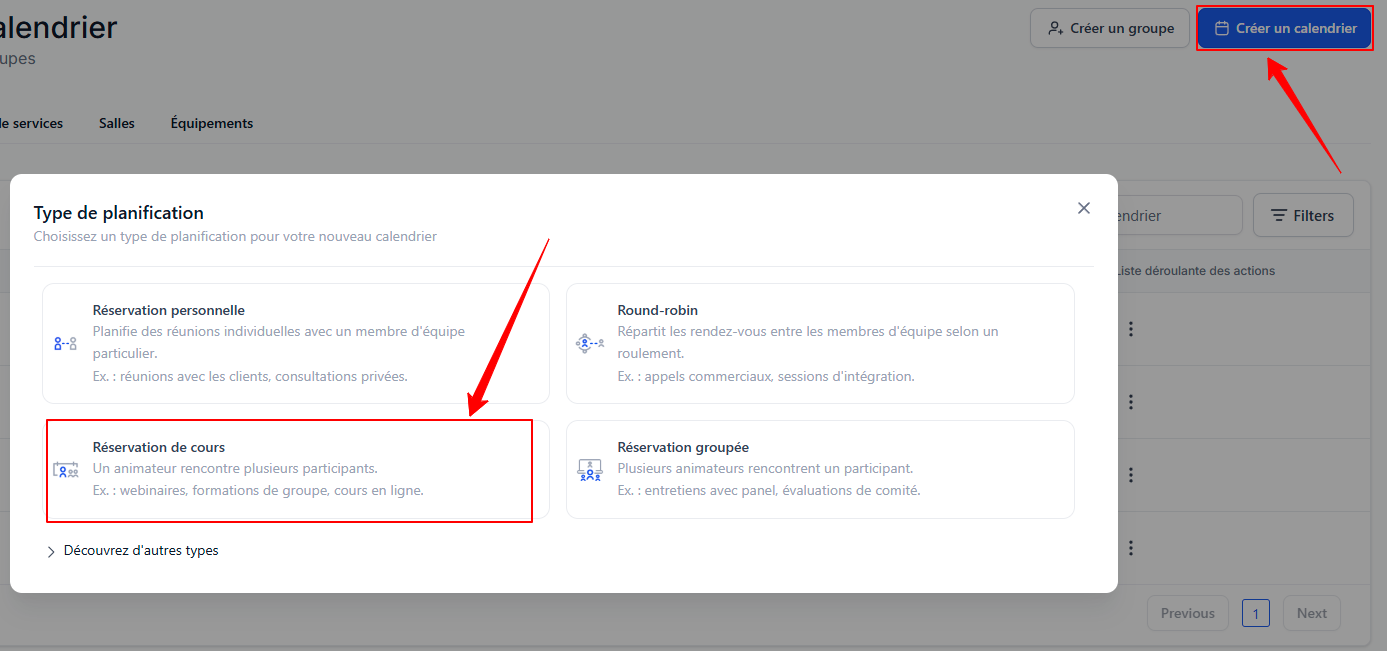
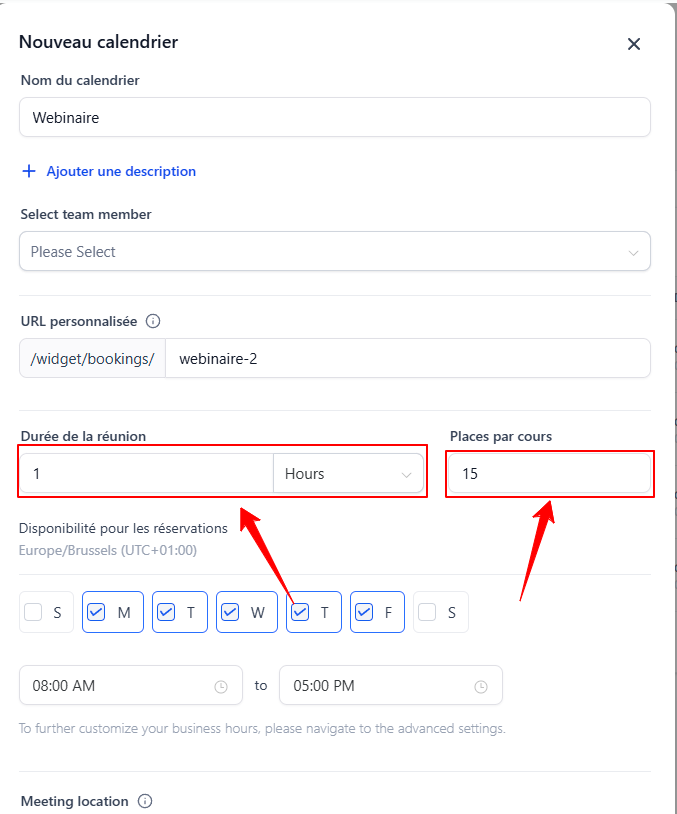
Set up the calendar:
Name your calendar
Set the duration of the meeting and the number of places available for each meeting.
In Meeting location, add the link to the meeting you created earlier (Zoom, Google Meet, etc.).
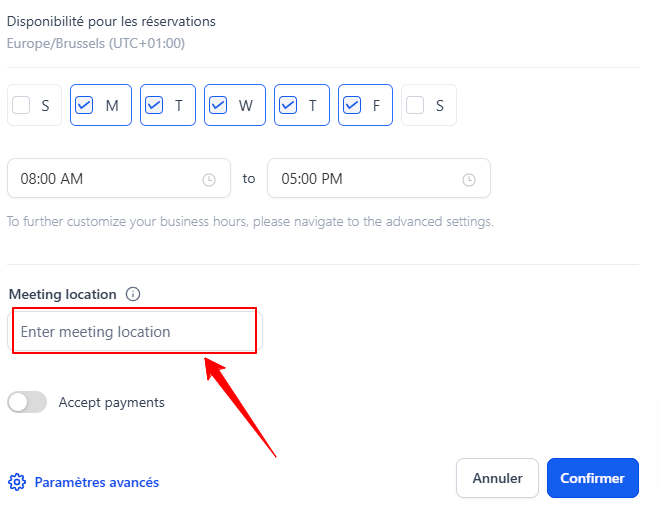
Click Confirm to validate your changes.
Configure availability:
Go to the calendar availability settings.
Add a specific date: Click Add specific times on the right.
Set the specific dates and times for your webinar or conference.
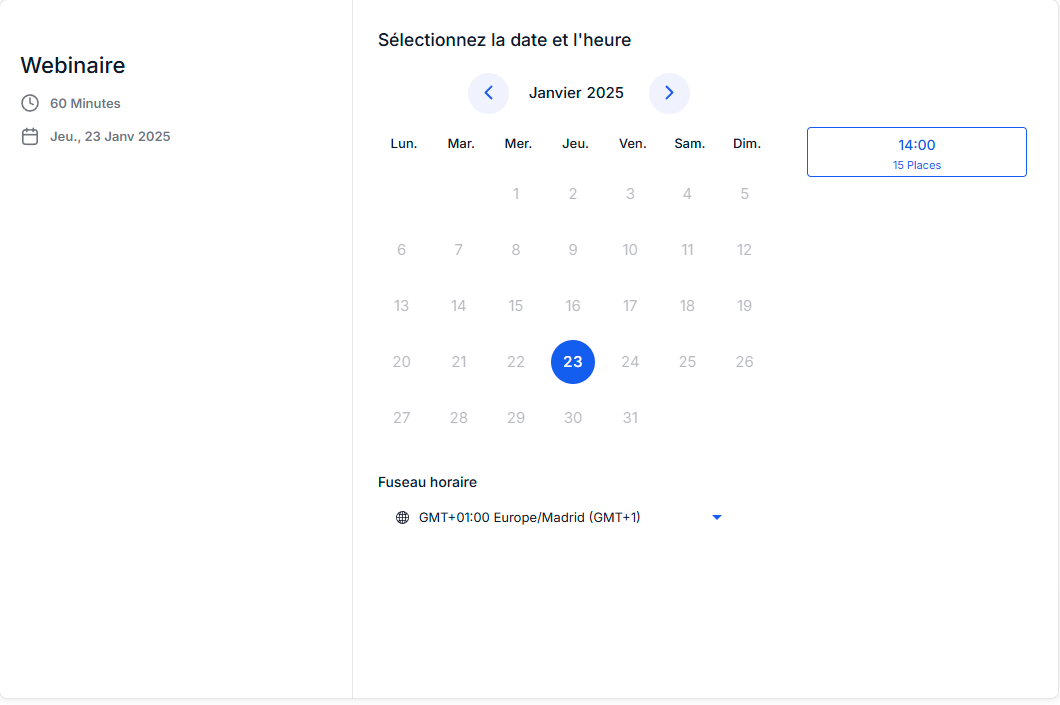
Example: A session on Thursday, January 23, from 2:00 p.m. to 3:00 p.m.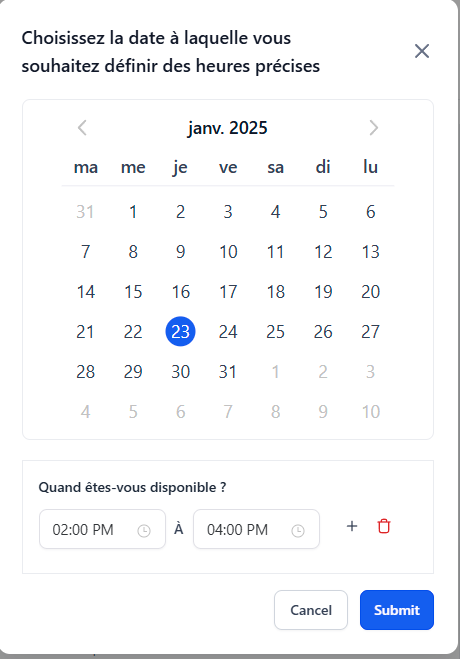
Save and preview: Once you have finished configuring, save your calendar so that it is ready to use, and preview it to check that your settings have been validated.
Conclusion
With these simple steps, you can create a customized calendar for both one-time appointments and group events.
Toavoid double bookings with these specific dates, be sure to synchronize your other calendars.