How to automate affiliate payments with Paypal
Automate your affiliate payments with PayPal. Step-by-step guide to setting up, managing and making payments quickly.
Written By CrocoTeam
Last updated 6 months ago
Automating affiliate payments via PayPal on CrocoClick simplifies commission management and ensures fast, accurate payments. This feature, which leverages PayPal’s Payouts API integration, allows you to pay affiliates directly from the platform. Here’s how to set up and use this option.
Prerequisites
Before you begin, you must have:
An active PayPal Business account.
Your affiliates’ PayPal details (as entered by them in your client portal).
Payments (Payouts) enabled in your PayPal account - Step #1
Step 1: Set up PayPal for automatic payments
Go to the PayPal Developers page
Go to PayPal Developers.
Log in to the dashboard by clicking "Log into dashboard" in the top right corner.
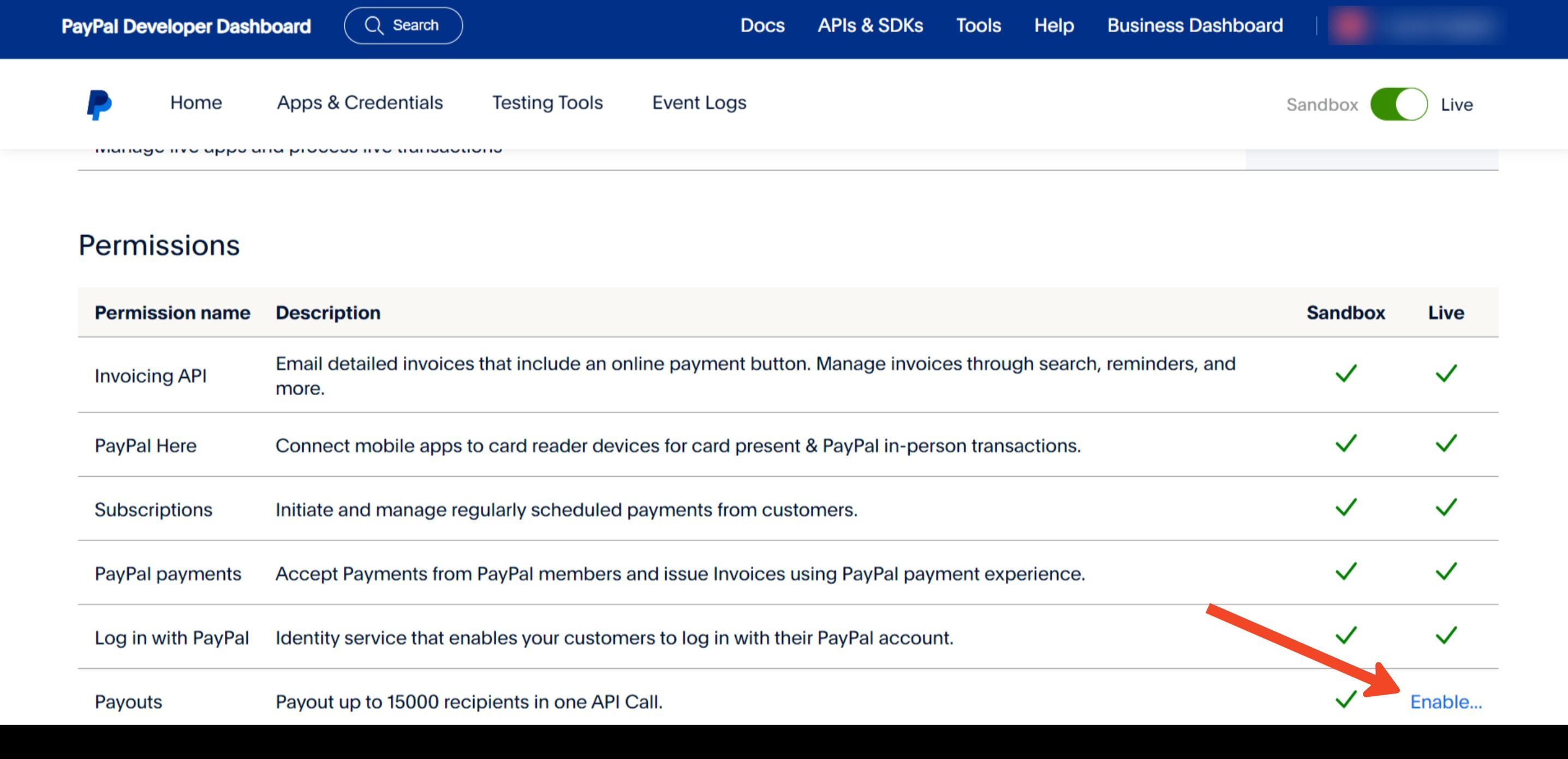
Enable Payouts
In the dashboard, go to My Account.
Scroll down to the permissions table.
Check if the Payouts option is enabled with a ✅ under the Live column. If not, click Enable and follow the instructions.
Create an app in PayPal
Click on Apps and Credentials in the left-hand menu.
Select the Live option and click Create App.
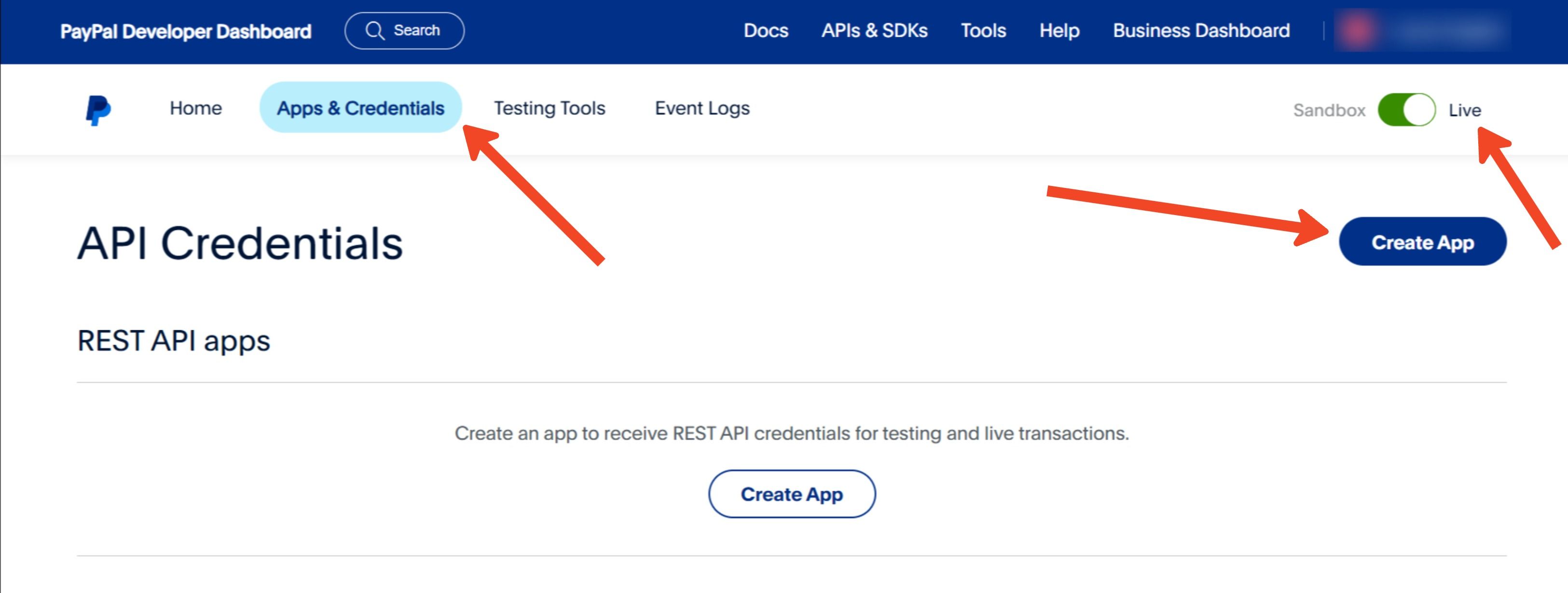
Give the app a name, for example CrocoClick Payments, and click Create App.
If you have already created an app, you can skip this step.
If you see "Live/Sandbox" in the top right corner after creating the app, make sure "Live" is selected.
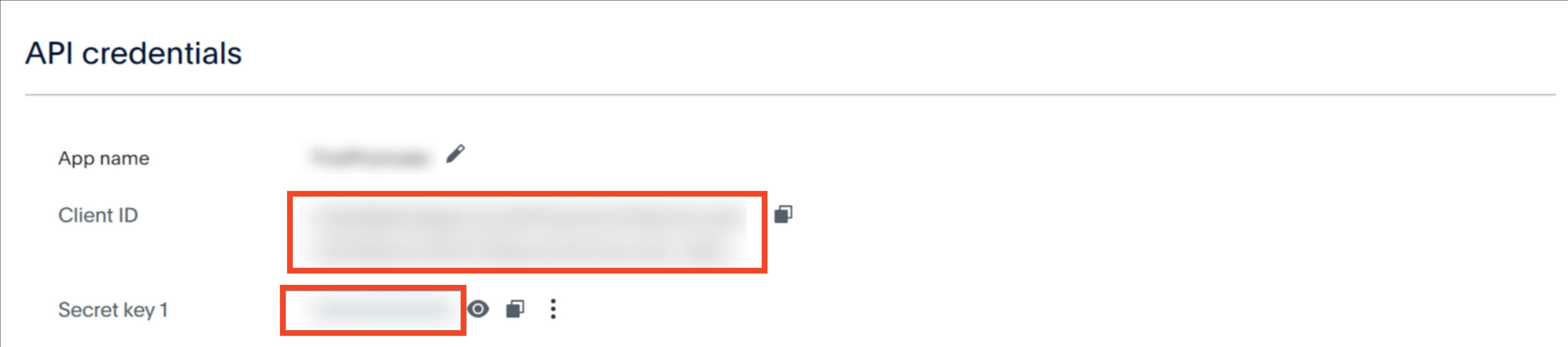
Retrieve the API credentials (Client ID and Secret Key)
After creating the app, you will receive a Client ID and a Secret Key.
You’ll need this information to connect PayPal to CrocoClick.
Connect PayPal to CrocoClick
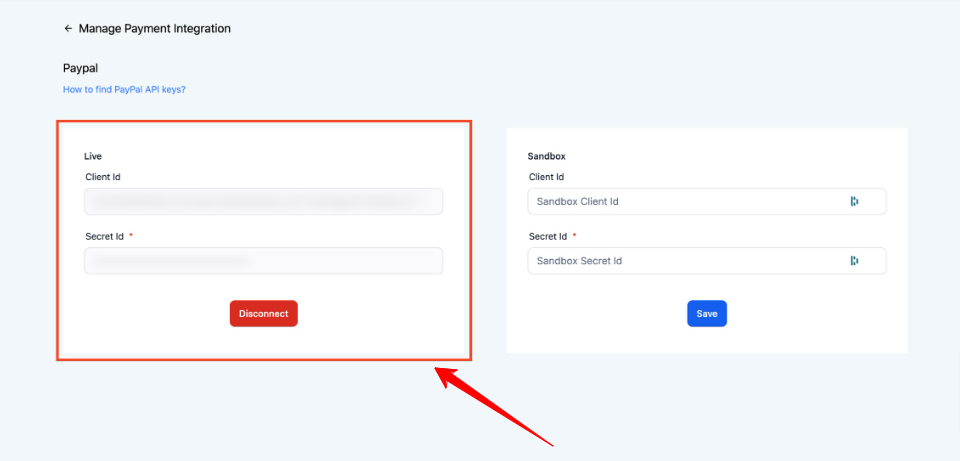
Go to Payments > Integrations on CrocoClick.
Click "Connect" next to PayPal.
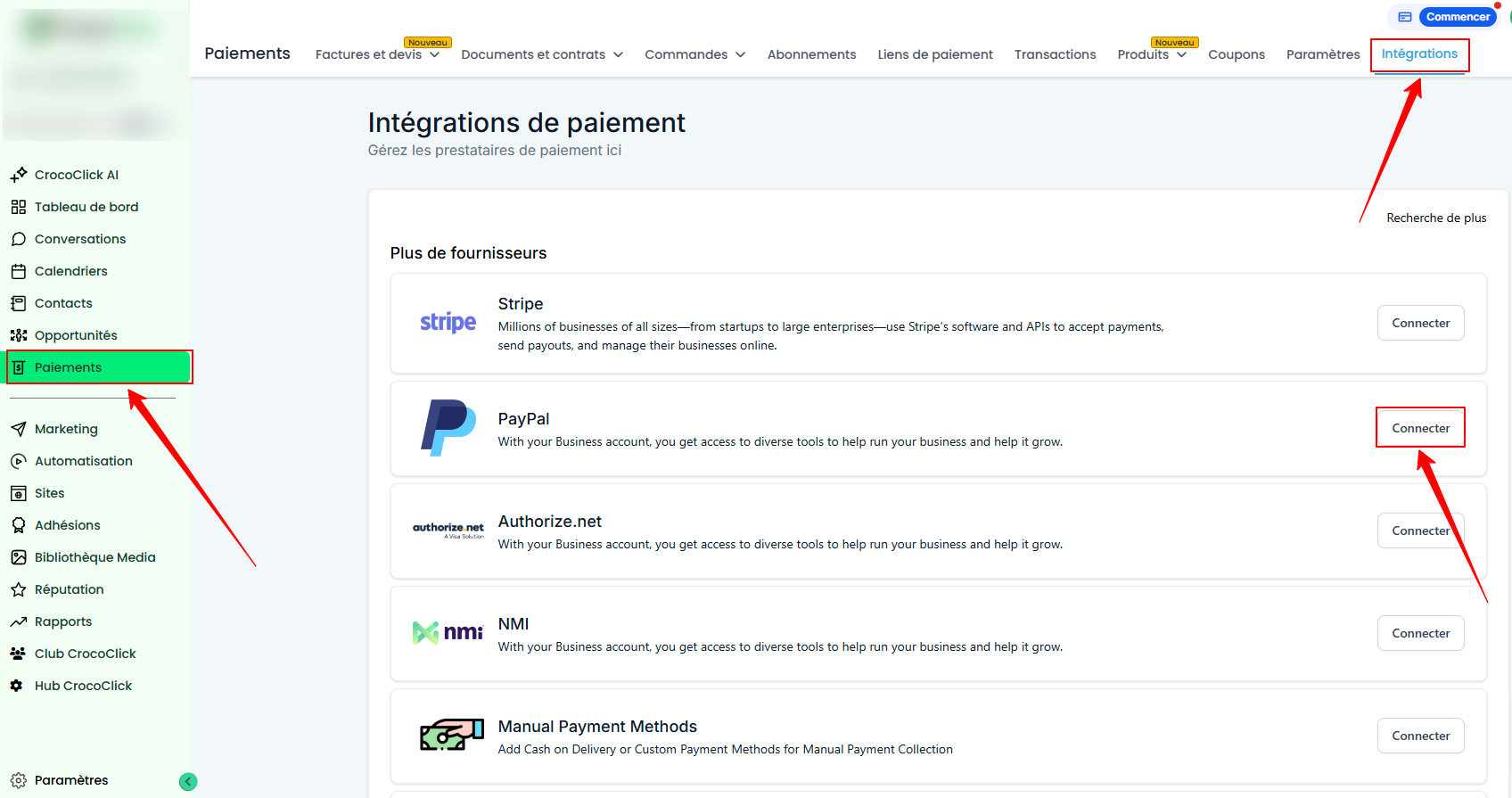
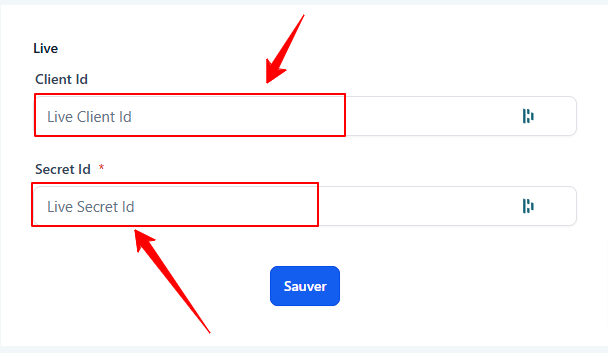
In the Live section, paste the Client ID and Secret Key into the corresponding fields.
Click Save.
💡 TIP: If you’re testing in the sandbox environment, repeat the process with the sandbox credentials, making sure “Sandbox” is selected on the PayPal Apps and Credentials page.
Step 2: Use PayPal to pay your affiliates
Once PayPal is set up, you can pay your affiliates directly via CrocoClick’s automatic payments feature.
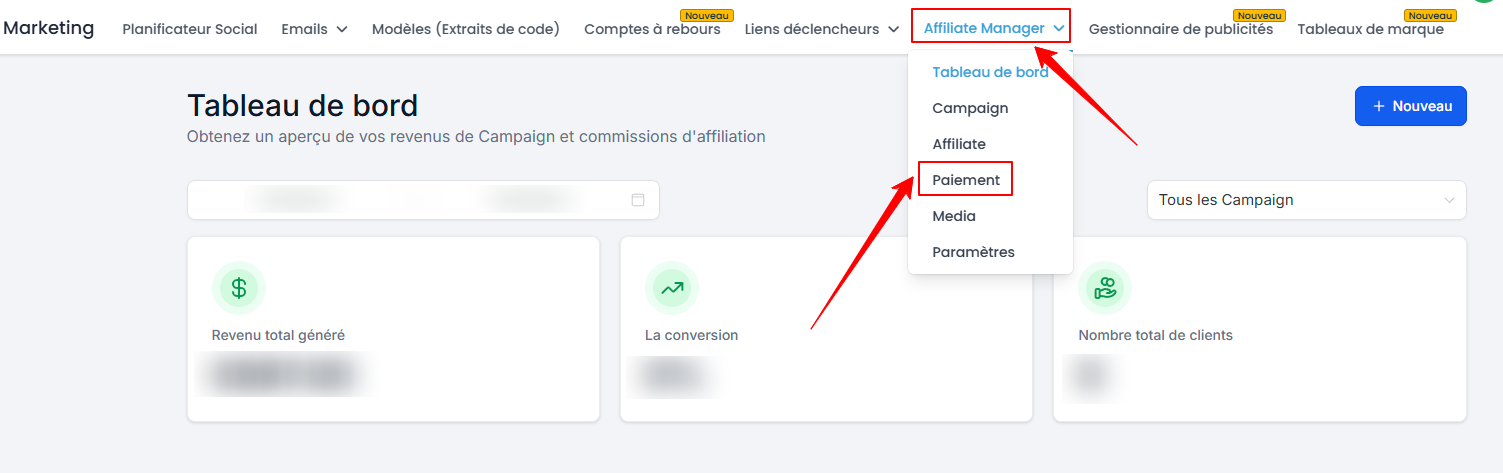
Go to the Payments page
In the CrocoClick affiliate manager, go to the Payments page.
View approved payments
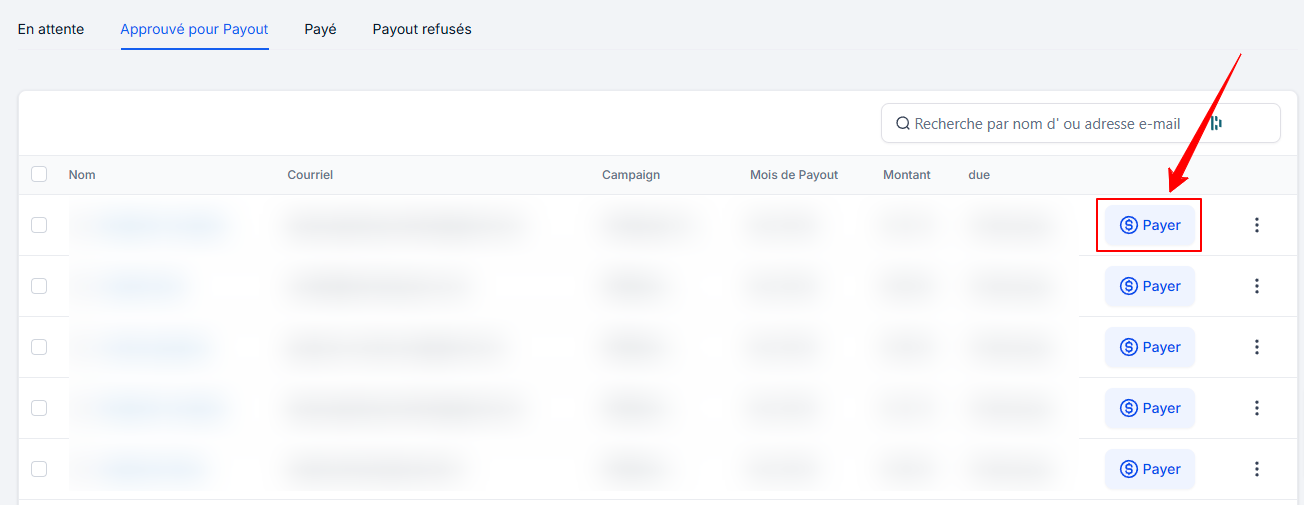
Go to the Approved for Payout tab to see all payments you’ve approved that are pending.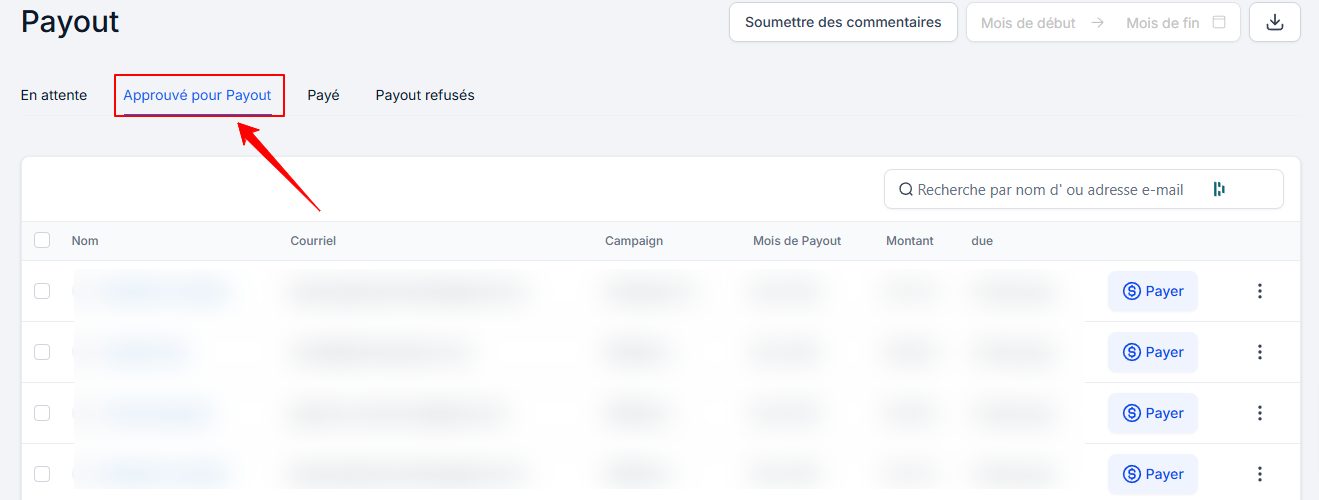
Select affiliates to pay
For an individual payment: Click the blue Pay icon next to the affiliate’s name.
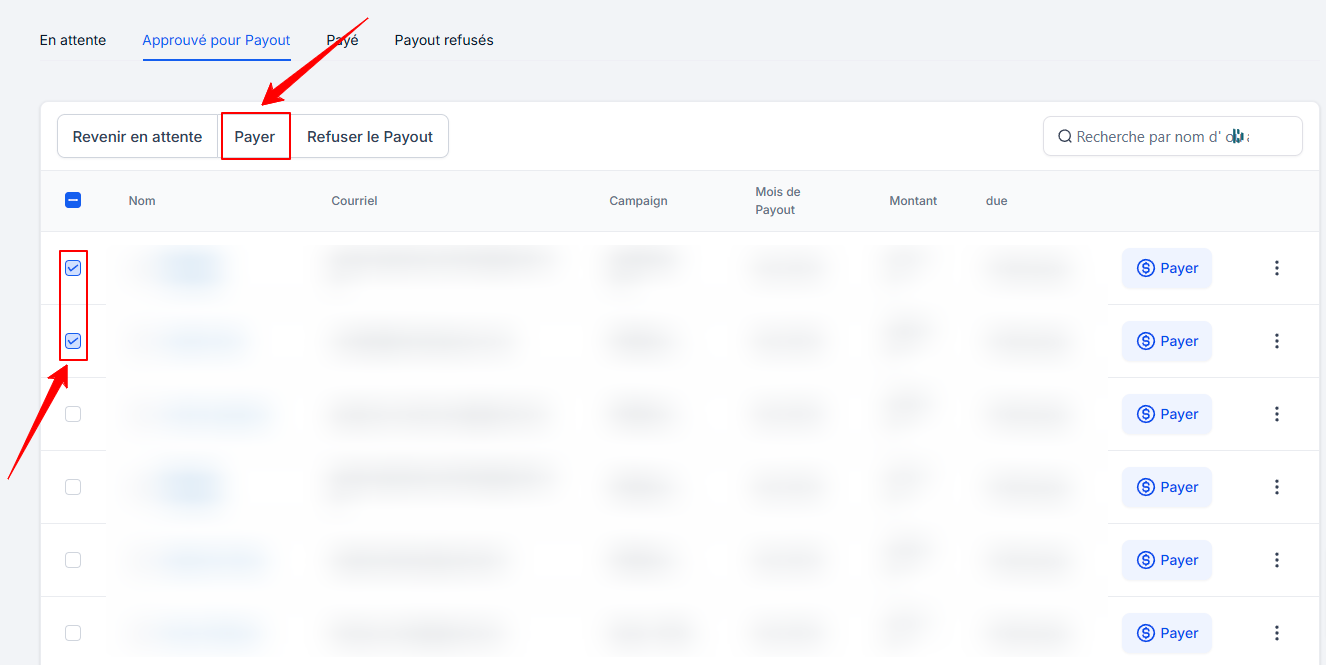
To make a bulk payment: Check the box next to the payments or affiliate names you want to pay and click Pay.
Review and confirm
Review the selected payments and verify the details.
Click Pay Now to initiate the transfer.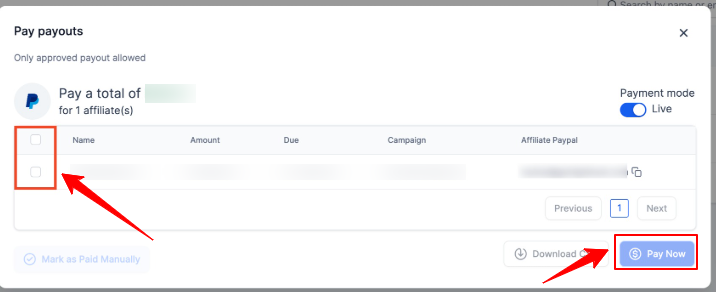
What happens after a payment?
Once the payment is initiated, successful payments will appear in the Paid tab.
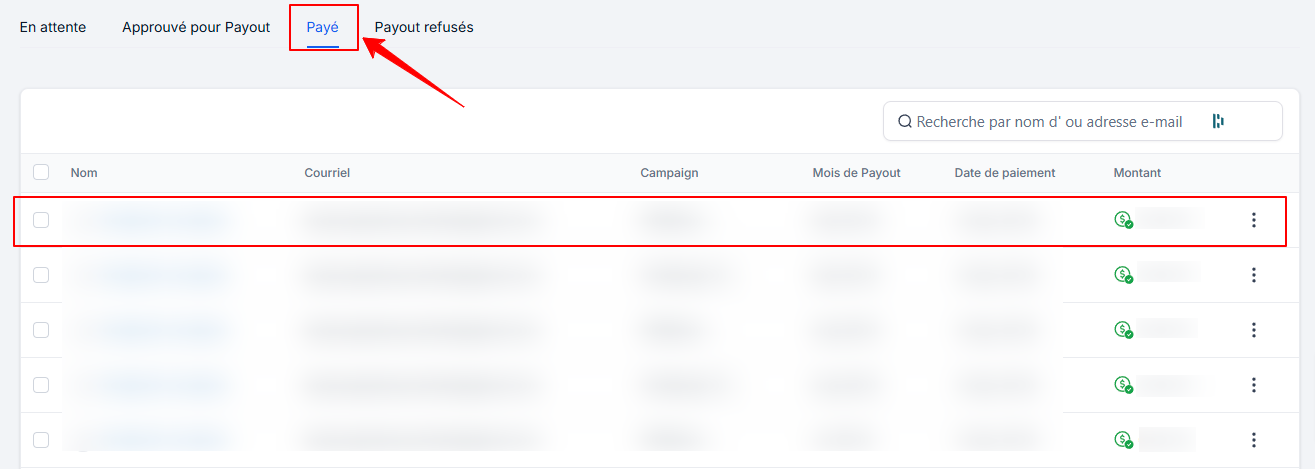
Payments may remain in Pending status while PayPal processes them. In this case, wait a moment, then refresh the page to check for updates.
Once the payment has been successfully processed:
You (the administrator) will receive an email confirming the payment.
The affiliate will also receive an email confirming receipt of the funds.
Conclusion
By setting up PayPal with CrocoClick, you automate payments to your affiliates while simplifying your administrative processes. With fast and secure payments, you build trust with your affiliates and optimize the management of your affiliate campaigns. Try this feature now to save time and improve your relationships with your affiliates!