Using the calendar troubleshooter
Understand why certain slots don't appear in your calendar with the calendar troubleshooter.
Written By CrocoTeam
Last updated 7 months ago
Unavailable slots in your calendars can be frustrating for your customers and difficult to diagnose. Fortunately, CrocoClick's calendar troubleshooting tool offers a simple and effective solution to quickly identify the reasons for unavailability and adjust your settings in real time.
What is the calendar troubleshooting tool?
The calendar troubleshooting tool allows you to examine your booking widget slots in detail. It identifies the causes of slot unavailability and provides clear explanatory codes, such as user unavailability, conflicting events, or exceeding an appointment limit. This accurate diagnosis simplifies the configuration process and allows you to offer your customers an optimal booking experience.
Why use this tool?
Save time: No need to create fictitious appointments or test each configuration manually.
Quick problem solving: Immediately understand the causes of unavailability thanks to the codes provided.
Real-time adjustments: Change your settings and update instantly to see the results.
Optimize shared calendars: Ideal for calendars with multiple users, such as group or rotating reservations.
How to use the calendar troubleshooting tool?
Step 1: Access the tool
Go to the Calendars > Calendars section to see a list of your different calendars.
On the calendar you want to analyze, click the three-dot menu (⋮) and choose Troubleshoot calendar issues.
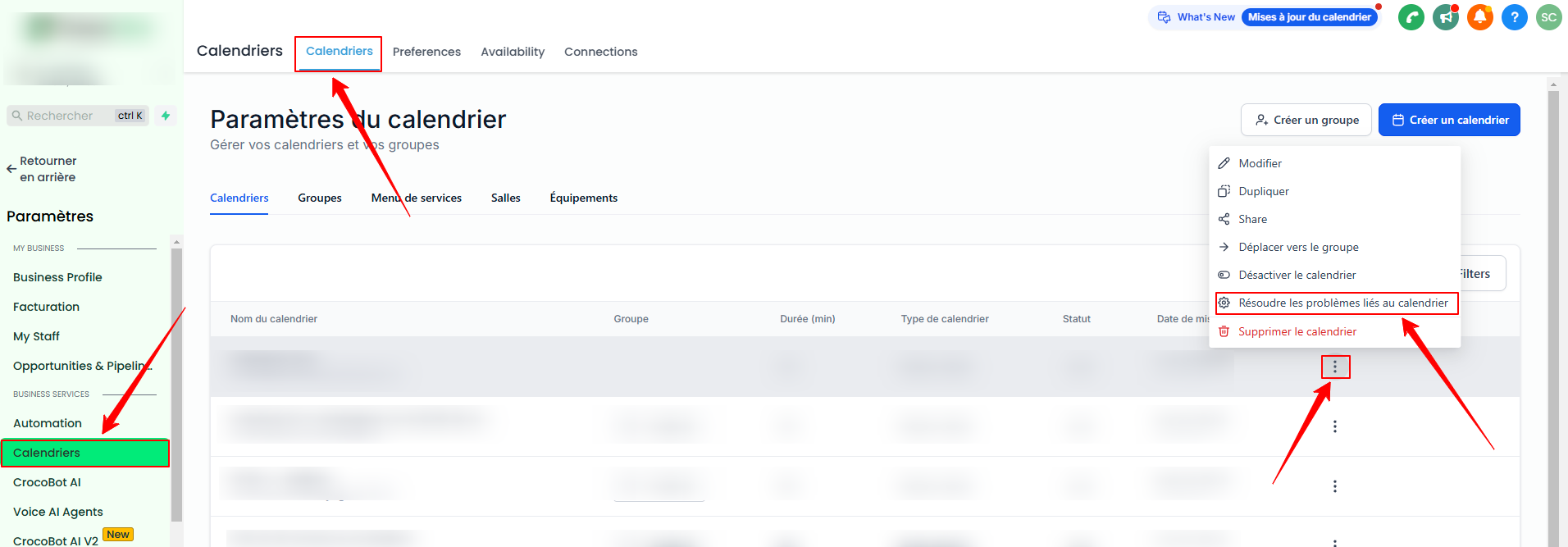
Step 2: Understand the slots
The troubleshooting view displays all available and unavailable slots.
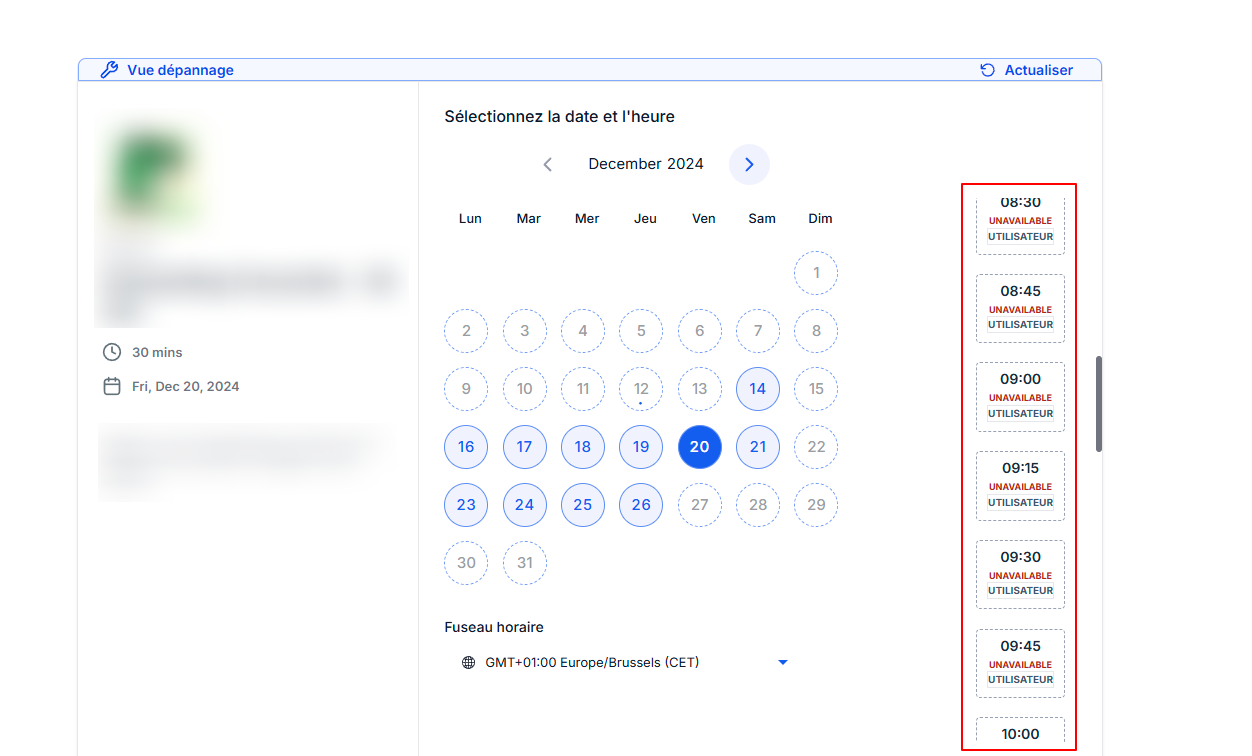
Hover over an unavailable slot to see the exact reason for its unavailability.
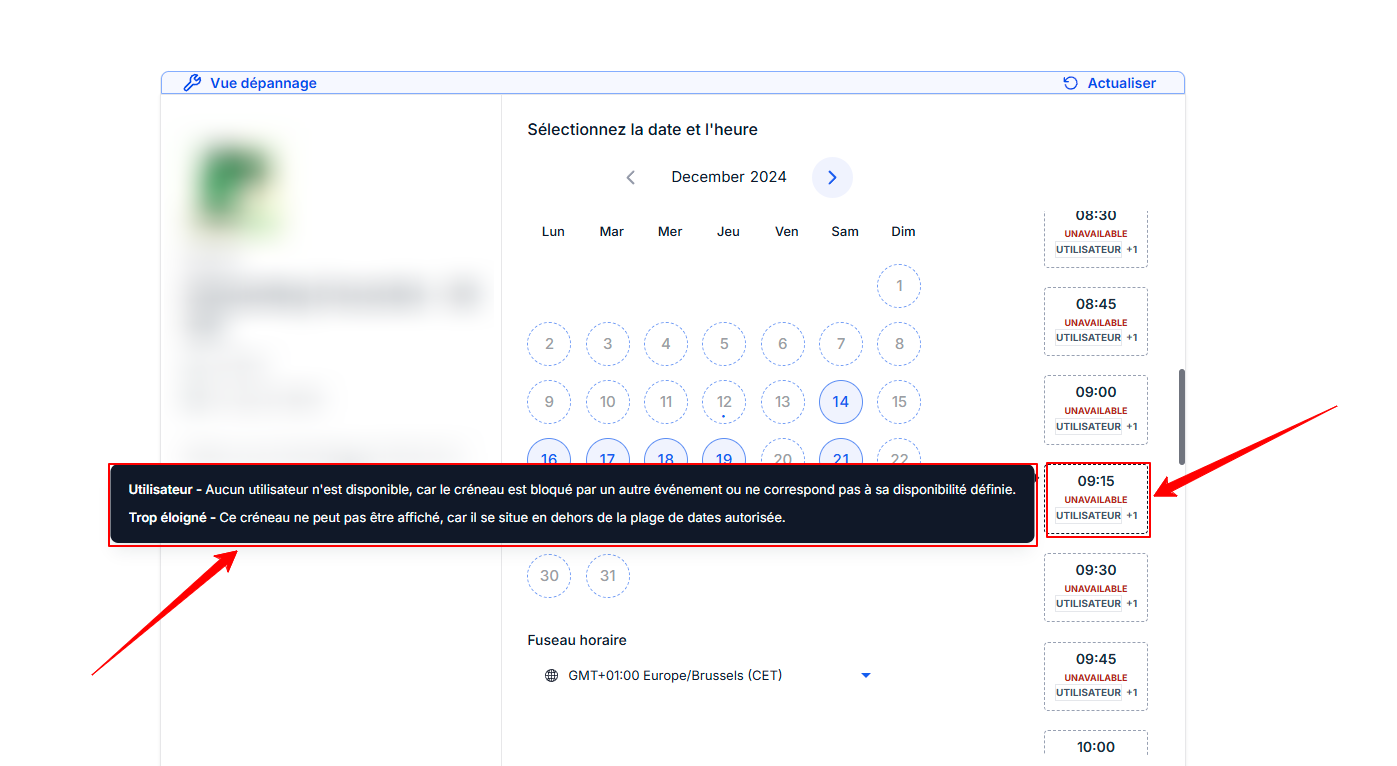
💡 TIP: The tool starts by checking your agenda's availability and your appointment intervals to generate all potential slots. It then displays which of these slots are available or unavailable.
For example, if your agenda is configured to be available from 10 a.m. to 12 p.m. and from 6 p.m. to 8 p.m. with 60-minute appointment intervals, only the 10 a.m., 11 a.m., 6 p.m., and 7 p.m. slots will be displayed. Their availability or unavailability will be indicated for these four slots. If the diary is unavailable on Saturdays, no slots will be displayed for that day.
Conclusion
With the calendar troubleshooting tool, managing and optimizing your schedules becomes quick and easy. By easily understanding the causes of unavailability, you can correct problems before going live and ensure a smooth booking experience for your customers.