Connect your third-party calendar to CrocoClick to avoid calendar conflicts
Synchronize CrocoClick with Google, Outlook or iCloud: one-way or two-way options for managing your appointments.
Written By CrocoTeam
Last updated 7 months ago
Team or group calendars (Round Robin, Service, Class, and Collective) allow you to synchronize appointments assigned to a user with third-party calendars such as Google, Outlook, or iCloud. In addition, events scheduled in these third-party calendars can be automatically imported and displayed in the system, ensuring seamless synchronization between the two.
What is calendar configuration?
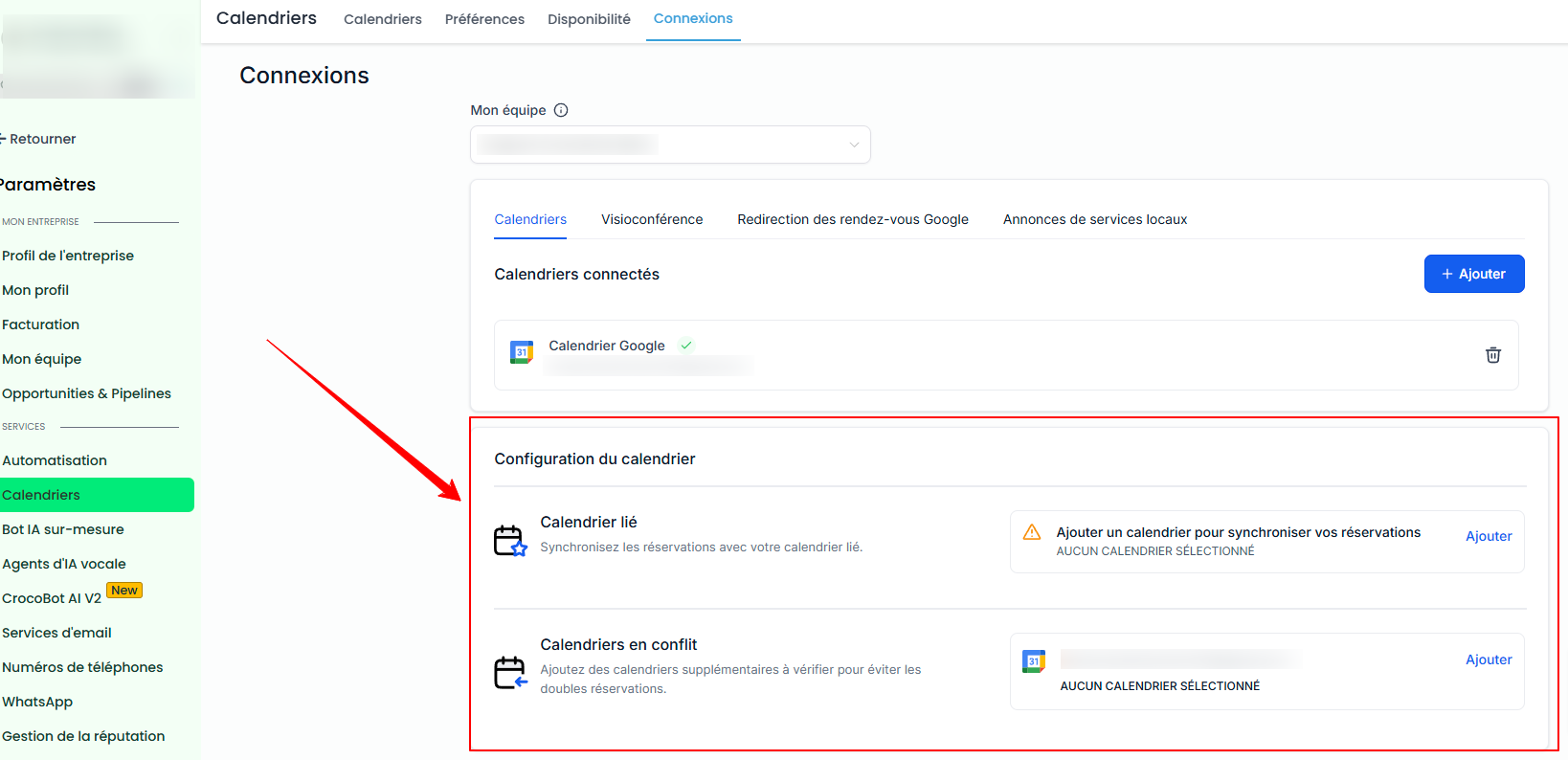
Calendar configuration allows you to manage synchronization settings with your third-party calendars. To access it, go to Calendars > Calendar Settings > Connections.
There are two essential settings available:
Linked Calendar: to synchronize events created in the system with a third-party calendar.
Conflict calendar: to block availability based on events in your third-party calendars.
All third-party calendar integrations added by the user are displayed in this section for centralized and simplified management.
The Linked Calendar
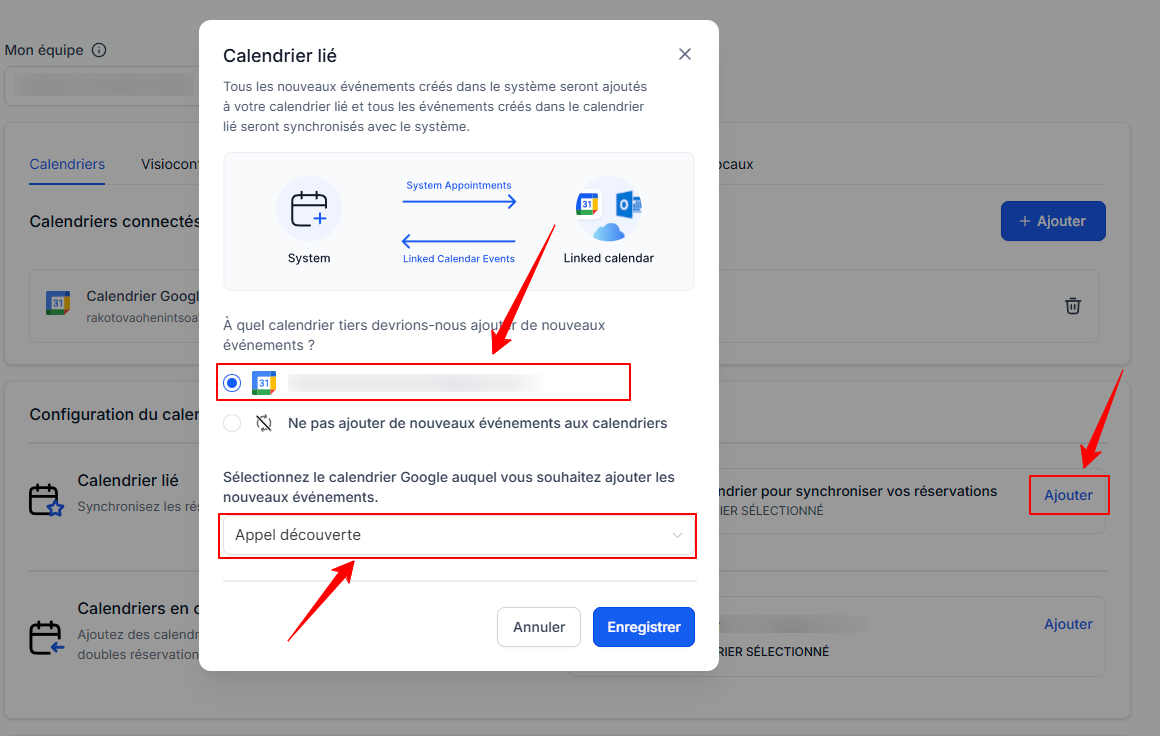
The linked calendar allows you to synchronize all new events created in the system with your third-party calendar. For example, any event created in CrocoClick will be automatically synchronized with your third-party calendar (such as Google).
The linked calendar is responsible for:
Pushing events to Google, Outlook, or iCloud.
Retrieving events created in these third-party calendars and integrating them into the system.
Note:
Full access is required to select a calendar as a linked calendar.
By default, the linked calendar is also added to the conflict calendar. This means that:
Any event created in the third-party calendar will be retrieved in the system.
Any event created in the system will be sent to the third-party calendar.
You can set your synchronization preferences in Advanced Settings.
Synchronization preferences (Advanced Settings)
Default synchronization (One-way)
Events created in CrocoClick are sent to the linked calendar (e.g., Google).
Events created in the linked calendar are imported into the system as blocked slots.
No contacts are created for guests added to events in the linked calendar.
No automation or workflow is triggered.
Two-way synchronization
Events created in CrocoClick are synchronized with the linked calendar.
Events created in the linked calendar are synchronized in CrococClick as appointments.
A contact is created for each guest found in the linked calendar events.
Configured automations are triggered as for any appointment created in the CrocoClick calendar.
Example:
Default synchronization (one-way)
John creates a Google event called "Appointment with Dr. Michel" from 1:00 p.m. to 2:00 p.m.
In CrocoClick, only a blocked slot from 1:00 p.m. to 2:00 p.m. will be recorded to prevent new bookings.Two-way synchronization
An appointment is created in CrocoClick from 1:00 p.m. to 2:00 p.m.
A contact for Dr. Michel is added to the system.
If automations are configured, they will be triggered for Dr. Michel.
Conflict calendar
Events from third-party calendars added as conflict calendars are synchronized with the system to block your availability during their duration.
How it works:
All events from the selected third-party calendars are read. Time slots when the user is unavailable are blocked.
Only events marked as "Busy" in the third-party calendar block availability in the system.
Events marked as "Free" are retrieved in the system, but availability remains open.
This ensures accurate availability and prevents double bookings. You can add multiple calendars to check for conflicts.
💡 TIP: No appointments are created in the system via conflict calendars; only time is blocked for events already scheduled in the third-party calendar.
Conclusion
Configuring your synchronization preferences between CrocoClick and your third-party calendars ensures smooth and accurate management of your availability. By choosing between one-way or two-way synchronization, you can tailor your organization to your specific needs while avoiding double bookings and automating interactions with your contacts.
See our article "using the calendar troubleshooter" to resolve calendar conflicts.