Connect your Google Calendar to CrocoClick
Learn how to connect and configure your Google Calendar with CrocoClick for smooth synchronization and availability management.
Written By CrocoTeam
Last updated 7 months ago
Connecting your Google Calendar to CrocoClick allows you to synchronize your bookings between Google Calendar and CrocoClick. This ensures accurate availability, prevents double bookings, and makes it easier to manage appointments.
Prerequisites
Required access: You must have access to your Google account associated with the Google Calendar you want to connect.
Type of access:
Full access: Required if you want to add events created in the system to your Google Calendar.
Read-only access (not recommended): Sufficient if you simply want to retrieve events from your Google Calendar in the system without entering new events taken from your Crococlick calendars.
Step 1: Connect your Google Calendar
Go to your account settings, then select Integrations.
Click Connect with Google.

Complete the authentication process by selecting your account and granting the necessary permissions.
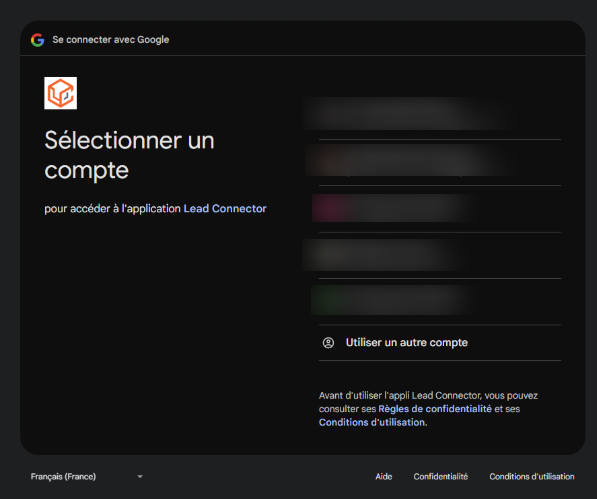
You can add multiple Google accounts by clicking Connect with Google again from the integrations page.
Step 2: Configure your calendar
Once your Google account is connected, configure your calendar by setting up linked calendars and conflict calendars (see below).
First, go to Calendars > Calendar settings > Connections.
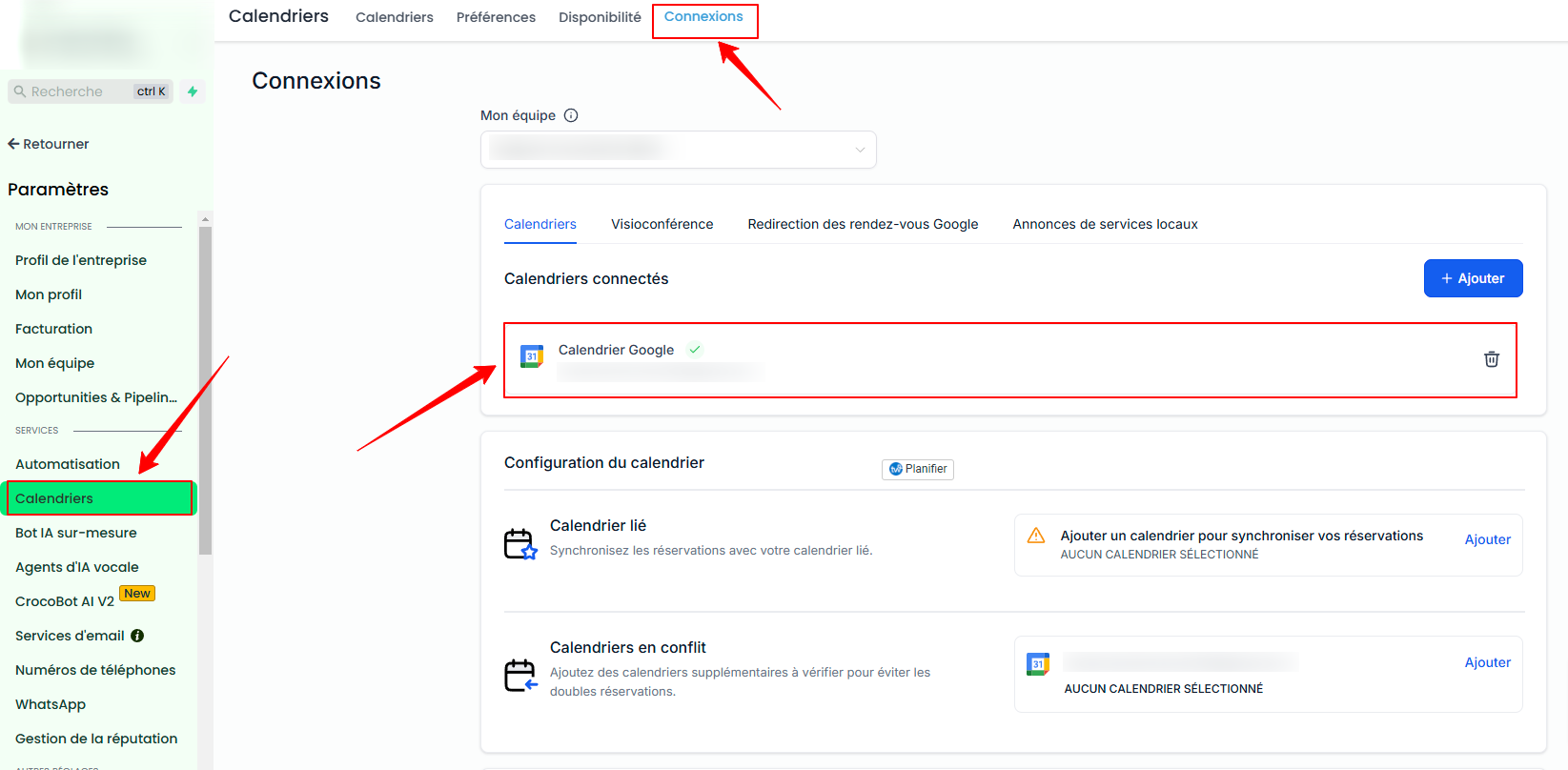
The calendar configuration includes two main settings: Linked Calendar and Conflict Calendar.
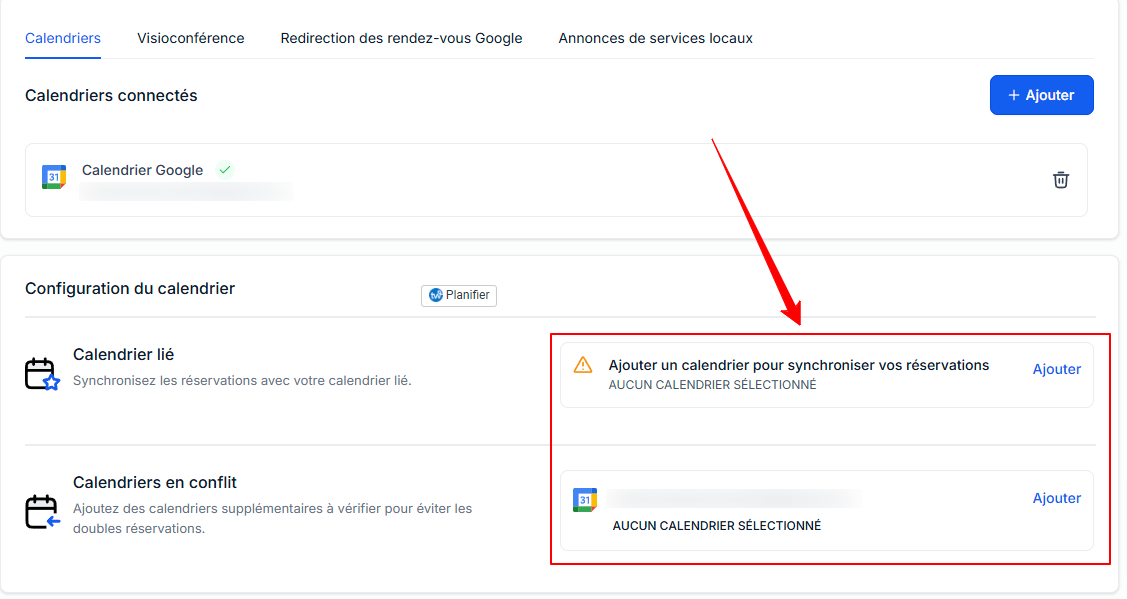
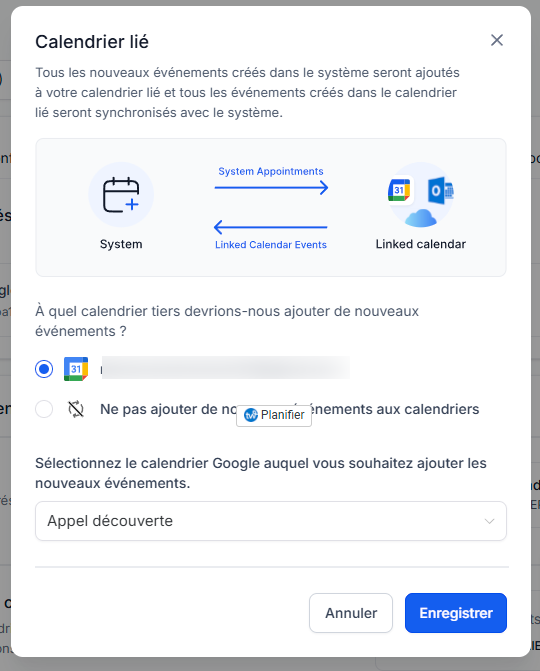
Linked Calendar (from CrocoClick to Google Calendar)
All new events created in the system will be added to your linked calendar. For example, any event created in CrocoClick via a calendar will be automatically synchronized with this third-party calendar (e.g., Google).
💡 TIP: Full access is required to set a calendar as a linked calendar
💡 TIP: By default, the linked calendar is automatically added as a conflict calendar. This means that:
Events created in the third-party calendar are synchronized with the system (linked calendar)
Events created in the system are sent to the third-party calendar (conflict calendar)
You can customize your synchronization preferences by going to Advanced Settings.
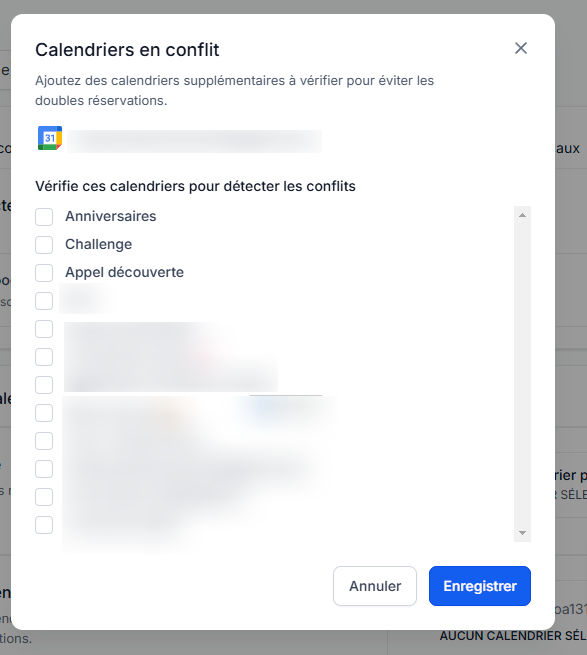
Conflict calendar (from Google Calendar to CrocoClick)
Events from third-party calendars added as conflict calendars are synchronized in the system to block your availability for the duration of the event.
Blocked availability: Events marked as "Busy" in the third-party calendar will block your availability in the system.
Open availability: Events marked as "Free" will be retrieved in the system, but availability will remain open.
This ensures accurate availability and prevents double bookings. You can add multiple calendars to check and avoid conflicts.
FAQ
Q: How do I integrate Google Meet?
A: Connecting your Google Calendar automatically integrates Google Meet. No additional steps are required. Simply select "Google Meet" as the meeting location in your calendars and the video conference links will be created automatically.
Q: How do I disconnect a Google account or Google Calendar?
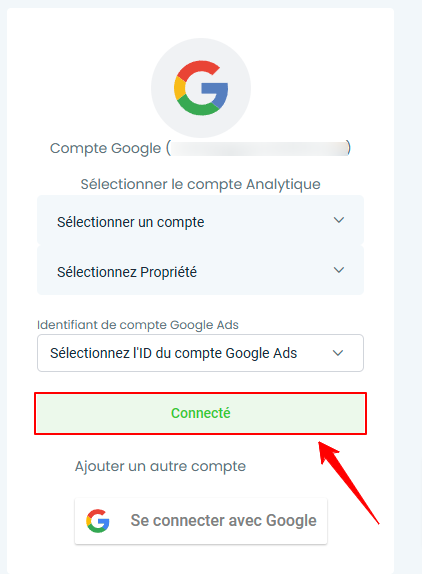
To disconnect an account, click the "Connected" button in Settings > Integrations, then confirm the deletion.
If events are not syncing correctly, use the calendar troubleshooter.
You can also connect your Outlook and iCloud calendars to CrocoClick.