Connect your Icloud Calendar to CrocoClick
Connect your iCloud calendar to CrocoClick to synchronize your events and simplify appointment management.
Written By CrocoTeam
Last updated 7 months ago
Connecting your iCloud calendar to CrocoClick allows you to synchronize your bookings between the iCloud calendar and the system. This ensures correct availability, prevents double bookings, and makes it easier to manage schedules and bookings.
Prerequisites
You must have access to the Apple account associated with the iCloud calendar you want to connect.
You must obtain an application-specific password from Apple.
Check whether access permissions are required:
If you want to add events created in the system to your iCloud calendar, full access authorization is required.
If you only want to retrieve all your events from the iCloud calendar in the system, read-only access is sufficient.
Step 1: Obtain your application-specific password from Apple
Before connecting your iCloud calendar, obtain an app-specific password. This password is separate from your Apple account password. Apple requires an app-specific password, in addition to two-factor authentication, to connect to third-party applications.
Sign in to https://appleid.apple.com/.
Enable two-factor authentication in the Security section, if you haven't already done so.
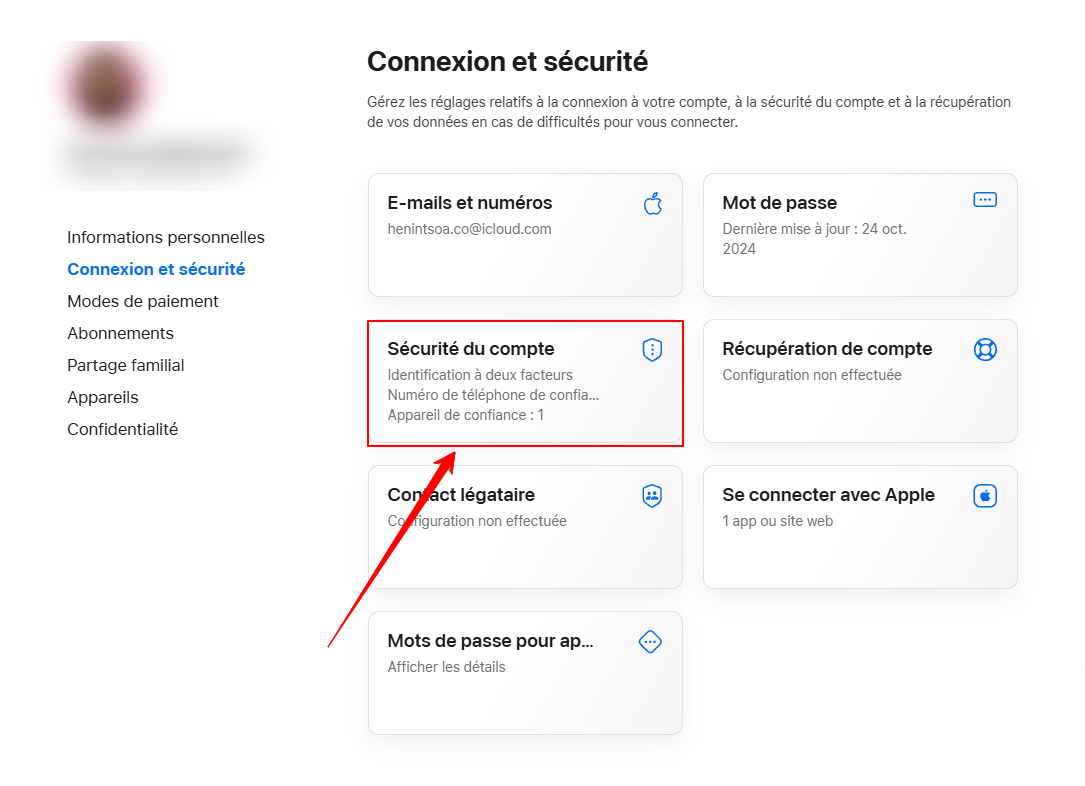
In the App-Specific Passwords section, click Generate Password.
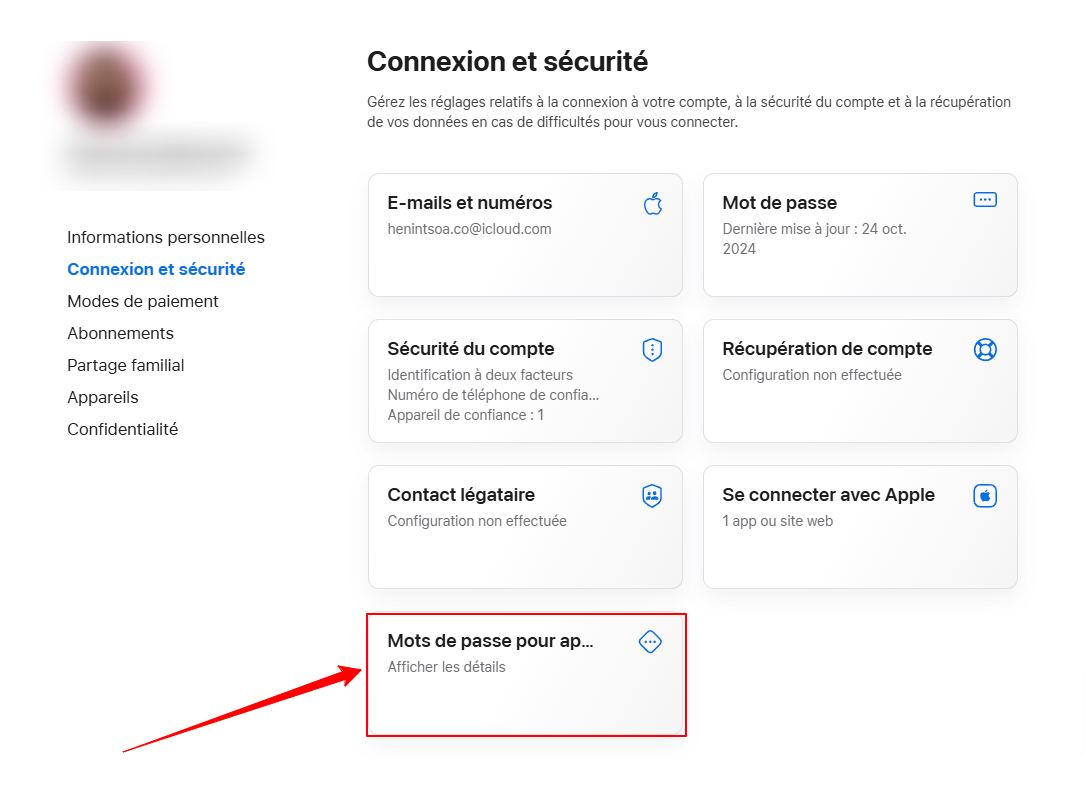
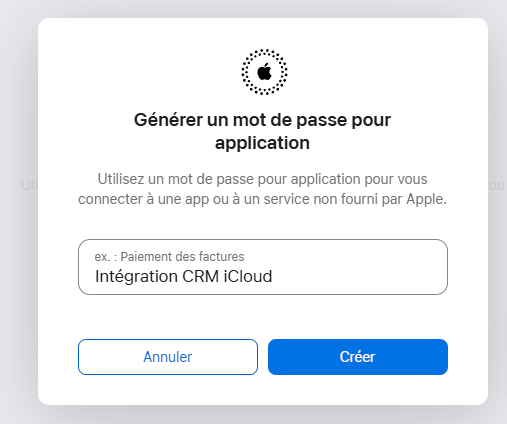
Enter a label for the password (for example, "iCloud CRM Integration") and click Create.
Copy and securely store the generated password. You will use it to connect your iCloud calendar in the next step.
Step 2: How to connect the iCloud calendar?
Go to Calendars > Calendar Settings > Connections.
Click Add New.
Select iCloud Calendar and click Connect.
Enter your Apple ID and the app-specific password you generated earlier.
Click Connect.
Step 3: Calendar Setup
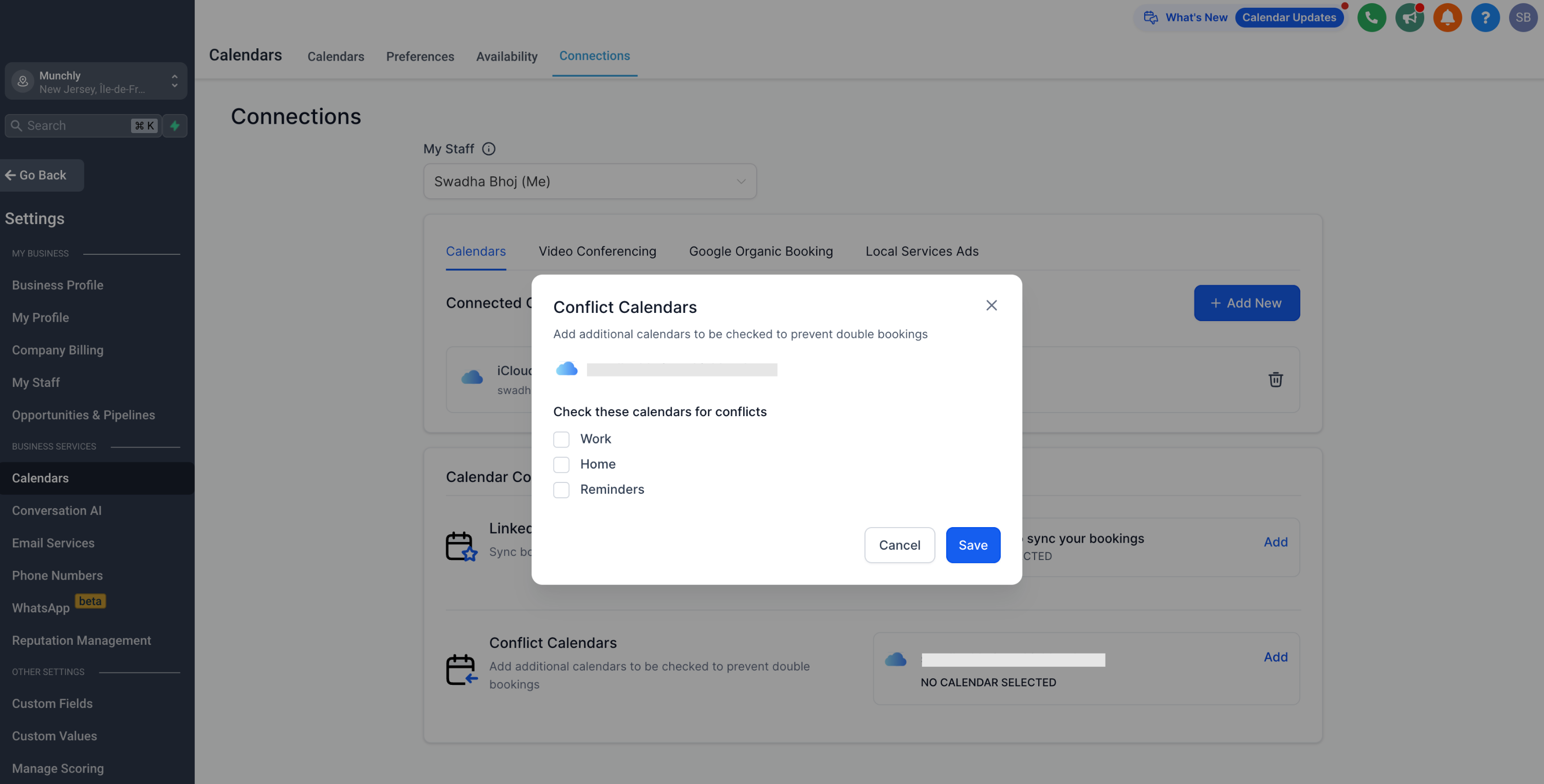
Once the iCloud calendar is connected, configure your calendar by selecting a linked calendar and a conflict calendar.
What is calendar setup?
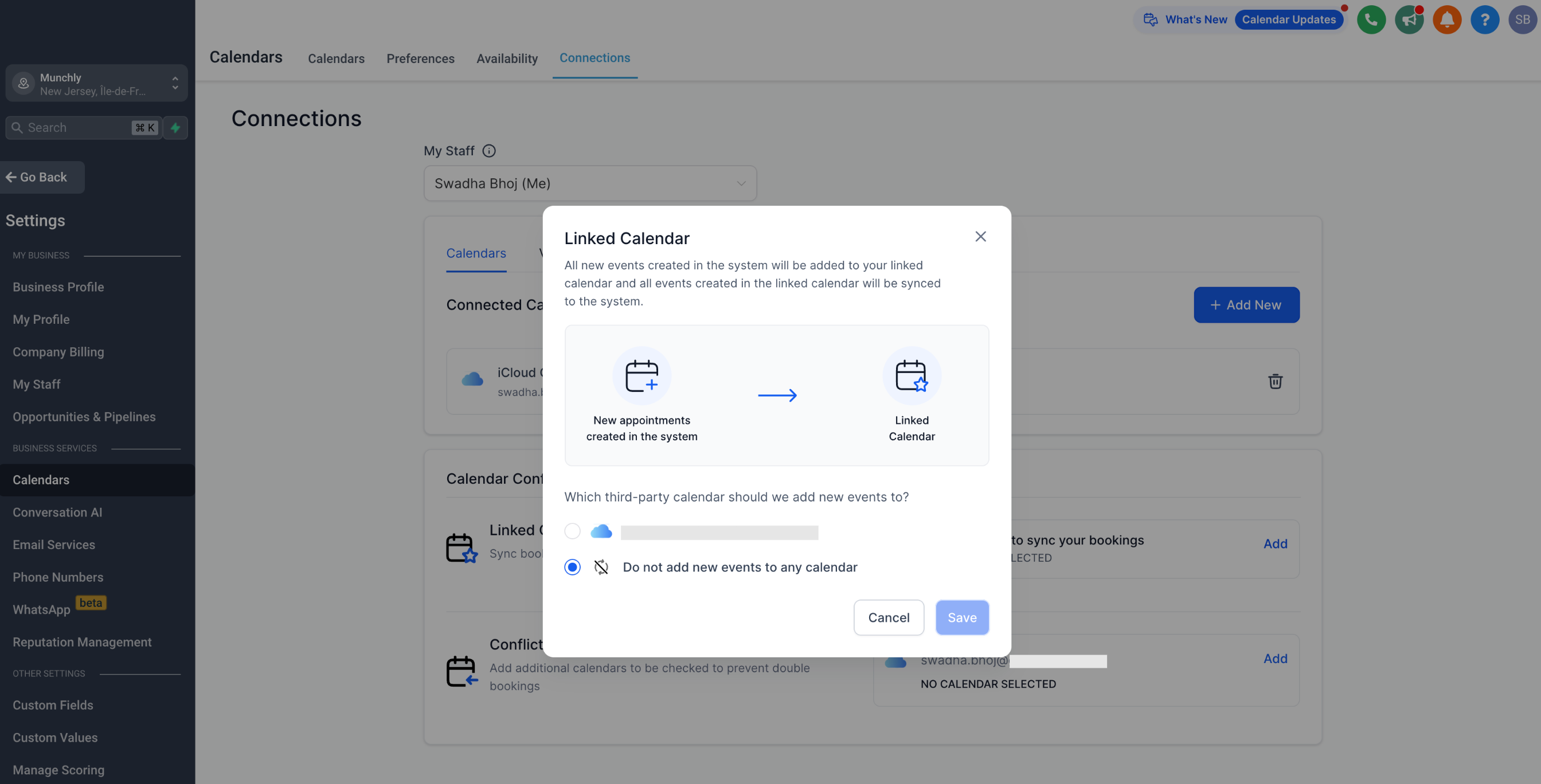
Linked calendar:
All new events created in the system will be added to the linked calendar.
💡TIP: Any event created in the system will be synchronized with your linked calendar so you can view it directly in iCloud.
Note:
Write access is required to select a calendar as a linked calendar.
The linked calendar is automatically added to the conflict calendar, which means that all events created on this third-party calendar will be synchronized in the system, and vice versa.
Conflict calendar:
Events from third-party calendars added as conflict calendars are synchronized in the system, blocking your availability for the duration of the event.
Availability is blocked only if the event is marked as "BUSY" in the third-party calendar. Events marked as "FREE" will be imported into the system, but availability will remain open.
This ensures accurate availability and prevents double bookings. You can add multiple calendars to check for conflicts.
Limitations of iCloud integration
Unlike Google and Outlook, iCloud only supports default synchronization (one-way synchronization).
All events from iCloud are treated as blocked slots, and no contacts will be created for guests found in these events.
If a blocked slot is created in the system, it will not be synchronized with the iCloud calendar.
Each user can connect only one iCloud integration per account, and the same integration cannot be used in multiple CrocoClick accounts.
Subscription calendars are not supported. CrocoClick cannot connect to iCloud calendars that you have subscribed to via a URL (usually public calendars).
Conclusion
Integrating your iCloud calendar with CrocoClick simplifies the management of your schedules and prevents double bookings. By synchronizing your events between iCloud and CrocoClick, you ensure accurate availability and improve your efficiency in managing appointments.
If you encounter any synchronization issues, please refer to our FAQ Calendars.
You can also connect your Google Calendar, and Outlook calendars to CrocoClick.