Connect your Outlook Calendar to CrocoClick
Connect and configure your Outlook calendar with CrocoClick for optimized appointment management without double-booking.
Written By CrocoTeam
Last updated 7 months ago
Connecting your Outlook calendar to CrocoClick allows you to synchronize your bookings between your Outlook calendar and the system. This ensures accurate availability, prevents double bookings, and makes it easier to manage schedules and bookings.
Prerequisites
Access to your Outlook account associated with the calendar you want to connect.
Check the necessary permissions:
If you want to add events created in the system to your Outlook calendar, you must have write access.
If you only want to import events from your Outlook calendar into the system, read-only access is sufficient.
Step 1: How to connect an Outlook calendar?
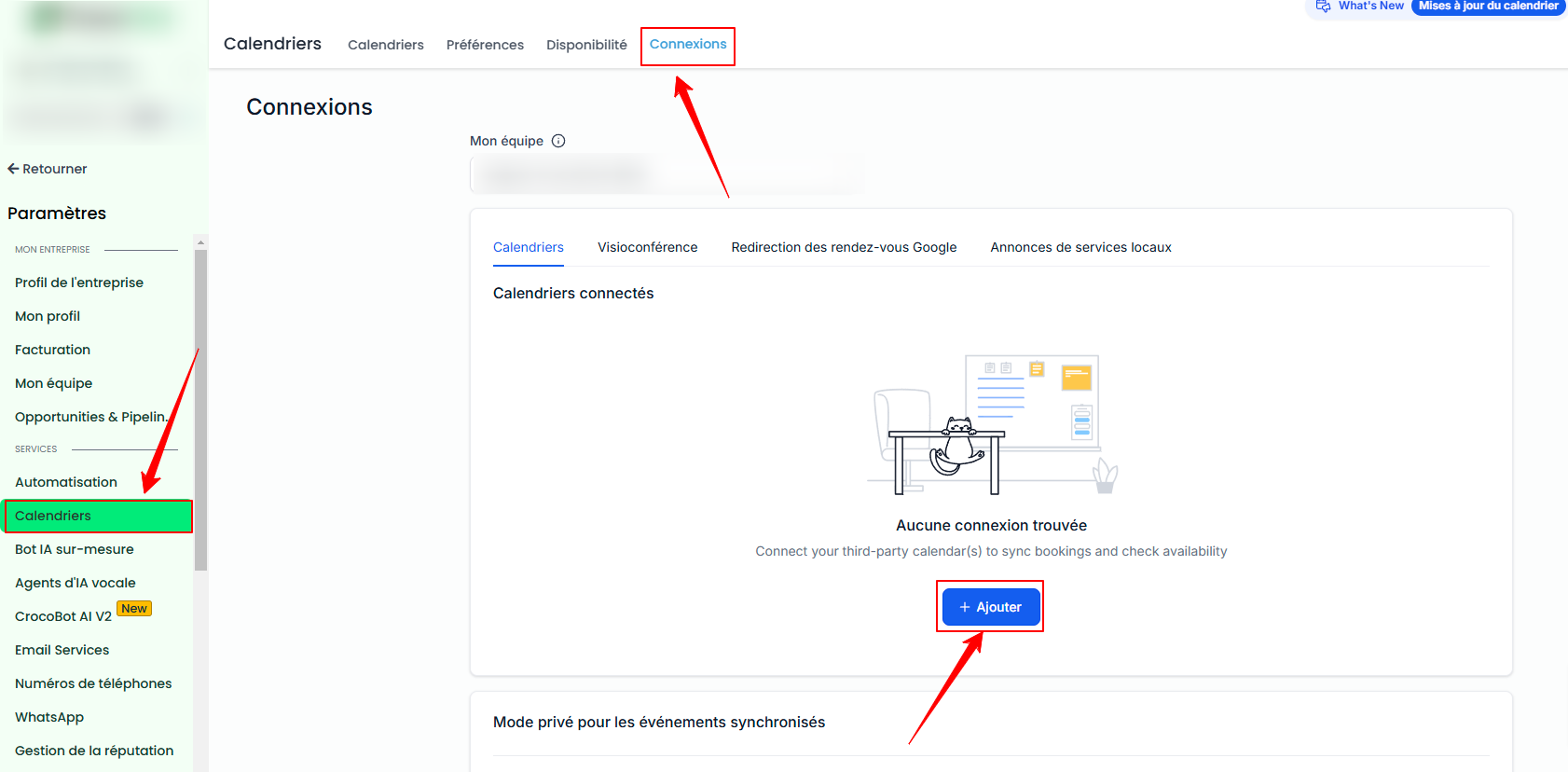
Go to Settings > Calendars > Connections and click + Add.
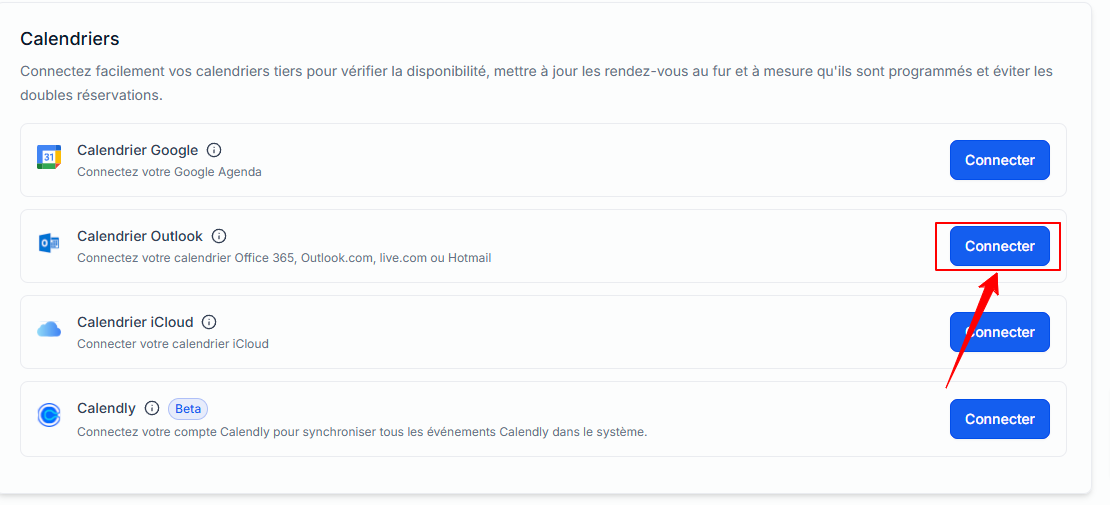
Select Outlook Calendar, then click Connect.
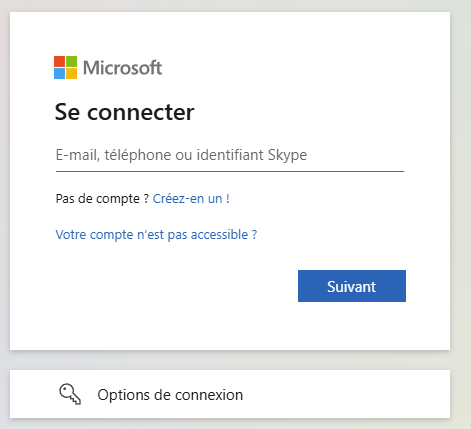
Log in to your Outlook account with your usual credentials.
Step 2: Calendar configuration
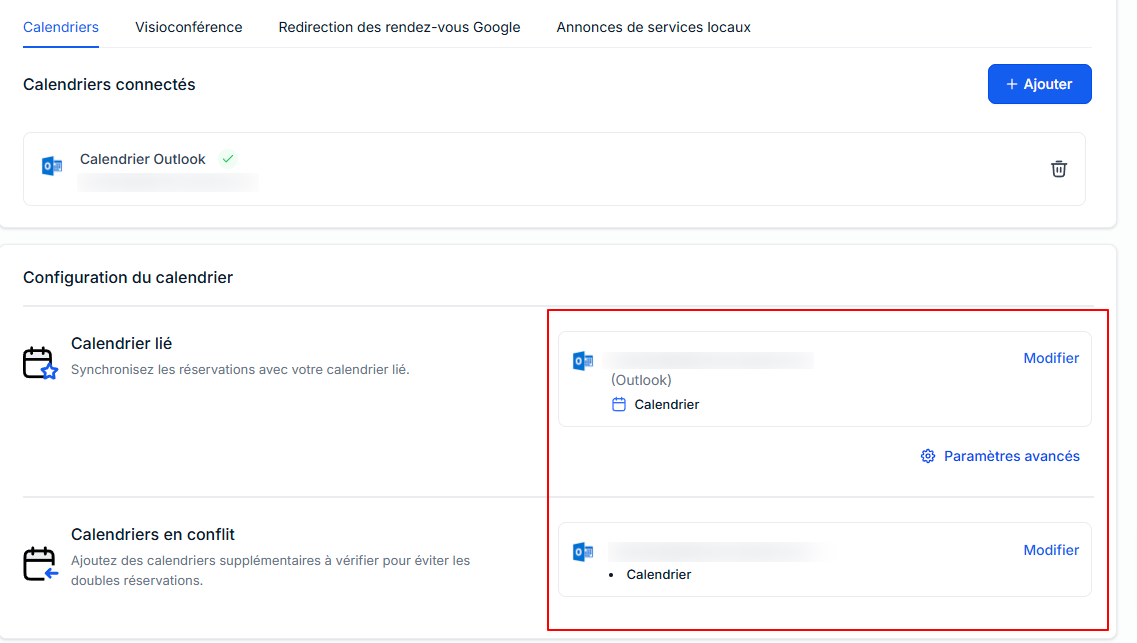
Once your Outlook calendar is connected, you must finalize the configuration by setting your linked calendar and conflict calendar.
What is calendar configuration?
Calendar configuration involves two settings:
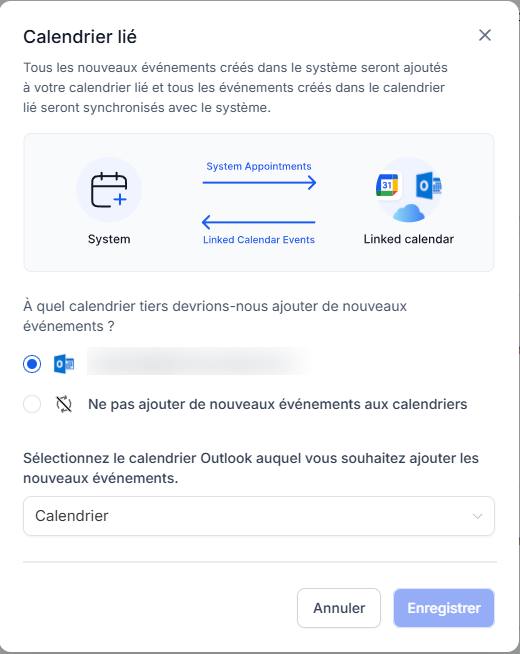
Linked calendar
All new events created in the system will be synchronized with the linked calendar. For example, an event created in CrocoClick will appear in your Outlook calendar, allowing you to view it directly.
Note:
Modification permission is required to select a calendar as a linked calendar.
By default, the linked calendar is also added as a conflict calendar. This means that any event created on the third-party calendar will be imported into CrocoClick, and any event created in CrocoClick will be synchronized with the third-party calendar.
You can adjust your synchronization preferences in the advanced settings.
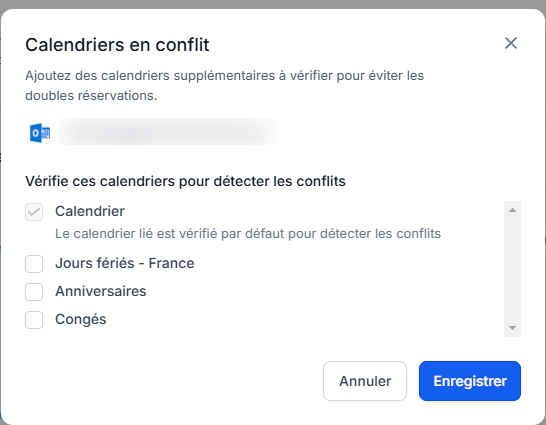
Conflict calendar
Events from third-party calendars added as conflict calendars are synchronized in CrocoClick, blocking your availability for the duration of the event.
Note:
Availability is blocked only if the event is marked as BUSY in the third-party calendar. If the event is marked as FREE, it is imported into the system but does not block availability.
This ensures accurate availability and prevents double bookings. You can add multiple calendars to check for conflicts.
Limitations of Outlook integration
Each user can connect only one Outlook calendar per CrocoClick account.
The same Outlook integration cannot be used in multiple CrocoClick accounts. For example, if you have connected your Outlook calendar to account A, you will not be able to connect it to account B.
FAQ
Does Outlook integration work with event calendars?
No, Outlook integration does not work with event calendars. These calendars only support integration with Google Calendar.
Conclusion
Synchronizing your Outlook calendar with CrocoClick allows you to efficiently manage your appointments and avoid double bookings. Configure your linked and conflict calendars to ensure accurate availability and a smooth experience.
If a conflict persists despite synchronization, use the conflict resolution tool. calendar troubleshooting.
You can also connect your Google Calendar, and iCloud calendars to CrocoClick.