Connect Zoom to CrocoClick for use in calendars
Discover how to integrate Zoom into your calendars to automatically generate meeting links and simplify your appointments
Written By CrocoTeam
Last updated 7 months ago
The integration of Zoom with CrocoClick simplifies meeting management by automatically generating dynamic links for each appointment. You will no longer need to manually create meeting links. This feature improves organization while providing a seamless experience for your customers and prospects. Here's how to set up and use this integration.
Prerequisites
Have access to the Zoom account you want to connect.
How to connect Zoom?
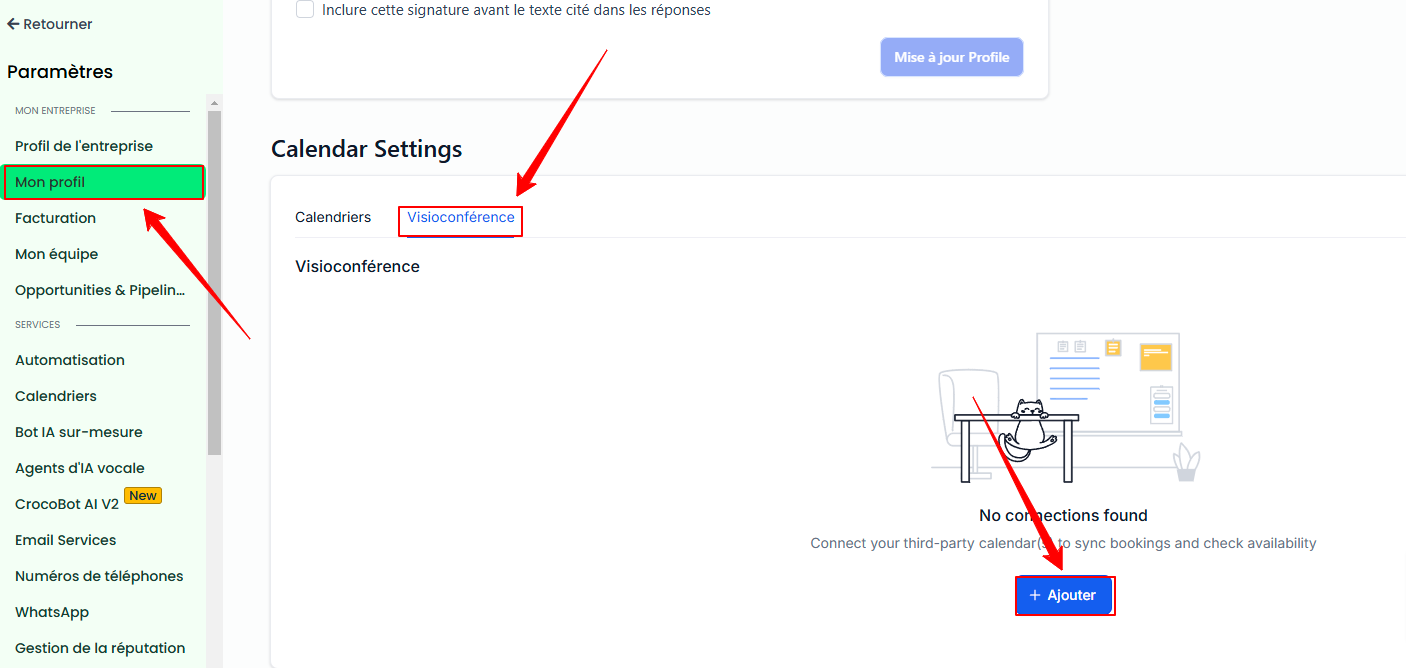
From the "Calendars" menu in Settings.
Go to Settings > Calendars > Connections > Video Conferencing and click + Add
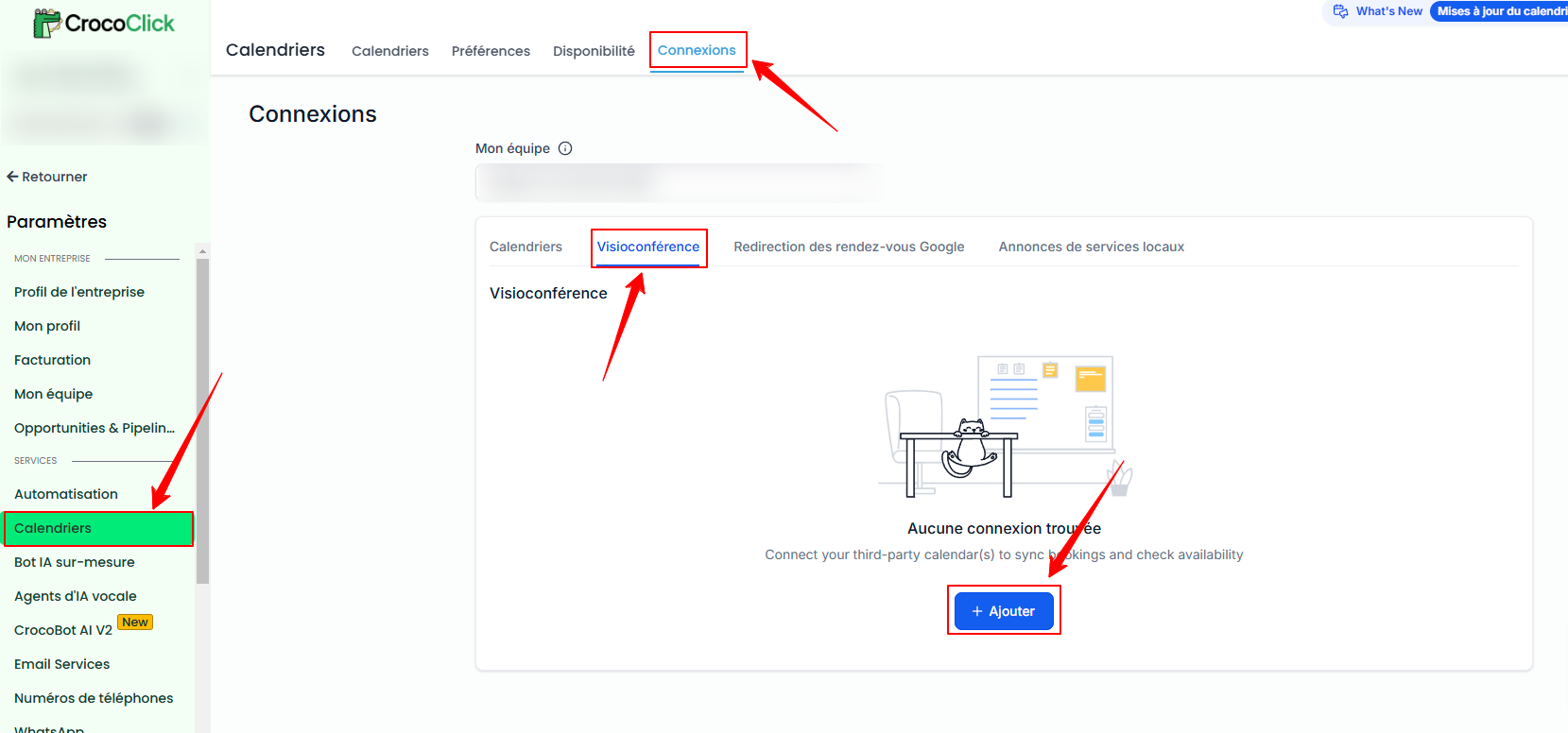
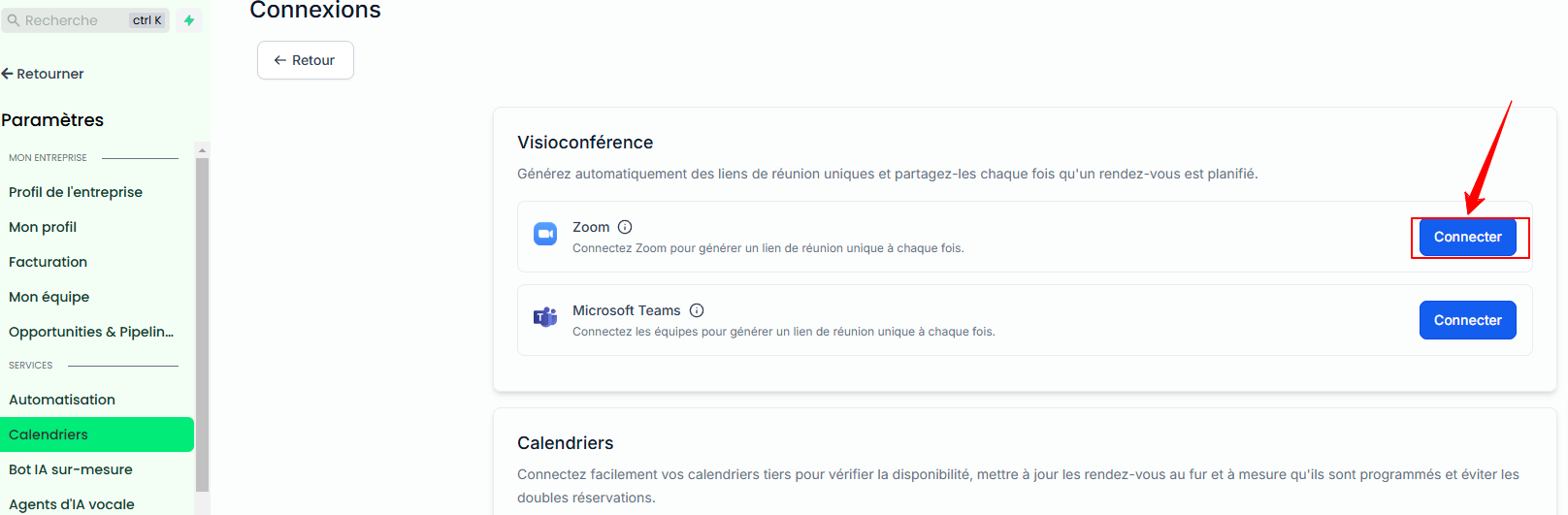
Click + Add, then Connect next to Zoom.
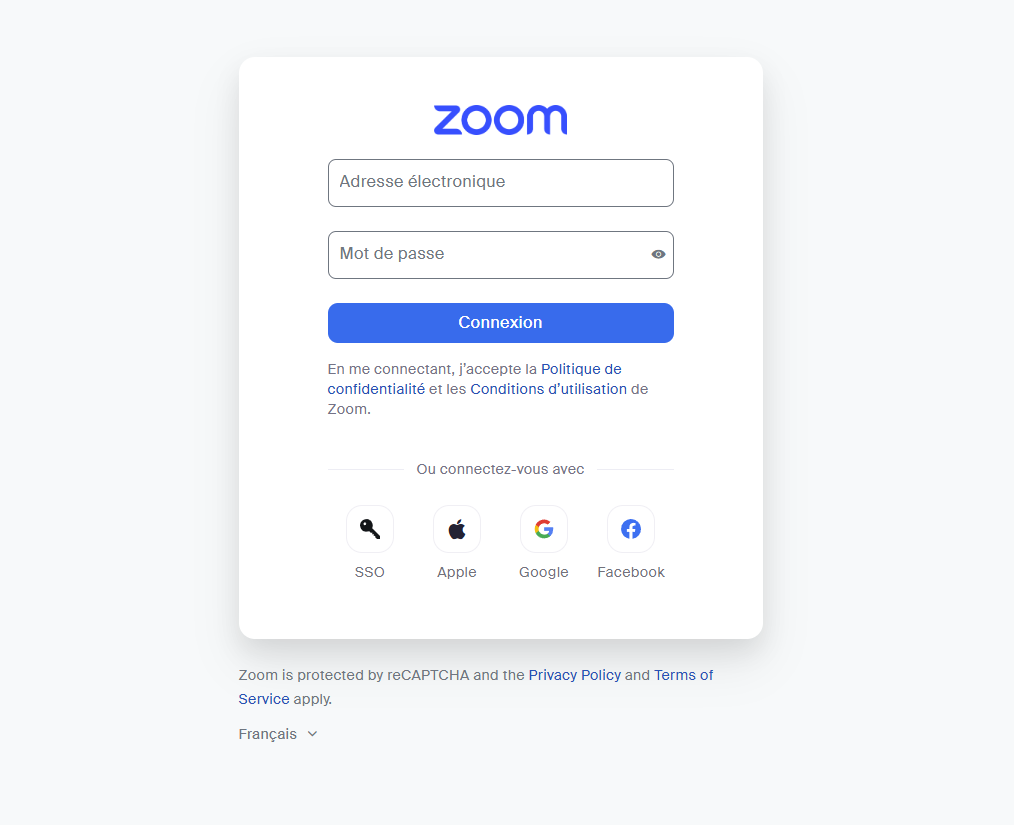
Log in to Zoom with your usual credentials.
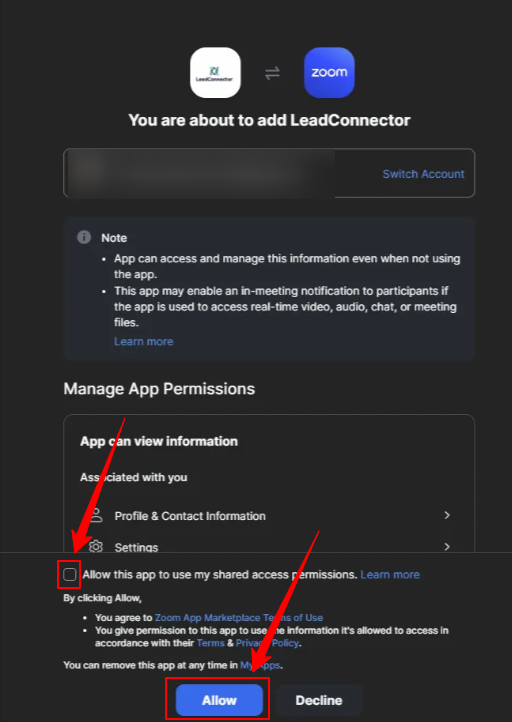
Your Zoom account has been successfully connected.
Alternatively, you can also connect Zoom From the "My Profile" menu in the settings. To do this, go to Settings > My Profile > Calendar Settings > Video Conferencing and click + Add, then follow the same procedure outlined above
How to add Zoom links to your calendar?
Make sure that the integration with Zoom is configured correctly.
Go to your calendar settings.
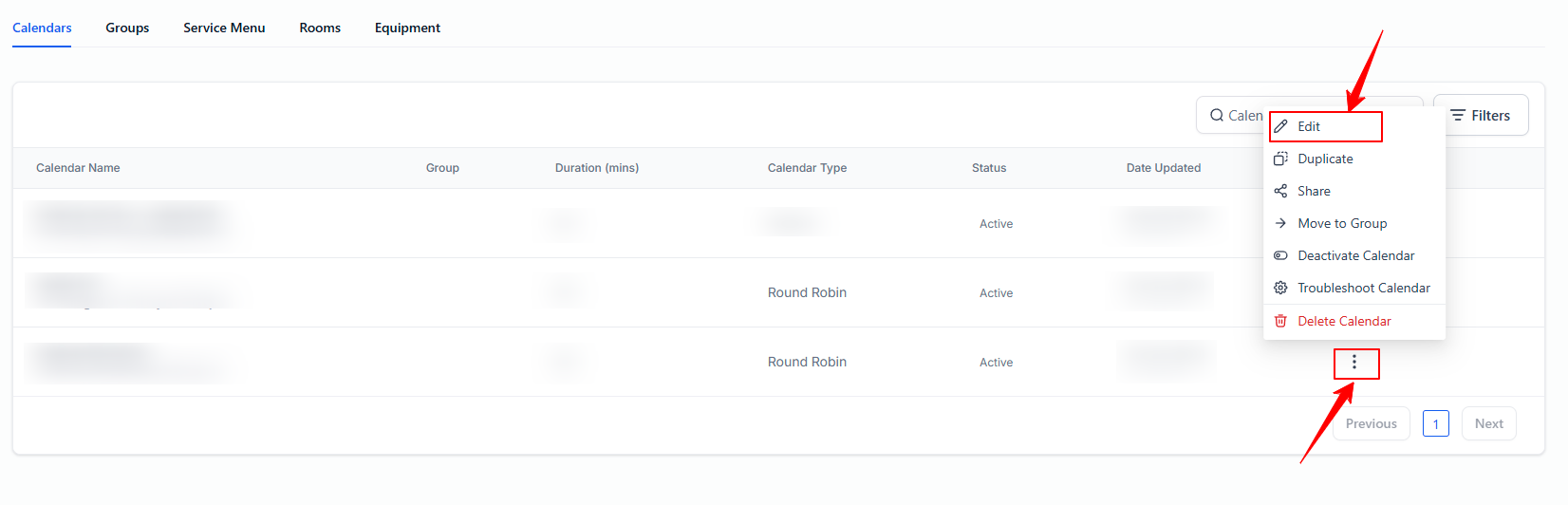
Select the calendar where you want to add dynamic Zoom links.
💡TIP: Dynamic Zoom links are only supported for Round Robin and Collective booking calendars.
Steps to add Zoom to a calendar
Edit the calendar: Open the calendar you want to edit.
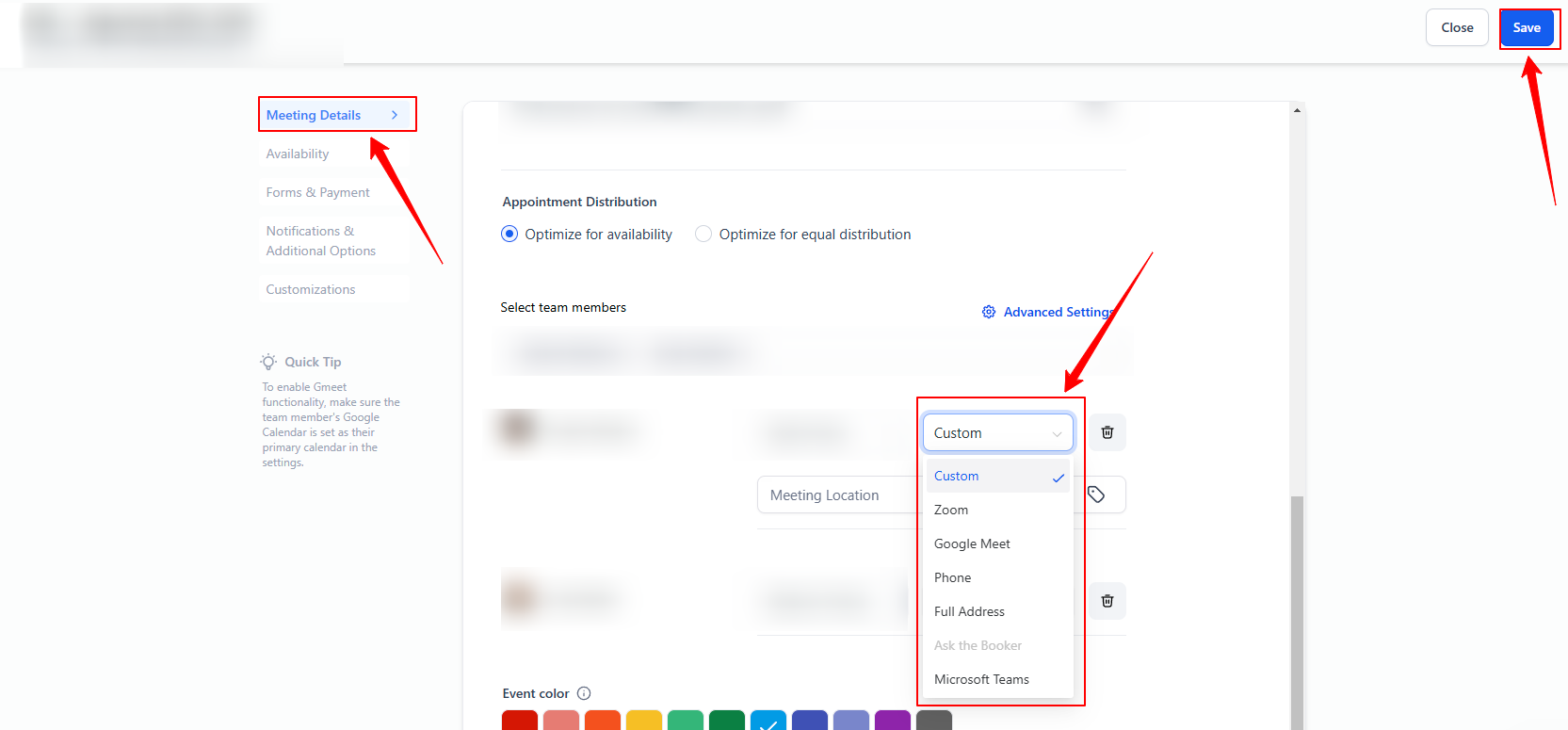
Meeting details: Go to the Meeting details section.
Meeting location under Team members: Scroll down to the Meeting location option.
Choose Zoom: Select Zoom as the meeting location and click Save.
Conclusion
Integrating Zoom with CrocoClick allows you to automatically generate meeting links for your Round Robin and Collective calendars. By connecting your Zoom account and configuring your calendars, you save time and simplify the management of your appointments. Optimize your processes by using this feature to provide a professional and seamless experience for your customers.
For complete synchronization of your appointments, consider connecting your google calendar, Outlook, or iCloud.