Understanding and using redirects
Simplify your links with URL redirects: share external links under your domain for a better user experience.
Written By CrocoTeam
Last updated 6 months ago
URL redirects are a handy feature of CrocoClick that lets you turn long or complex links into short, custom URLs based on your own domain.
It’s an ideal solution for simplifying link sharing, strengthening your branding, and improving the user experience.
What is a URL redirect?
A URL redirect is used to direct a user to an external page or service via a simple, custom link based on your domain. For example:
Original link:
https://us04web.zoom.us/j/123456789?pwd=abcdefghijklmRedirected link:
votredomaine.com/zoom
By using a simple URL like votredomaine.com, you make it look like an internal link on your site, even though it redirects to an external page. This is a powerful way to:
Simplify link sharing on social media, in emails, or via text messages.
Strengthen your brand by highlighting your own domain.
Provide a better user experience with short, memorable links.
Why use URL redirects in CrocoClick?
URL redirects offer several benefits for your business:
Easy to share: Simplify your communications by replacing long links with short URLs.
Branding: Use your own domain to boost your brand’s credibility and recognition.
Versatility: Create redirects for meetings, online resources, or even promotional offers.
Accessibility: Allow your contacts to quickly access your content using simple paths (e.g.,
/promo,/contact).
How do I create a URL redirect in CrocoClick?
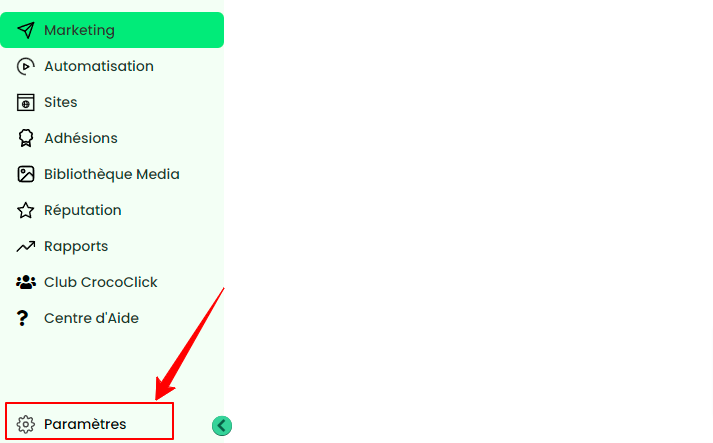
Step 1: Access Settings
Go to Settings
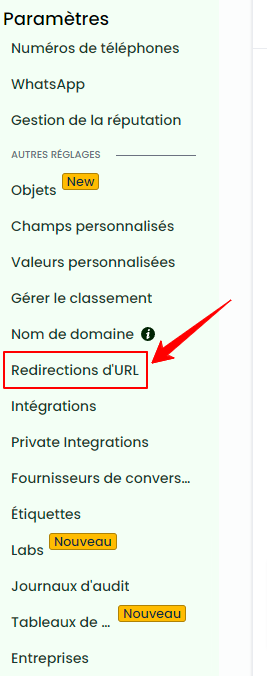
Select URL Redirects.
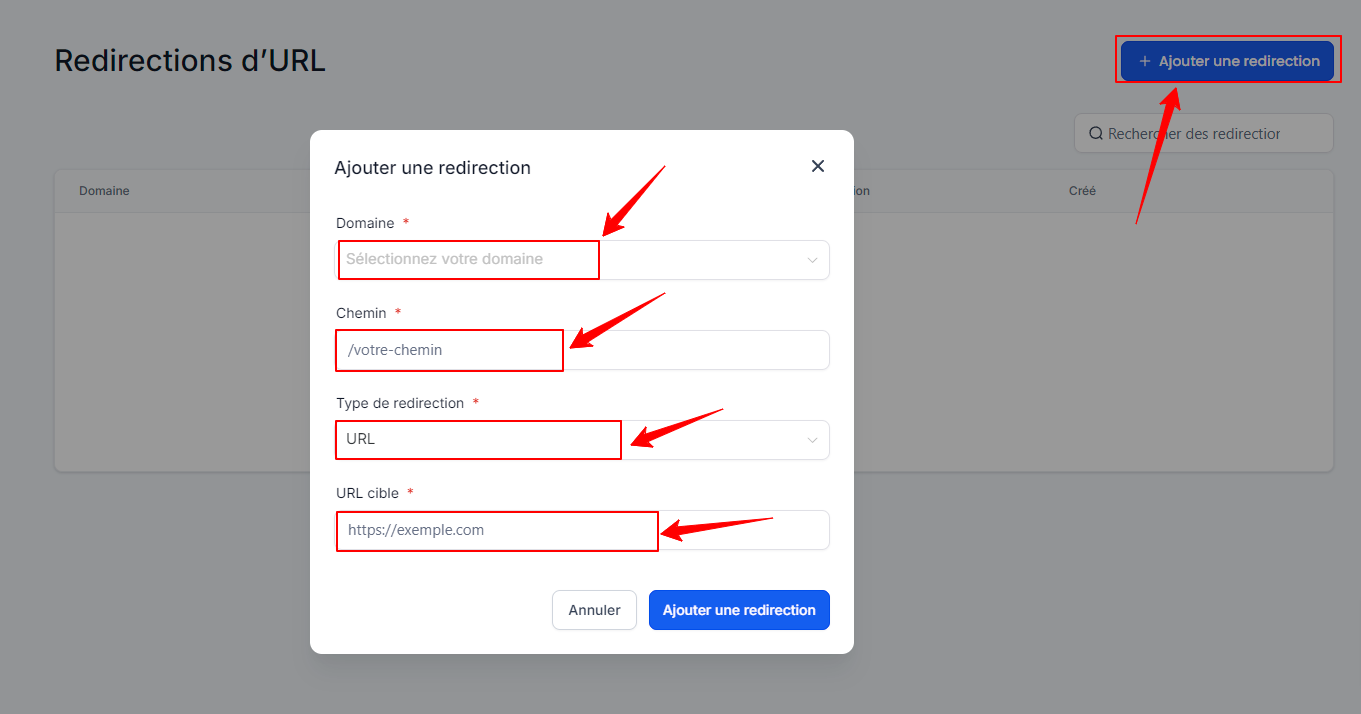
Step 2: Create a redirect
Click on + Add a redirect.
Select the domain you want to use.
Set an easy-to-remember path (e.g.,
/zoom,/promo,/galerie).Add the target URL, i.e., the external link to which your users will be redirected (e.g., a Zoom link, a Google Photos album, a promotional page, etc.).
Click Add Redirect.
Step 3: Test your redirect
Open a web browser and enter the URL you created.
Make sure you are successfully redirected to the configured target URL.
Examples of using redirects in CrocoClick
Simplifying online meetings
Redirect votredomaine.com/zoom to a complex Zoom link, allowing your contacts to easily access your meetings.
Promotional pages
Turn votredomaine.com/promo into a link that redirects to a special offer page on an external platform.
Affiliate links
Shorten and customize your affiliate links using votredomaine.com/partenaire.
Photo albums or portfolios
Use votredomaine.com/photos to direct your contacts to an online gallery or your portfolio.
FAQ
1. Can I use redirects for different domains?
Yes, CrocoClick allows you to set up multiple domains and create redirects for each one.
2. Do redirects improve my SEO?
While they don’t directly boost your search engine rankings, they drive traffic to your domain, which can enhance its visibility.
3. Do redirects expire?
No, they remain active until you manually delete them in your settings.
4. Can I edit a redirect after creating it?
Yes, you can edit or delete a redirect at any time from the URL Redirects section. This means you can have a link (e.g., mondomaine.code/offre) that points to different pages depending on the season.