Introducing the page builder (funnel or website)
Create and customize your web pages and funnels with the mobile-friendly, feature-rich drag-and-drop editor.
Written By CrocoTeam
Last updated 6 months ago
In this article, we’ll introduce you to CrocoClick’s page builder.
This tool lets you easily create and customize pages for your websites or sales funnels.
With an intuitive drag-and-drop interface, you can design pages fully tailored to your brand and business goals, while incorporating interactive elements, animations, and much more.
Use case: creating pages for a lead capture funnel
How do I access the CrocoClick page builder?
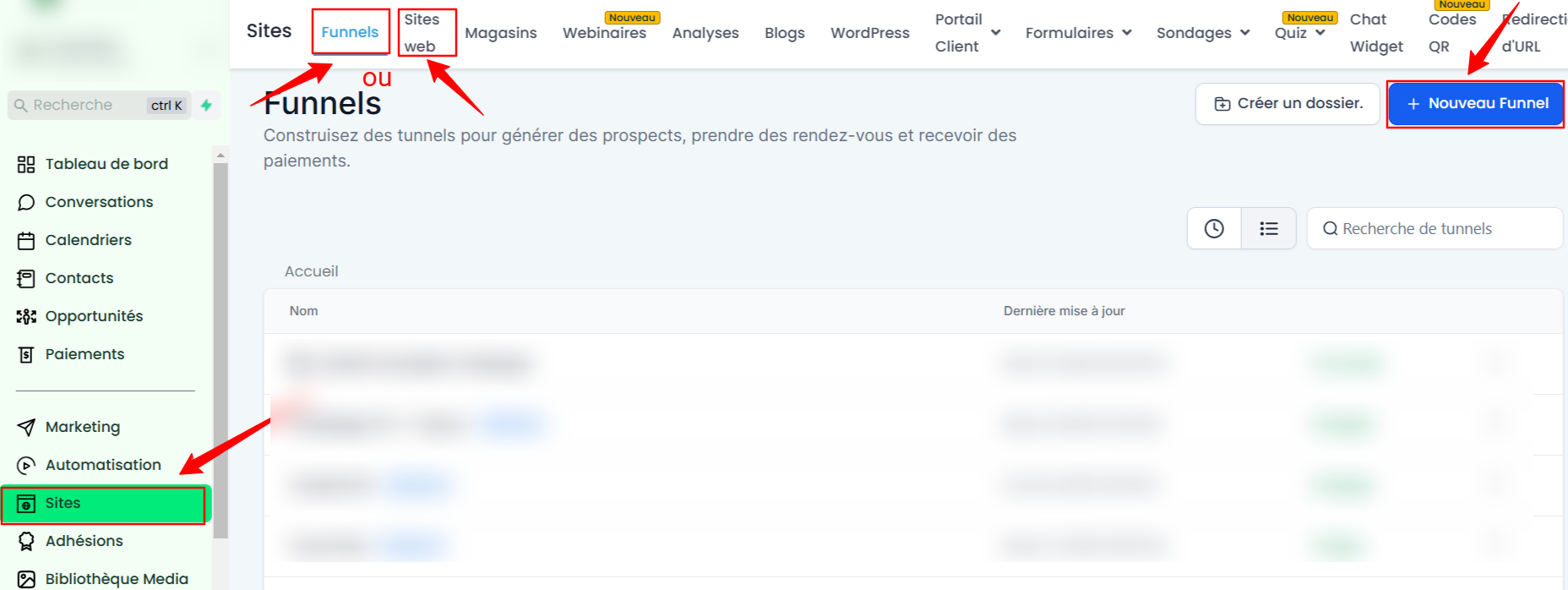
To get started, go to the Sites > Funnels or Sites > Websites section from your CrocoClick dashboard. Then, click on + New Funnel or + New Website.
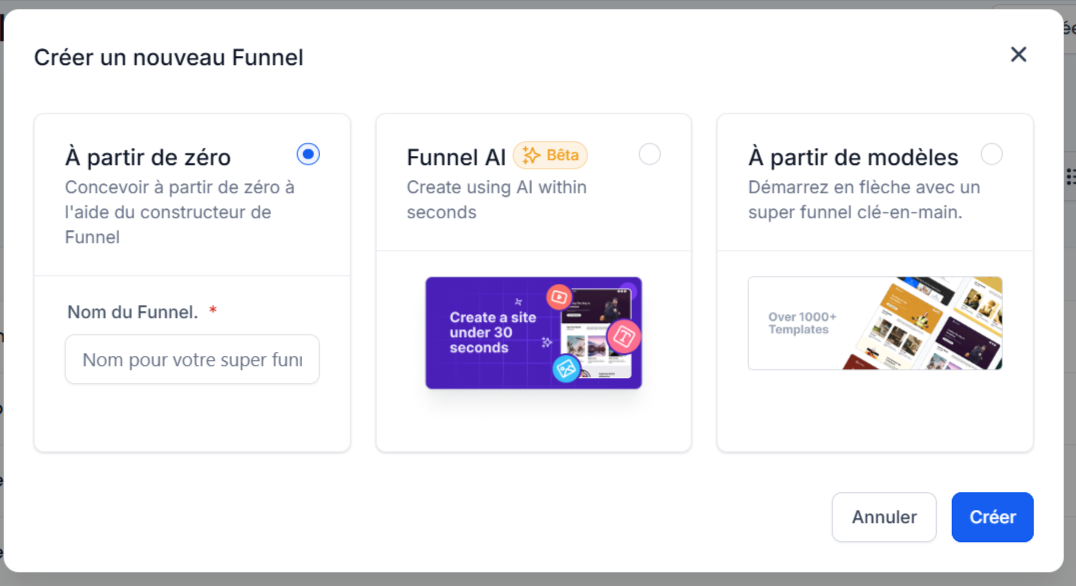
You can choose to start from scratch or select from our existing templates.
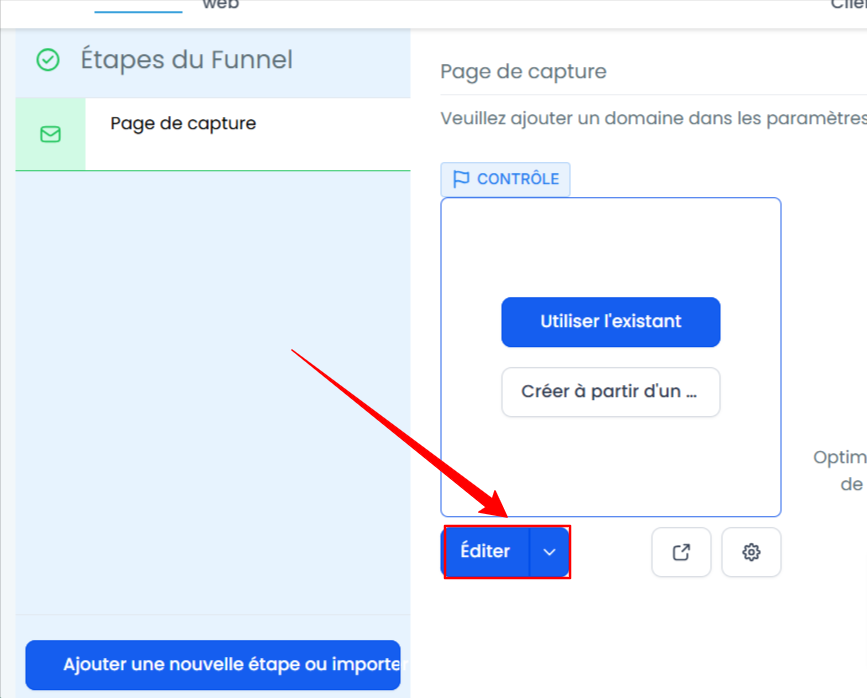
Create a step for your new funnel and click Edit to modify the page.
Customizing pages
Once you’ve selected a site or a funnel, you’ll be taken to the page builder. It’s divided into sections, rows, columns, and elements:
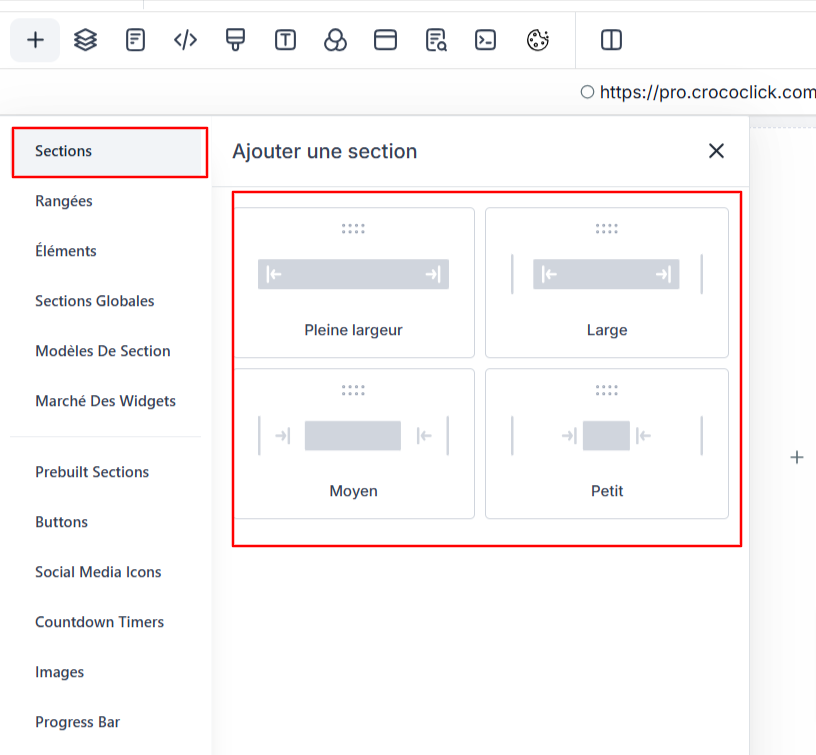
Sections: The largest structures of your page. You can have multiple rows in each section.
You can choose between a full-width, wide, medium, or small section.
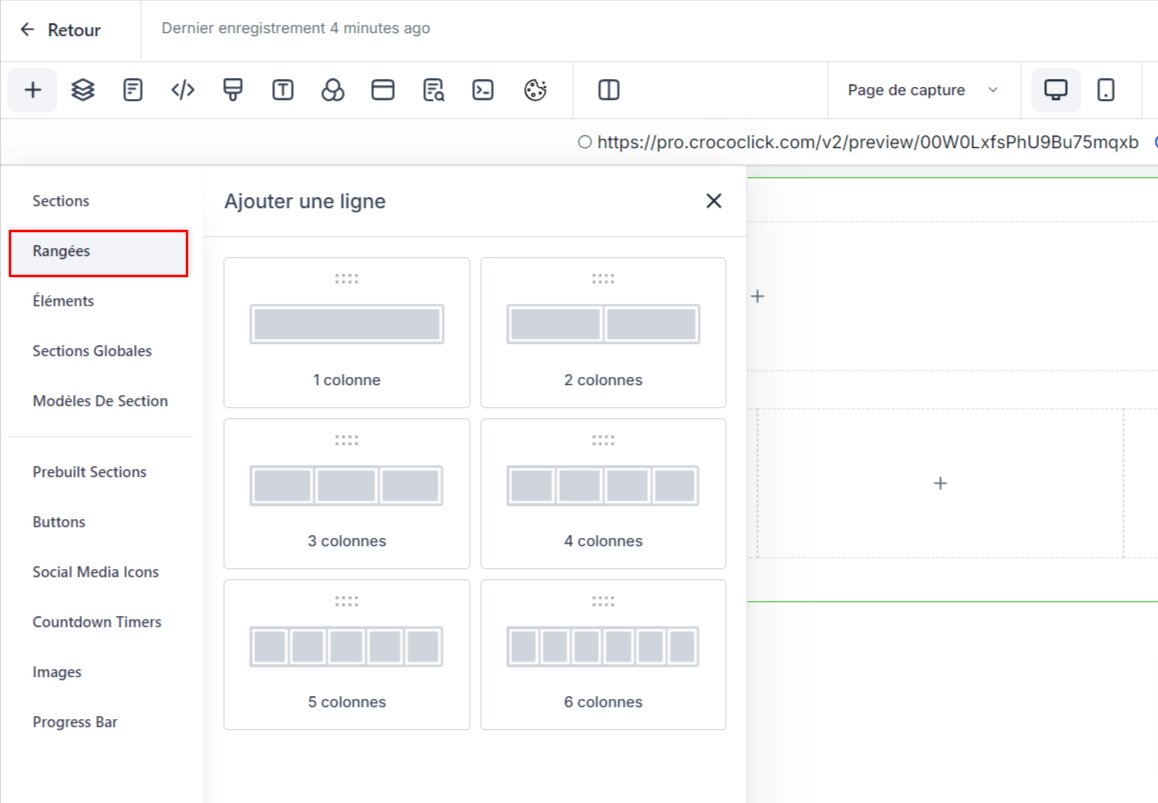
Rows: Rows divide your content into different columns.
You can choose between a single-column row or a multi-column row (up to 6 columns).
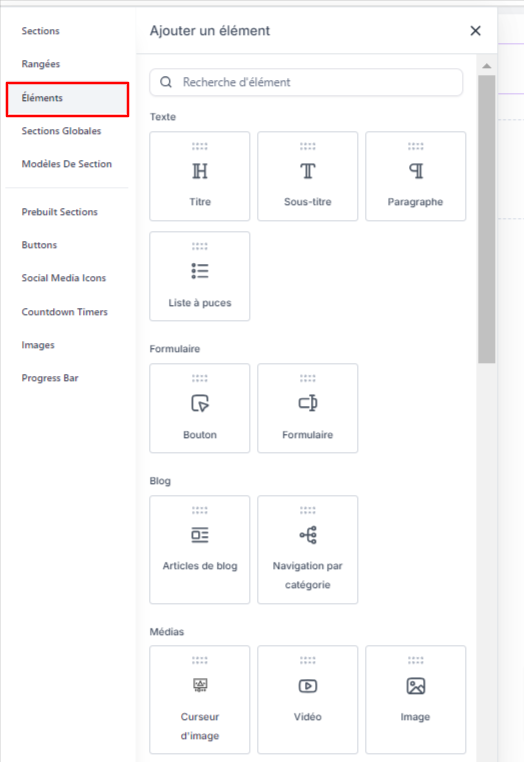
Elements: These are components such as images, text, buttons, etc. You can drag and drop these elements into the columns to easily build your page.
Builder tools and features
Visual Editor: Use the drag-and-drop system to add and organize your elements.
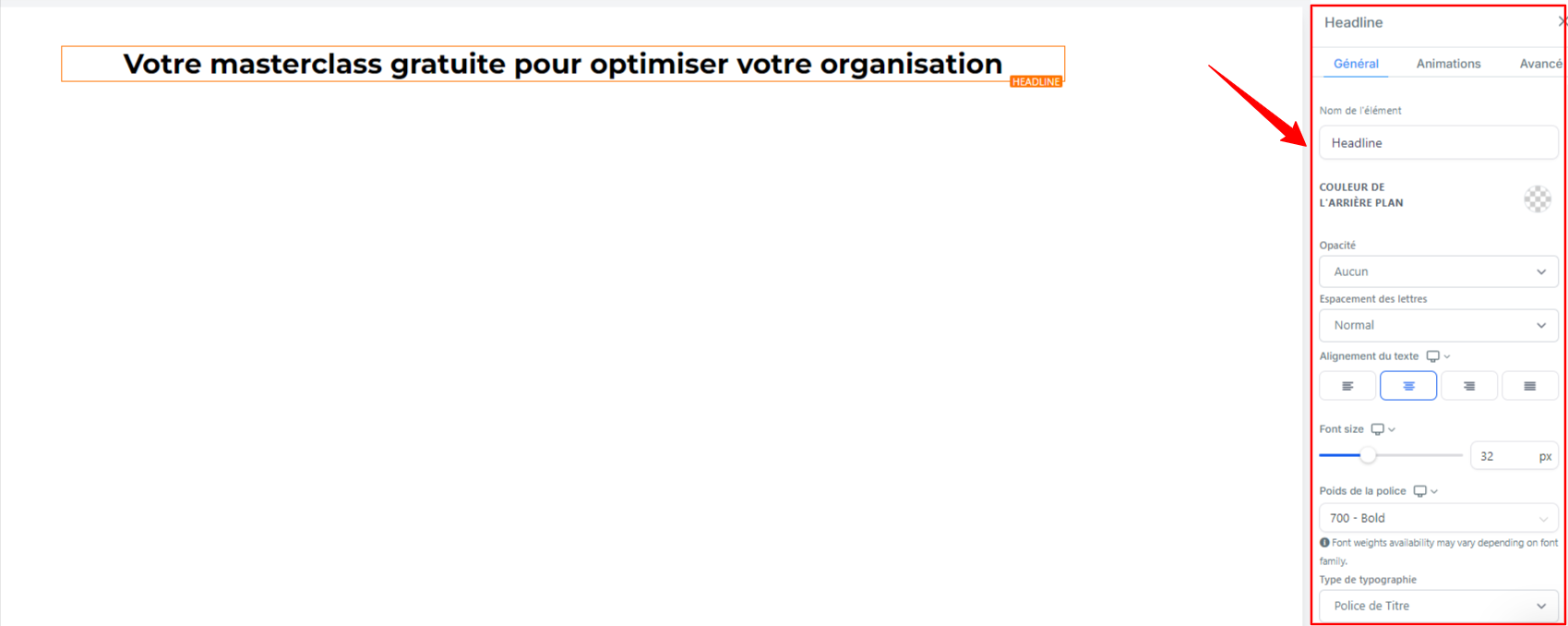
Customization options: Each element can be customized (colors, fonts, spacing, etc.). Use the editing menu on the right side of each specific element to customize it as you wish.
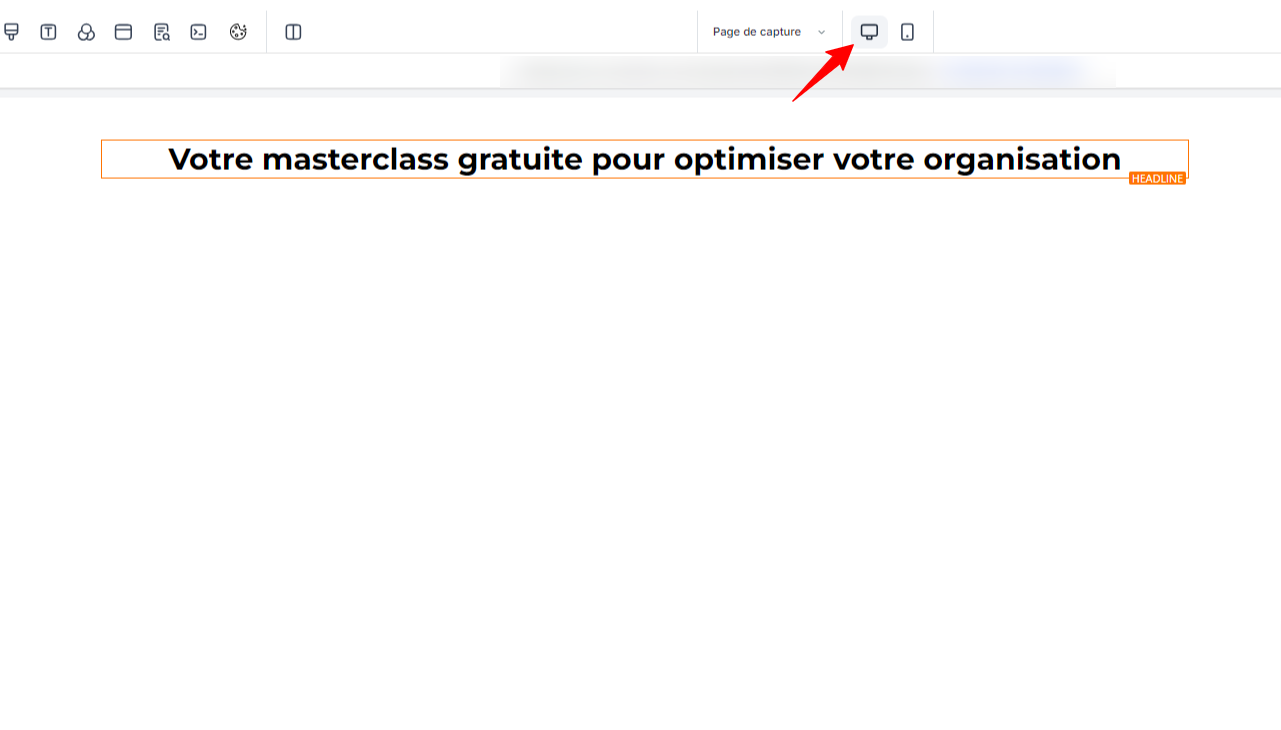
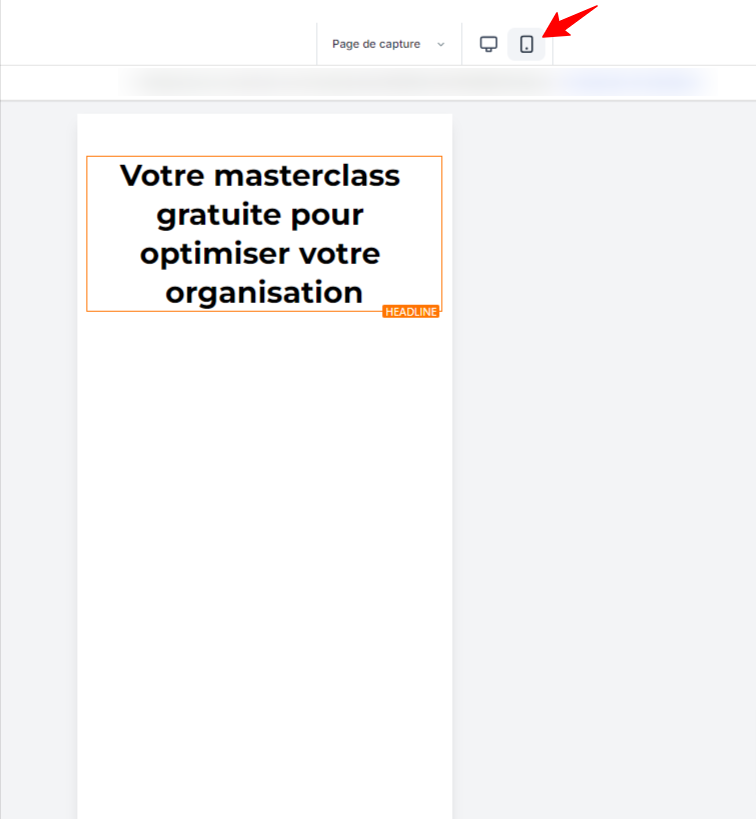
Mobile display optimization: You can adjust the mobile version to ensure your site or funnel is optimized for all devices.
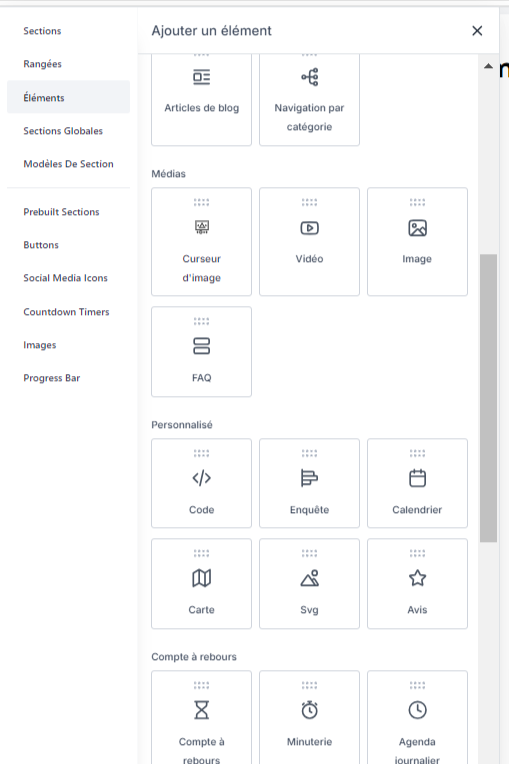
Dynamic Content Integration: You can embed videos, calendars, maps, blog posts, and much more. Explore the Elements to see all the possibilities.
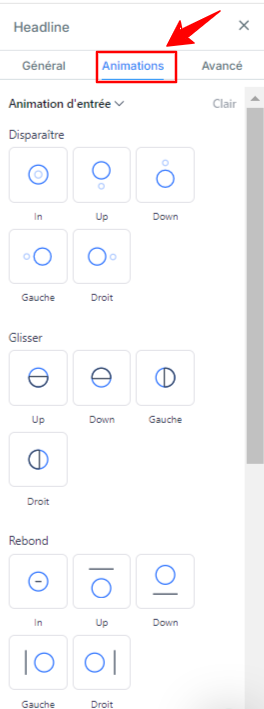
Animations: To make your site more engaging, you can add animations to text elements, buttons, and images. This captures visitors’ attention when they interact with the page. When you select the element to animate, click “Animations” in the right-hand sidebar to view the different options.
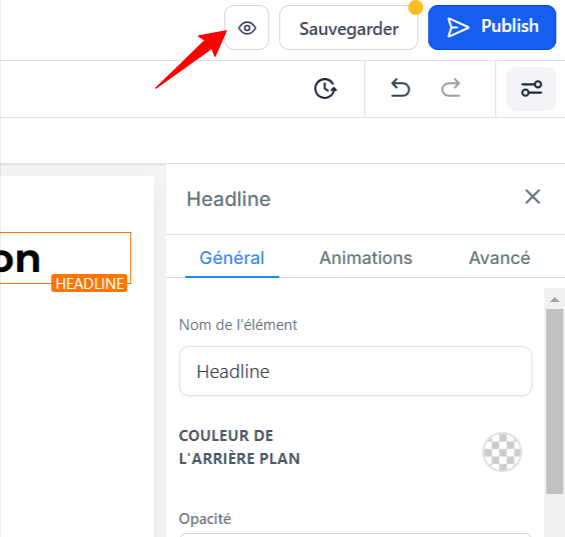
Page Preview: You can preview the entire page to see how it will look to your customers. Be sure to save all changes before leaving the builder to confirm the updates you’ve made.
Using Prebuilt Sections
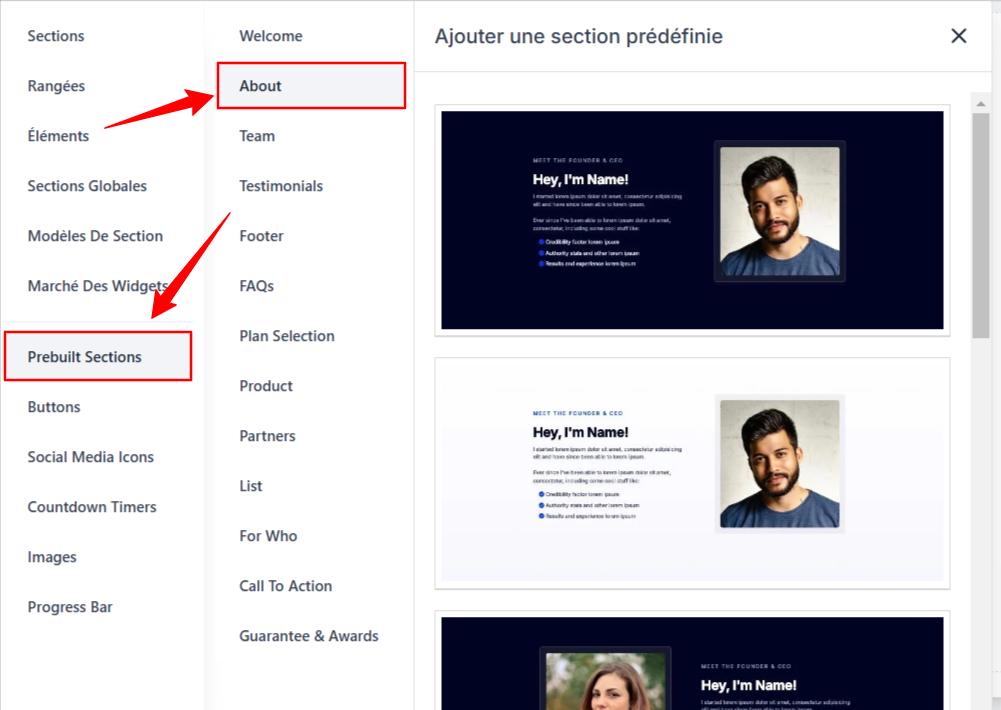
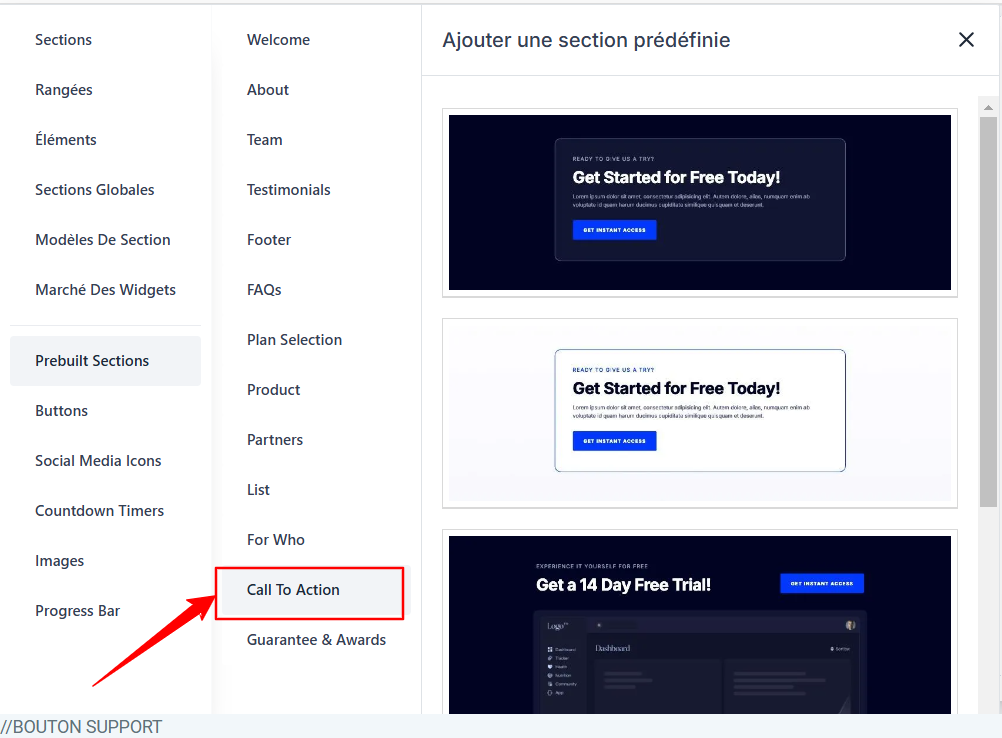
To simplify page creation, CrocoClick offers Prebuilt Sections (testimonials, About, Team, etc.). You can simply drag and drop these sections into your pages to quickly create a consistent and professional design.
Example #1: Templates for the About section
Example #2: Templates for the Call to Action section
Save a section and reuse it
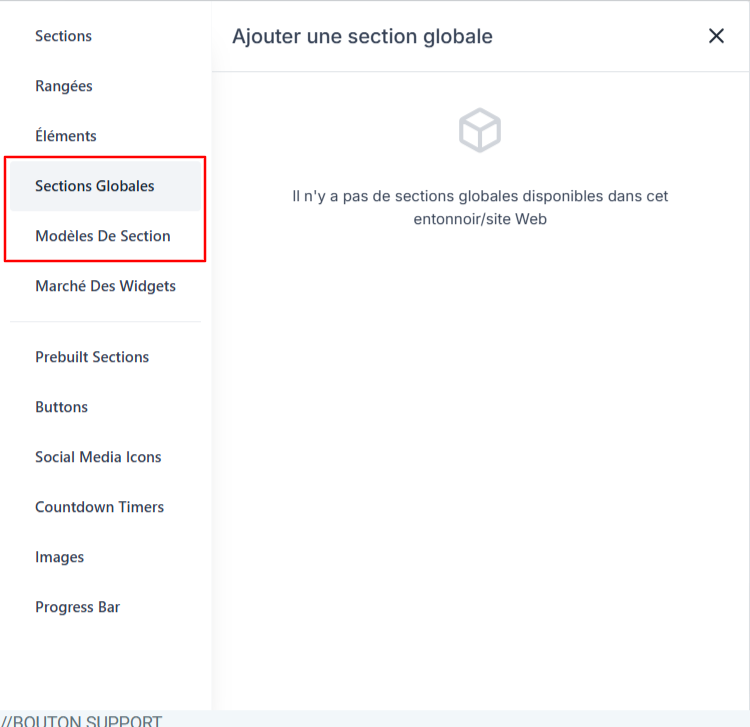
In CrocoClick, you can save a section to easily reuse it elsewhere. You have two options:
Reusable Templates: Save a section as a template. You can add it to different pages and customize it independently each time.
This is useful for banners or calls to action.
Global sections: Create a global section to use across multiple pages. Any changes made to this section will automatically update wherever it is used.
This is ideal for keeping a menu or footer consistent across your entire site.
Conclusion
CrocoClick’s page builder is a powerful tool that simplifies the creation of web pages and sales funnels. It allows you to customize every step of your customer journey while ensuring smooth navigation and a design optimized for conversions. Whether you want to create a full website or a simple sales funnel, CrocoClick offers all the tools you need to succeed.