How to create and edit smart lists
Use CrocoClick's smart lists to segment your subscribers automatically and efficiently.
Written By CrocoTeam
Last updated 8 months ago
Smart lists in CrocoClick differ from the traditional "lists" found in other autoresponders.
While traditional lists are fixed groups where your contacts are manually added and removed, smart lists are dynamic.
They automatically update based on criteria you define.
This means that your contacts enter and leave these lists as they meet (or fail to meet) certain conditions.
This flexibility makes smart lists extremely powerful for segmenting your subscribers in a more precise and automated way.
Create a smart list
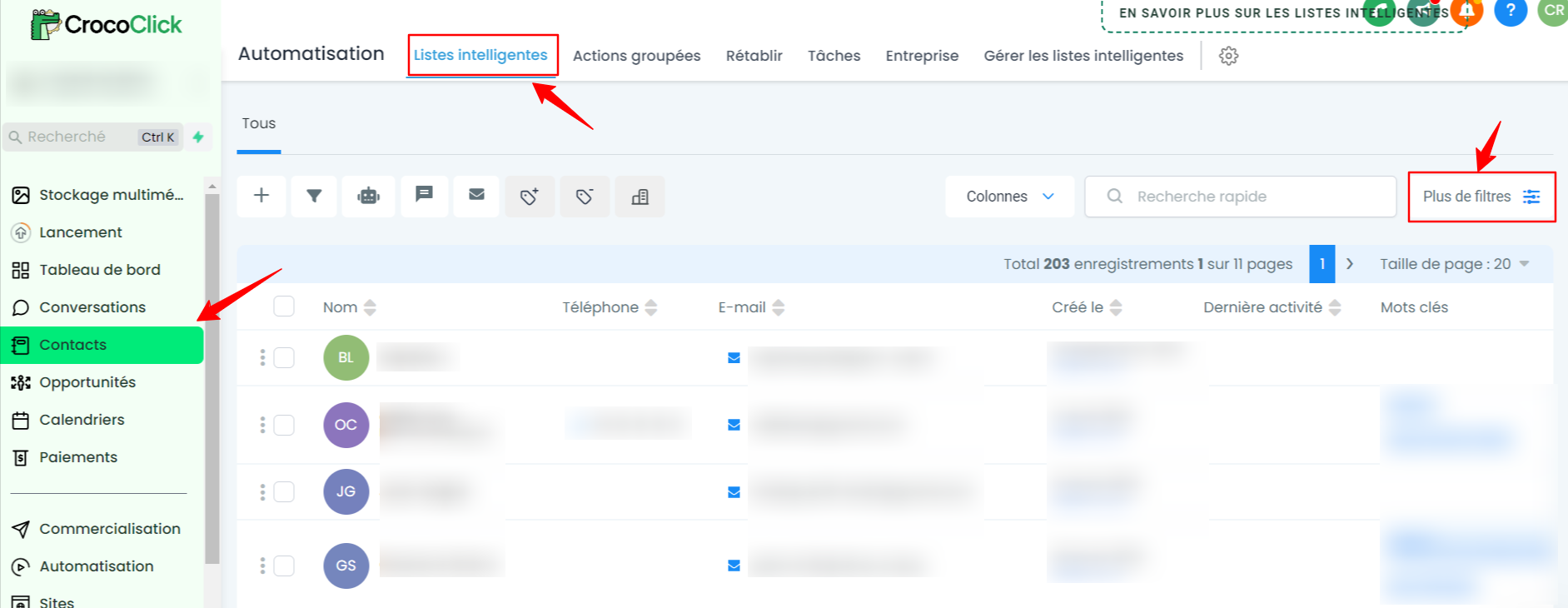
Go to the Contacts section: In your CrocoClick CRM, go to the Contacts section, then click on Smart Lists.
Add filters: Click on "More filters." You will find a variety of options to choose from, allowing you to refine your contact search.
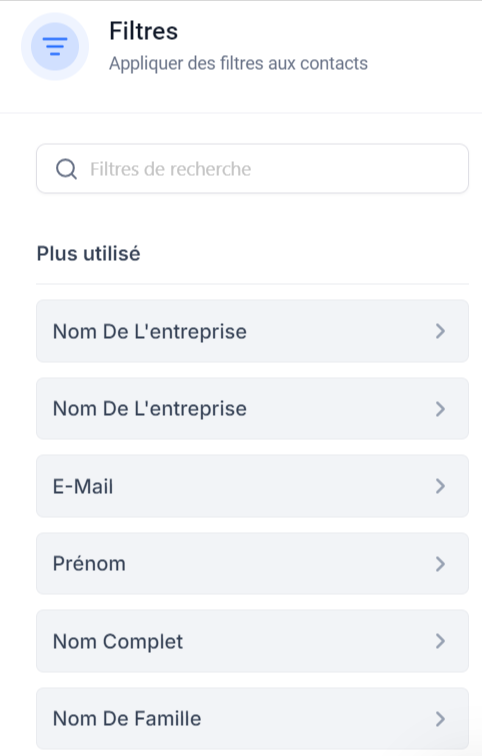
Choose filters:
You can choose basic filters, such as identifying inactive contacts, or more specific filters, such as adding a tag.
Easy navigation: Filters are carefully sorted, making it easy to find what you need.
Defining a filter: For example, if you are using the "Created by" filter, simply search for it, decide whether you want "is" or "is not," and then choose a user.
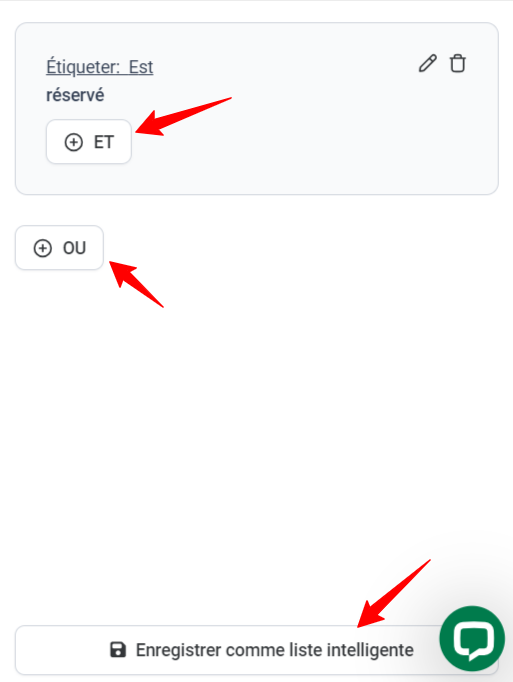
Reviewing filters: The filters you have selected are displayed on the right side of the screen. All your selected filters are displayed on the right side of the screen. You can add other criteria by clicking AND, or expand the options with OR.
Save your smart list: Once you are satisfied with the filters you have applied, click Save as Smart List. Your list will now be dynamic and automatically updated.
💡TIP: The most commonly used smart list is the one linked to "active contacts." To do this, simply filter using the condition "DND is not enabled for email." DND stands for "Do Not Disturb" (which is automatically activated when someone clicks on unsubscribe, for example).
Using smart lists in CrocoClick
Access your smart lists: Find all your smart lists under the Contacts tab, where they are clearly labeled.

Modify or delete a list: You can easily adjust or delete a smart list by selecting the list and modifying the associated filters.
Additional features
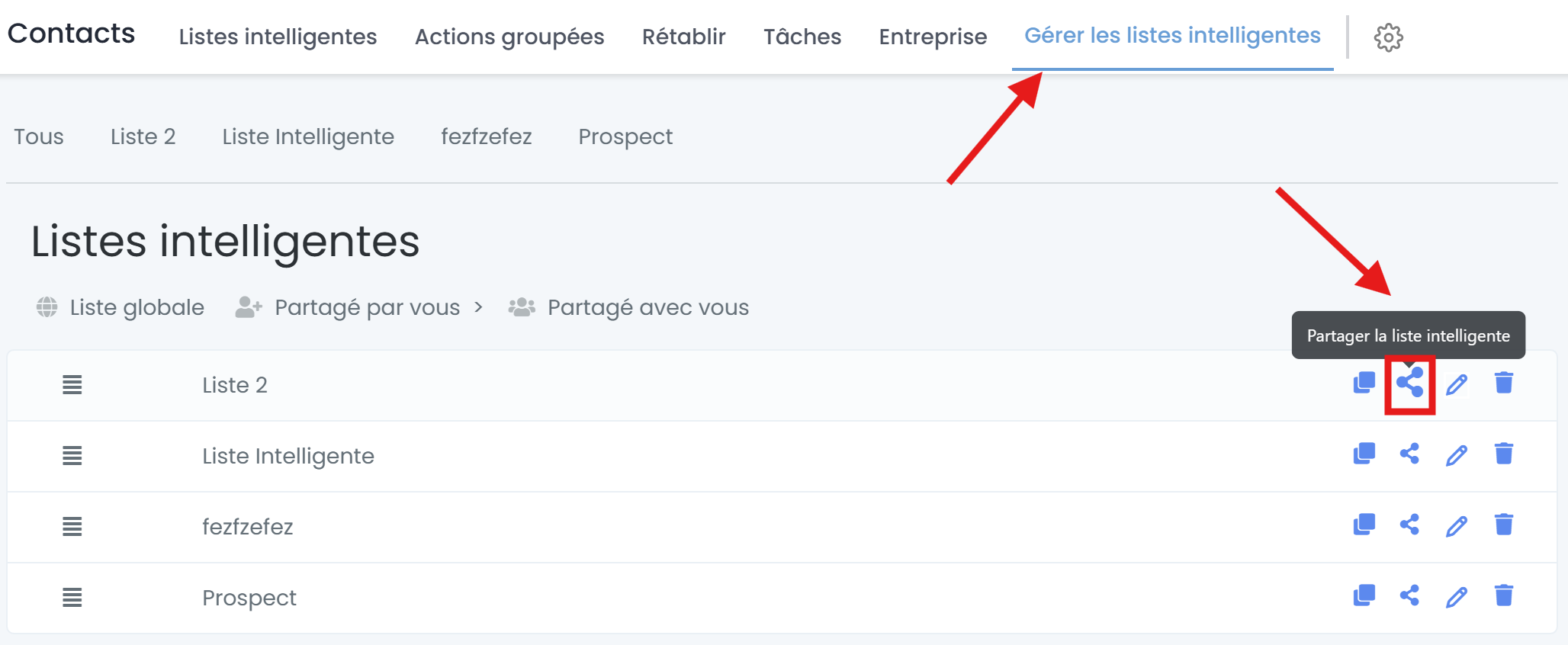
1. Smart list management: From the Contacts page, you can also copy, share, rename, or delete a smart list.
💡TIP: By default, the smart lists you create are only visible to you. If you want to make them available to other users in your account, simply convert the smart list to a global list by clicking on the share icon and selecting "global list."
2. Advanced filters: Crococlick offers a wide range of advanced filters to help you refine your lists even further. These include:
Created by filter: search for contacts based on the user who created a particular contact record.
Last updated by filter: Search for contacts based on the last user who updated a contact record.
Incoming DND (Do Not Disturb) settings filter: Filter contacts based on their DND status for incoming communications.
DND Settings filter: Search for contacts with specific DND preferences for outgoing communications.
Website filter: Filter contacts based on the website associated with them.
Instagram ID filter: Allows users to filter contacts with or without an Instagram ID.
Facebook ID Filter: Search for contacts based on the presence or absence of a Facebook ID.
Country filter: Filter contacts based on their country.
Time zone filter: Search for contacts based on their time zone, useful for scheduling communications.
Google ID filter: Search for contacts with or without a Google ID.
Additional email filter: includes contacts based on primary and additional email addresses.
Last active time filter: Users can search for contacts based on the time of their last recorded activity.
Valid email filter: Filter contacts based on the validation status of their email addresses.
Source type filter: Filter contacts based on the value of the source type field.
Examples of using advanced filters
Last activity: Filter contacts based on their last interaction with your communications. Useful for targeting the most engaged subscribers.
Email validation status: Exclude contacts whose email address has not been validated to avoid sending campaigns to incorrect addresses.
Sign-up source: Filter your contacts based on the platform through which they signed up (website, specific form, etc.).
In addition to these filters, you can also add information such as phone numbers, websites, and time zones to the columns of your smart lists and when exporting contacts.