Create your training structure
Discover how to create your own training course in Crococlick, using the modules, lessons, assessments & quizzes functions
Written By CrocoTeam
Last updated 8 months ago
Creating your training course in Crococlick is an excellent way to structure your online courses simply and effectively. With Crococlick, you can not only organize your modules and lessons, but also integrate assessments to track your learners' progress.
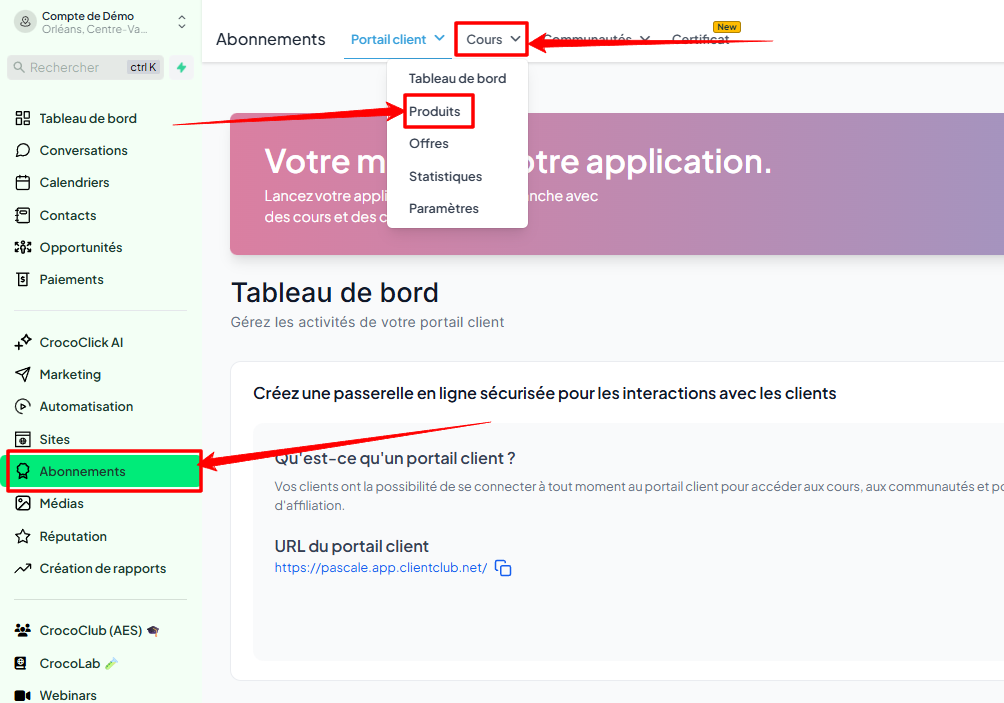
Step 1: Go to the subscription section and create a new product
In your dashboard, go to Subscription, then click on the Courses tab at the top and select Product.
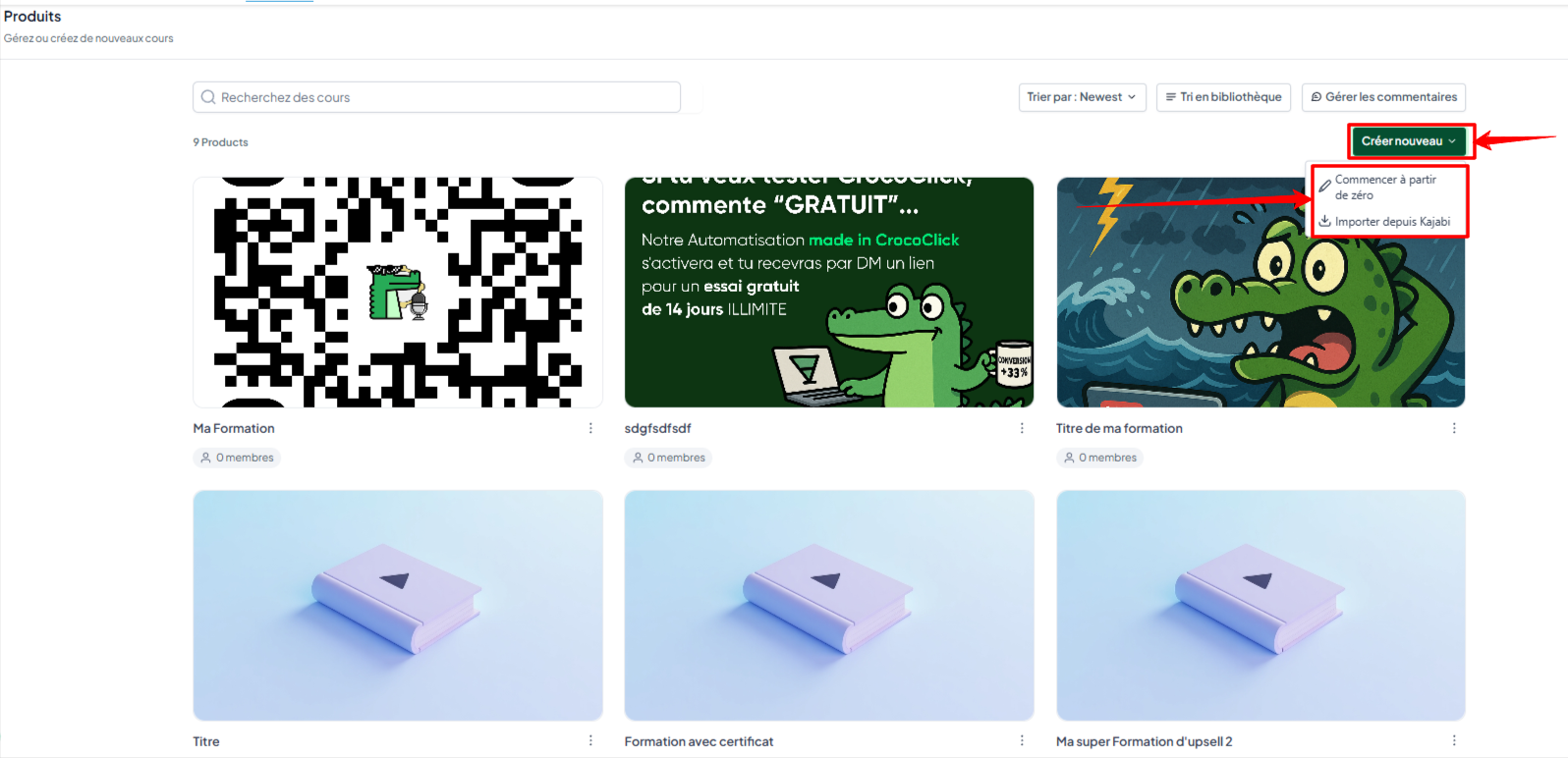
Click on "Create New," then select Start from Scratch
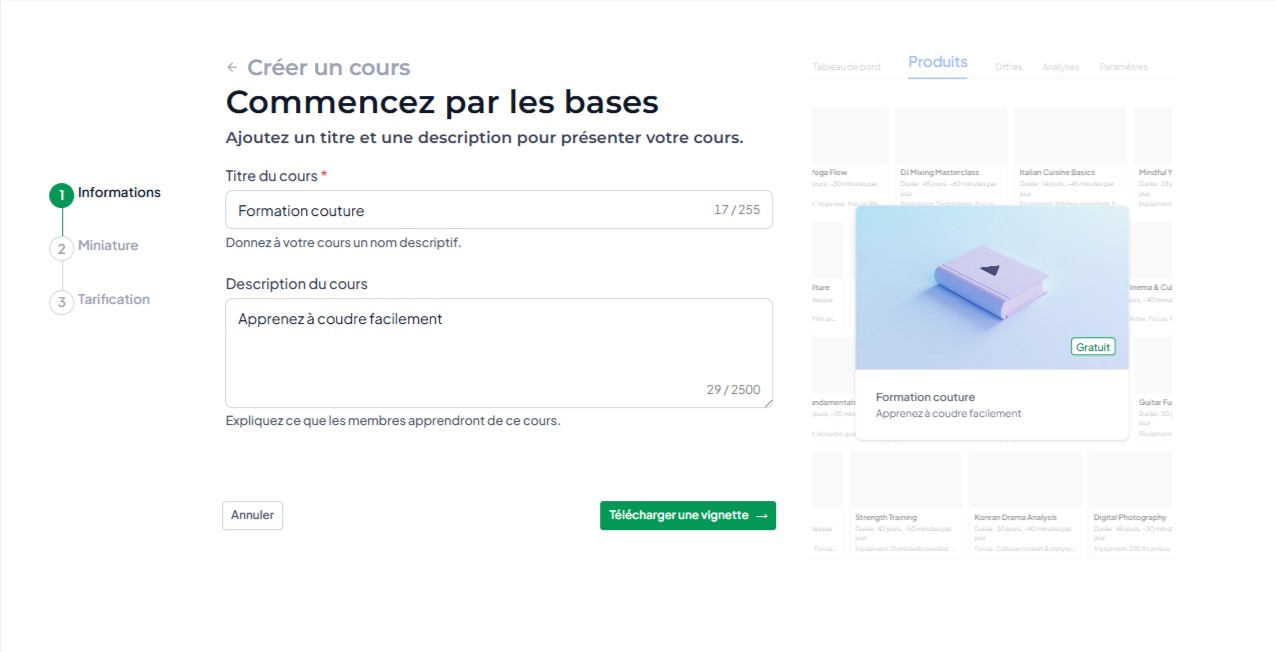
In step 1, name your course and add a description, then click "Upload thumbnail" to proceed to the next step
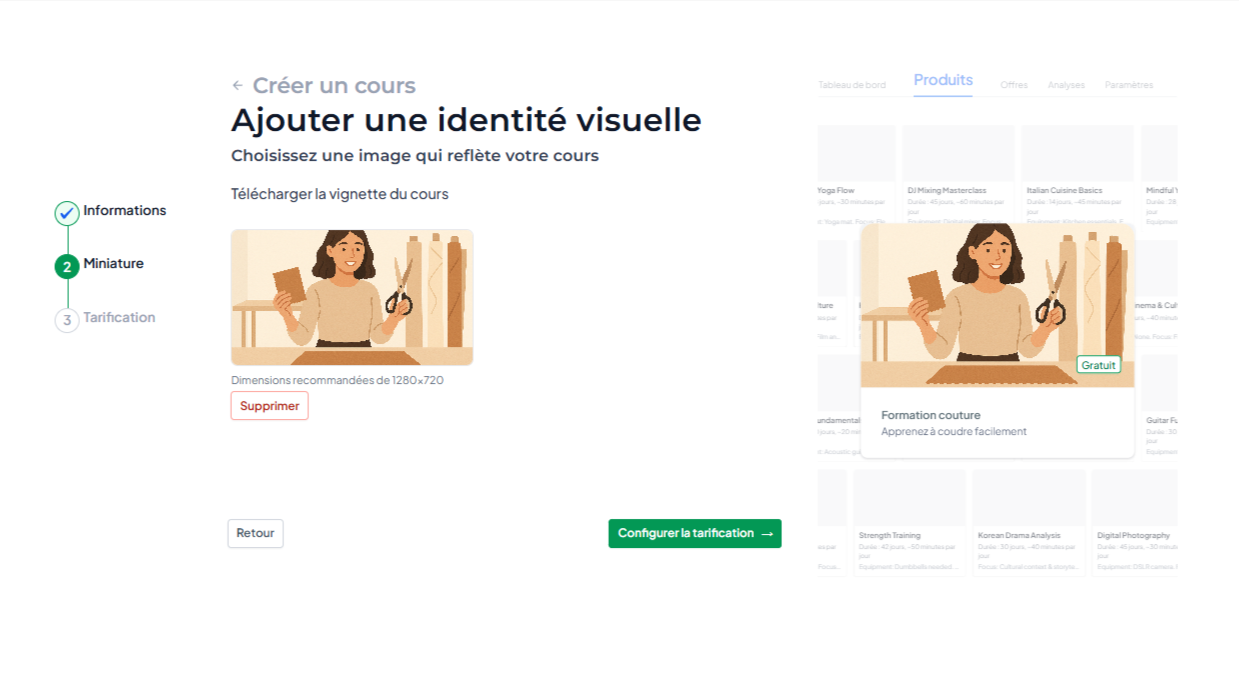
In step 2, add the thumbnail for your course and click on "Configure pricing."
In step 3, an offer is automatically created and linked to this course. Easily configure your offer and click on "create a course."
💡TIP: If you want to set up a paid offer, make sure you have integrated your payment gateway with CrocoClick.
Step 2: Structure your training course
The structure of your training course is based on two levels: modules and lessons. You can also subdivide your categories into subcategories for a more detailed organization.
You will have a welcome badge, module, lesson, and certificate template to visualize the structure of your training course. You can delete/modify these templates.
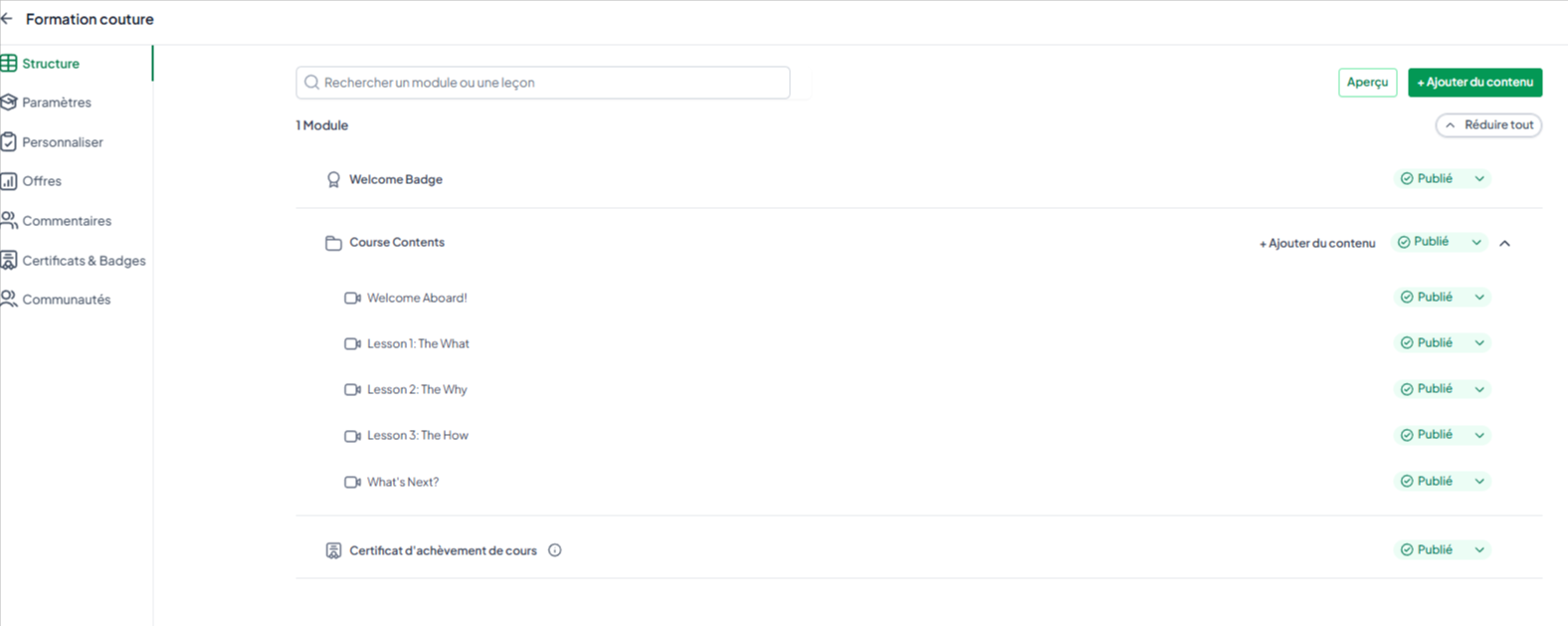
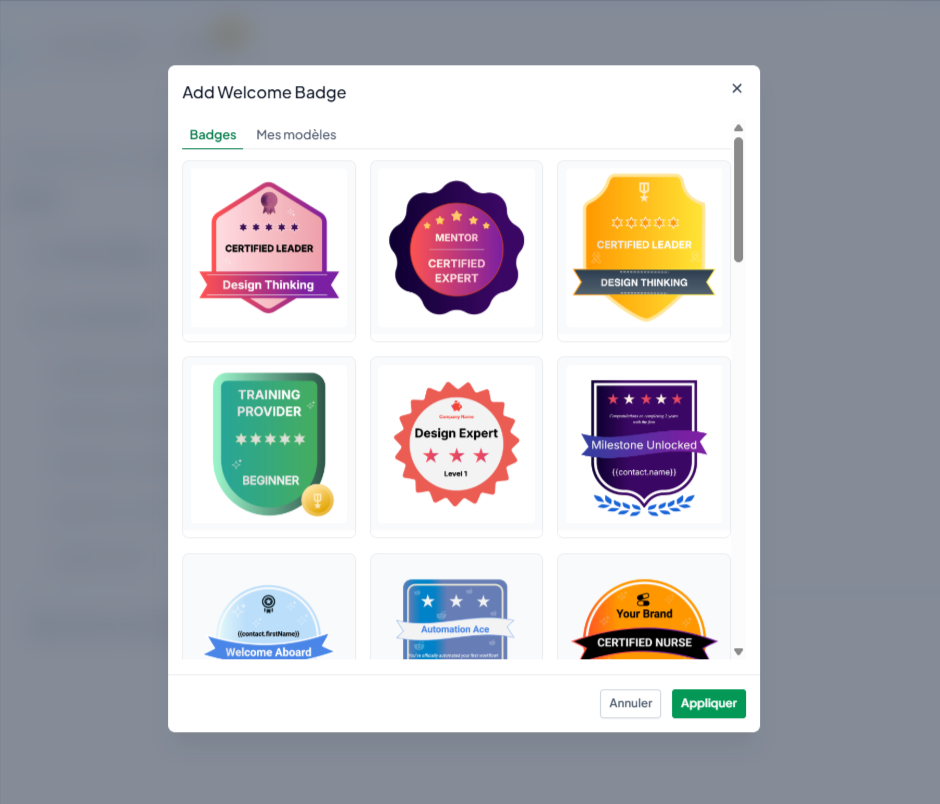
Modify the welcome badge: Click on the "Welcome Badge" button to modify the badge.
You can select an existing template or customize your own template.
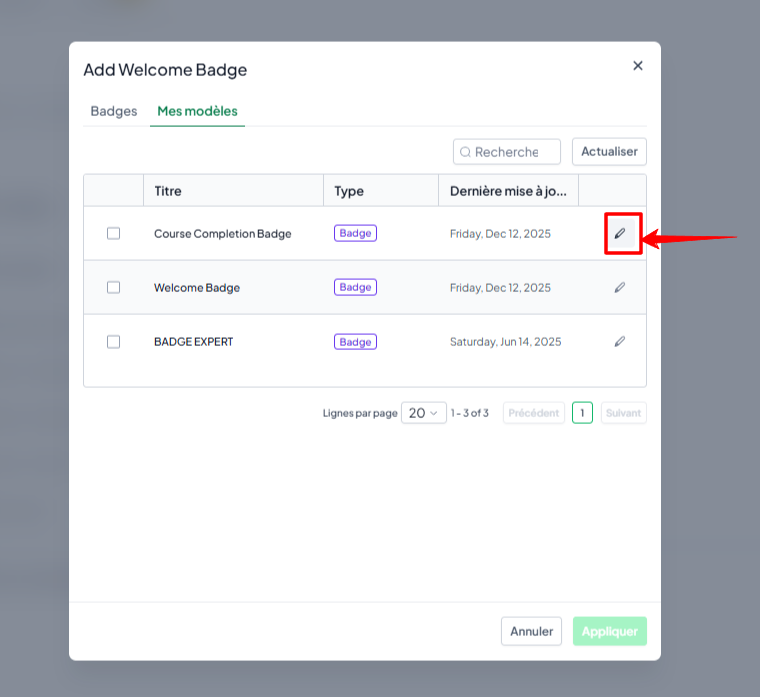
Click on the pencil to edit the template.
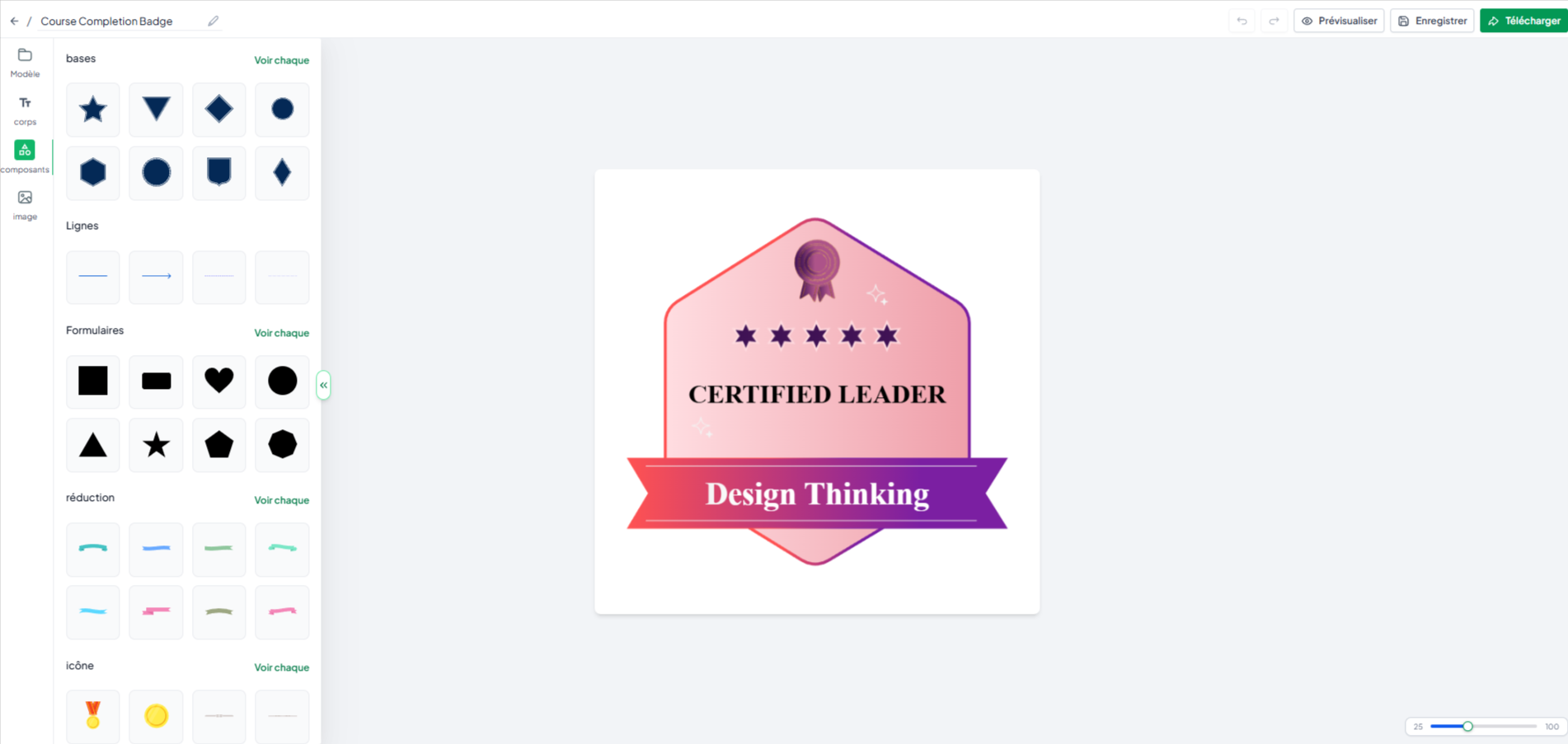
Modify the badge as you wish and click "Save" after making changes.
Add a module: Modify the default module template or click on + Add Content in the top right corner. Then select Create Module. Give the new module a name.
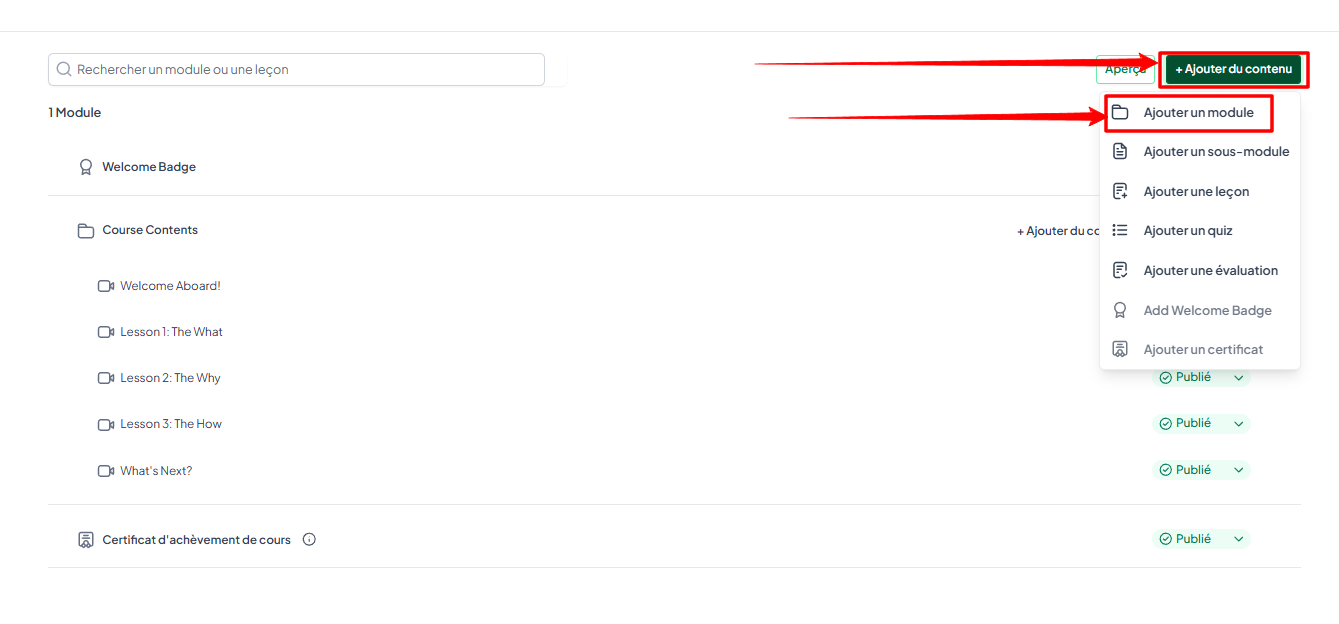
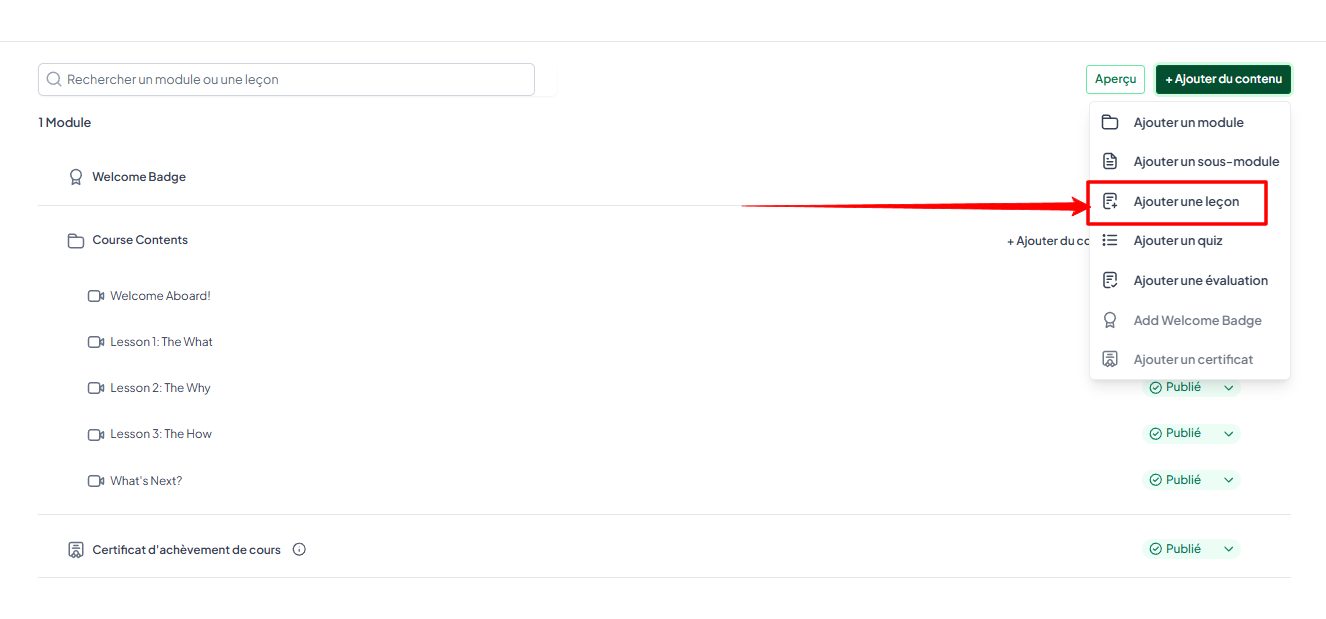
Add a lesson: Click Add a lesson in the corresponding category. Give each lesson a name.
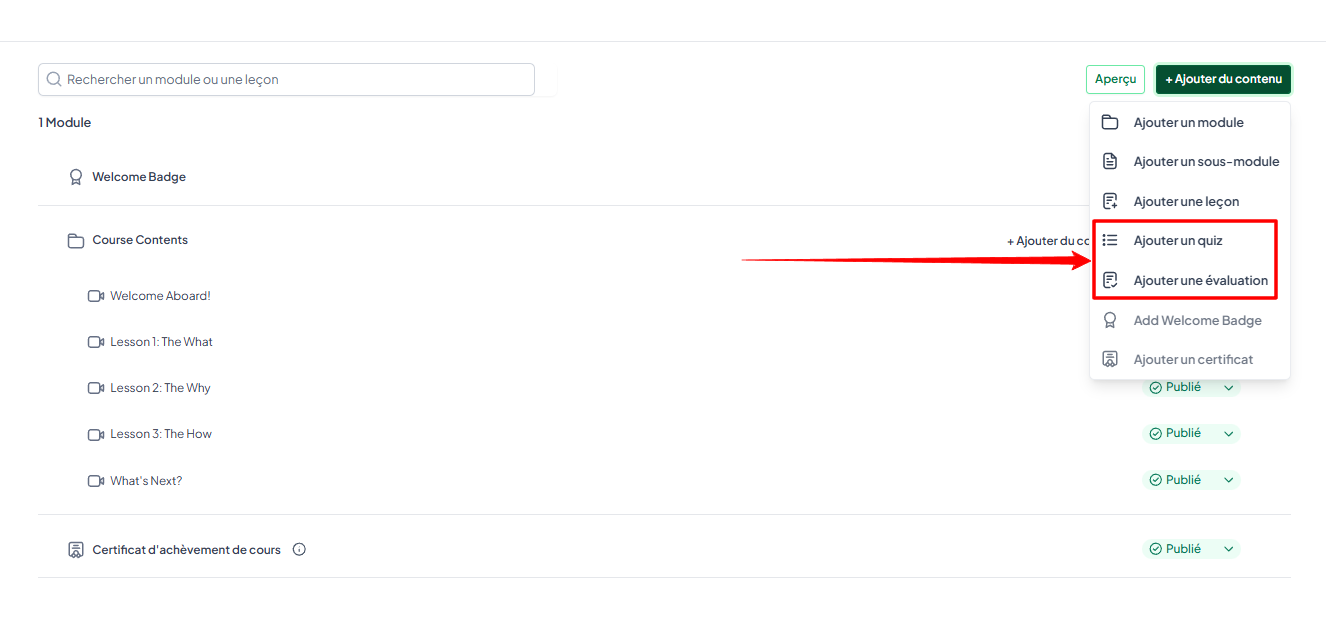
Add an assessment: To enrich the learning experience, you can add quizzes or assessments (such as assignments, files to be uploaded by the learner, etc.). Click on Add an assessment, then choose the type of content you want (quiz or assessment).
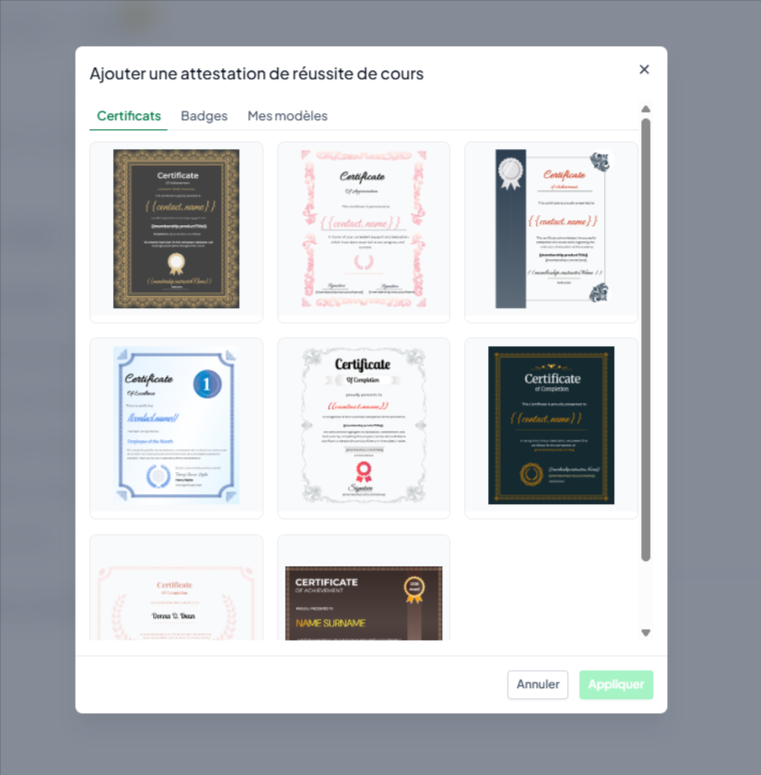
Edit the certificate: Click on "Course Completion Certificate" to customize it. Just like the welcome badge, you can choose a template or customize your own certificate.
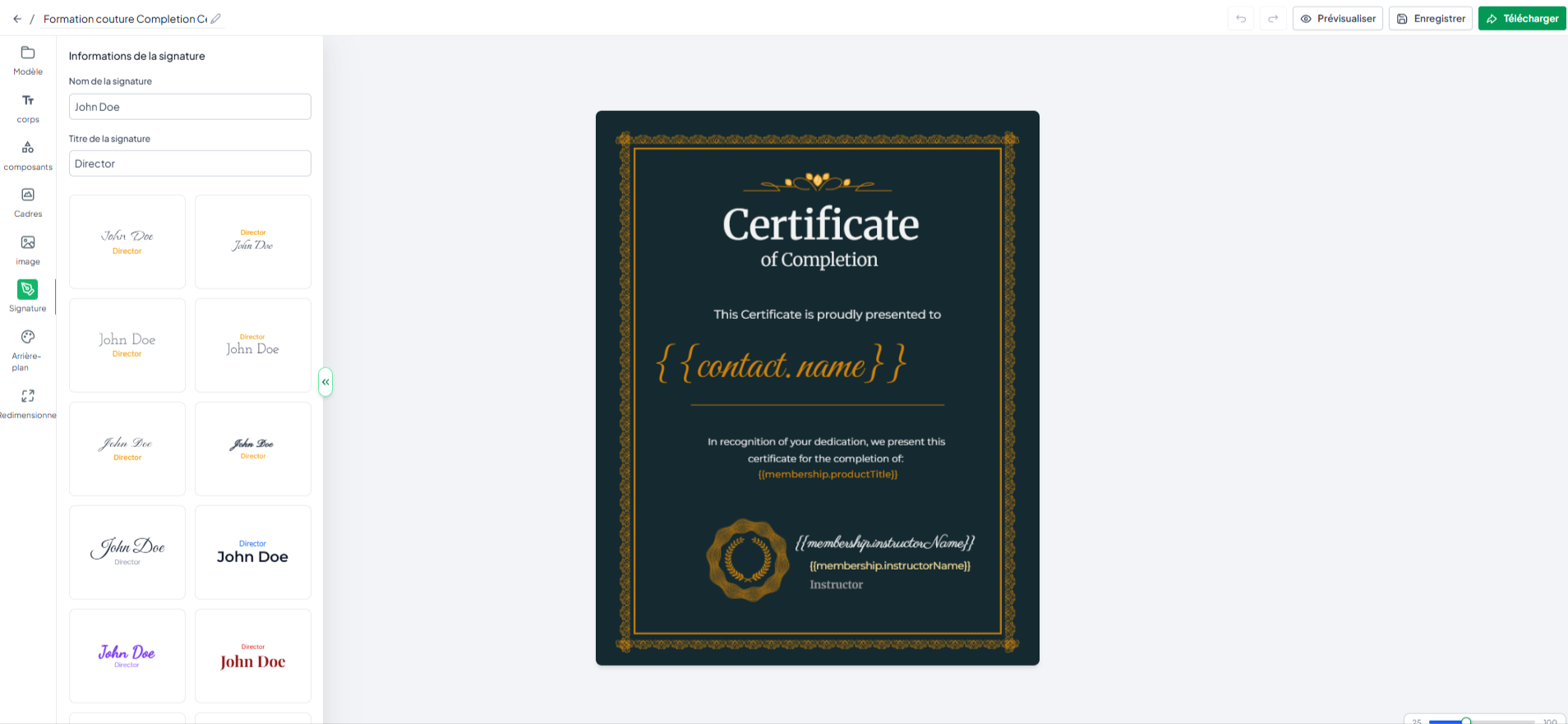
💡TIP: You can delete any module, lesson, badge, and certificate templates you don't need.
Step 3: Choose the status of the lesson
For each lesson, you can set its status according to your publication plan.
Published: The lesson is visible to your learners.
Draft: The lesson remains hidden, which is ideal if it is still being prepared.
Locked: Use this option to block access to a lesson until another module or quiz has been completed.
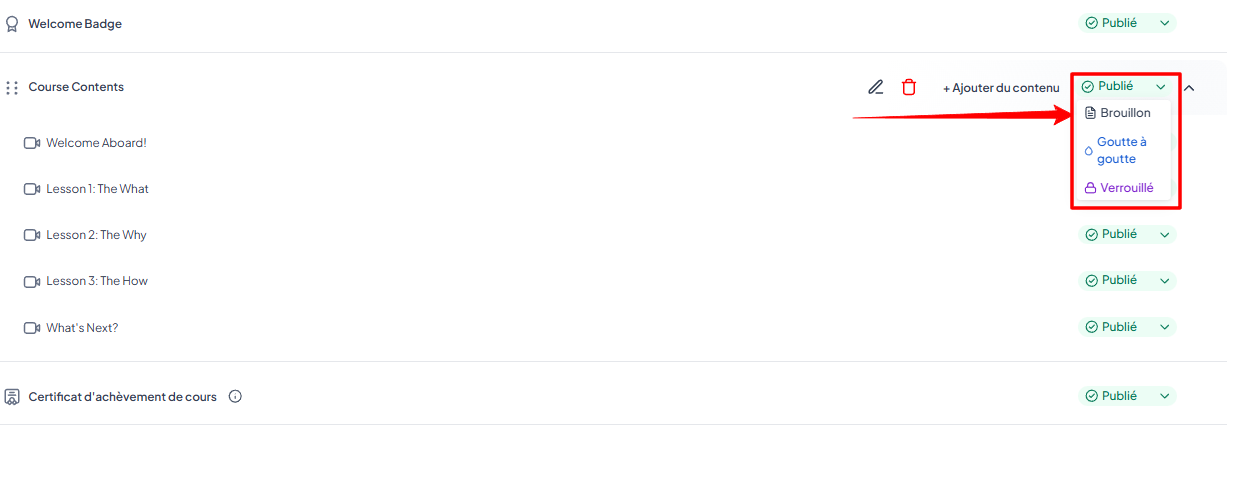
Drip-feed filtering: This mode allows you to gradually unlock your modules. You can choose to unlock them based on the number of days or on a specific date.
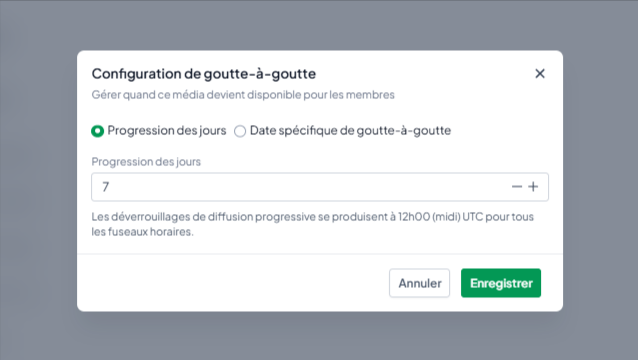
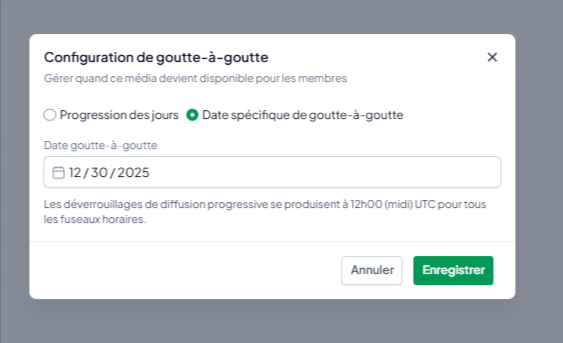
💡TIP: Using drip-feed allows you to maintain your learners' engagement over a long period of time by unlocking content as they progress.
Step 4: Edit the lesson content
Once your structure is in place, you can enrich each lesson with multimedia content.
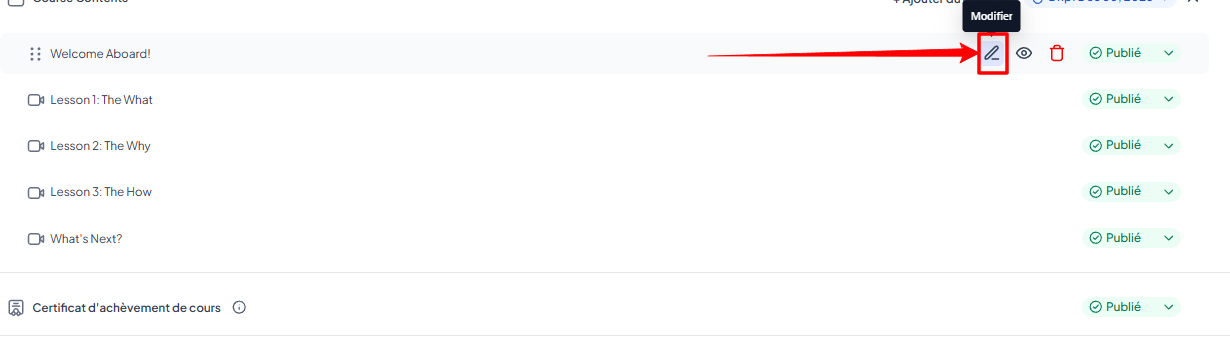
Click on the pencil icon to the right of the lesson to open the content editor.
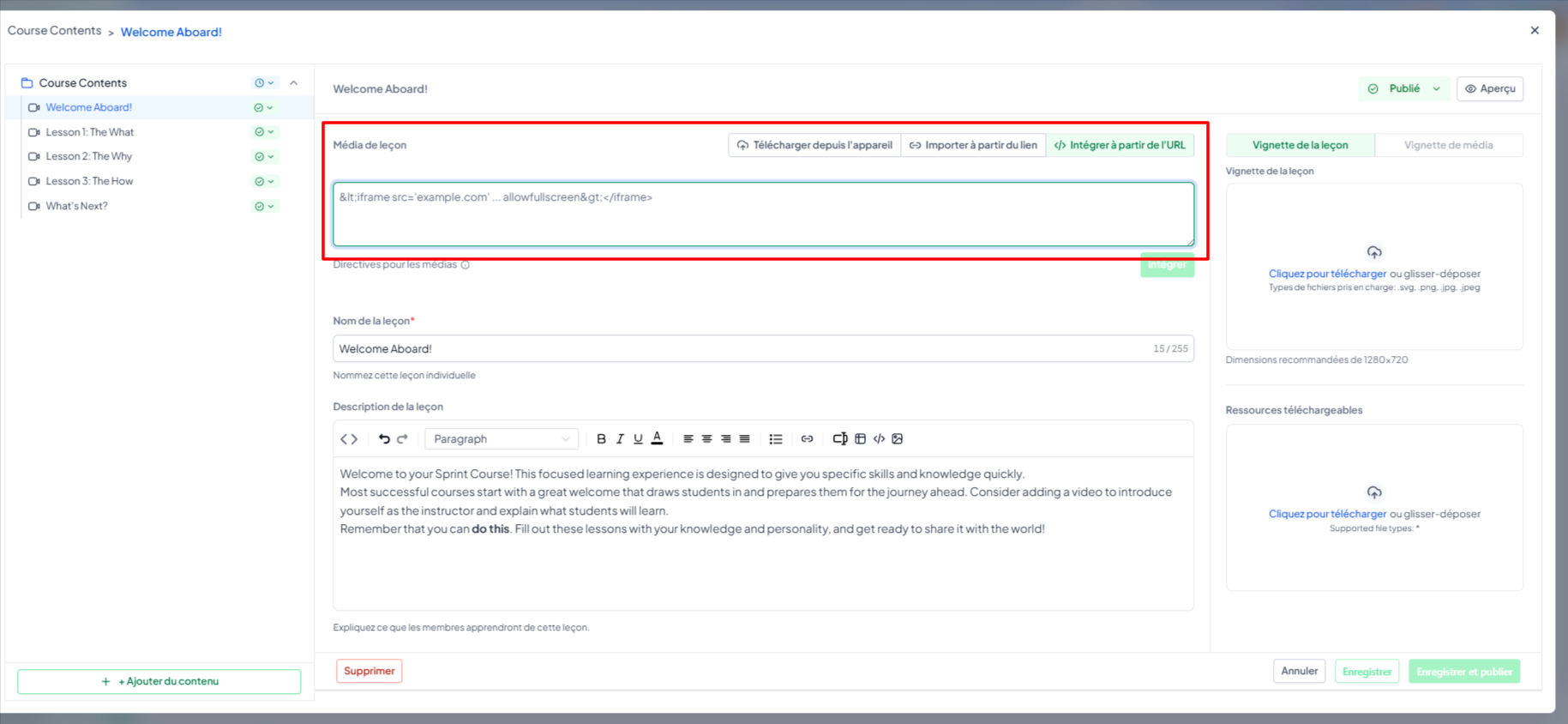
Add multimedia content:
Upload from device: Upload videos directly from your device and/or to illustrate your lesson.
Import from link: Import your videos hosted on Vimeo, YouTube, Loom, etc. via a share link.
Embed from a URL: Add your videos using the embed code retrieved from Vimeo, YouTube, etc.
Customize your lesson
Thumbnail: Add an illustrative image.
Description: Insert explanatory text and/or integrate external content (external videos, forms, surveys, etc.) using embed codes.
Downloadable files: Add PDFs, images, or documents to download.
Use the Preview option to see the final result of your lesson before publishing.
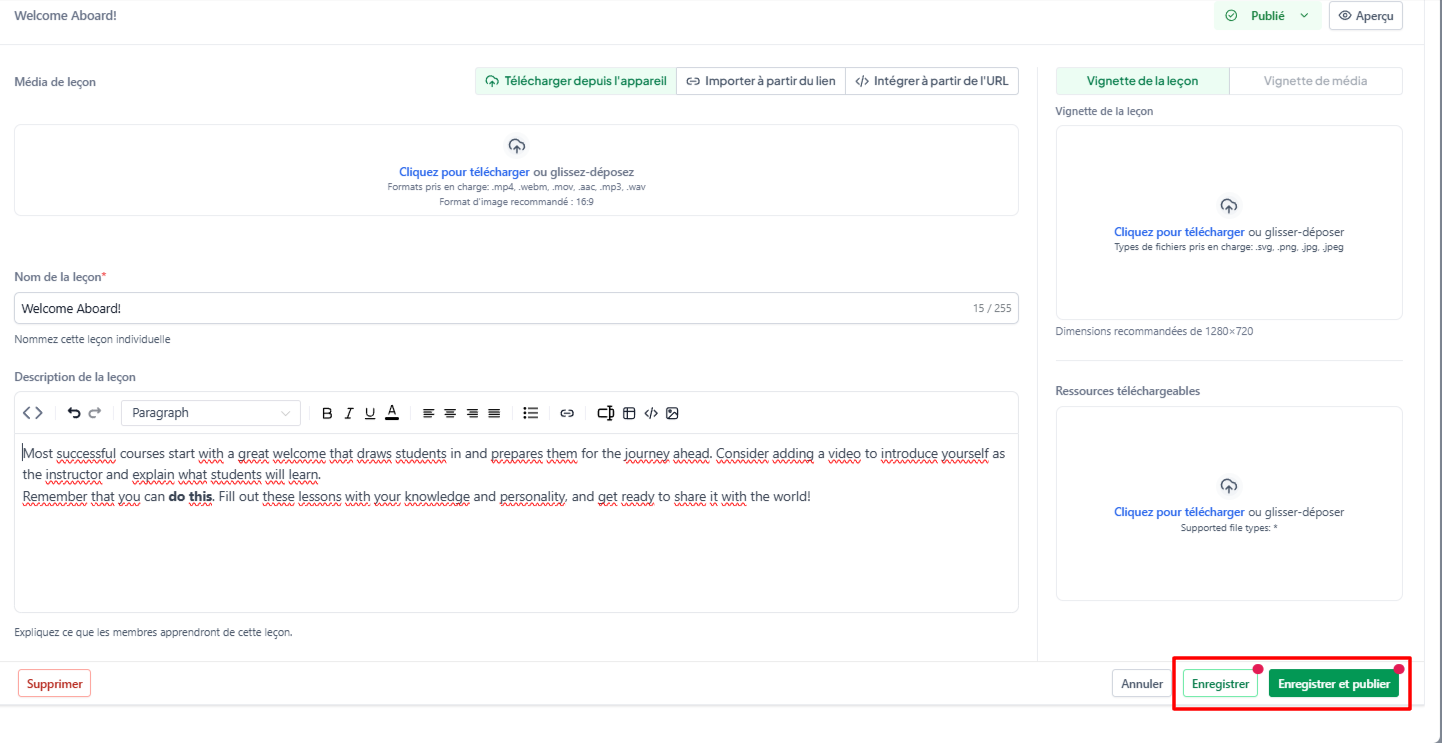
Click on "Save" or "Save and publish."
Step 5: Publish your modules & lessons
Once you have structured and enriched all your lessons, all you have to do is finalize your training by making it available.
To do this, simply check that the lessons and modules for your learners are no longer in "draft" mode but are published, locked, or in drip mode.