Customize your training theme
In this article, find out how to customize your Crococlick training theme: design, trainer, certificates, and more.
Written By CrocoTeam
Last updated 7 months ago
Customizing the appearance of your training course in Crococlick is essential for creating a consistent user experience that is tailored to your brand. This tutorial guides you through all the steps involved in customizing the details of your training course, from visual content to course completion certificates.
Step 1: Set up the training details
Change the training settings
Go to the Settings tab to:
Change the course title and description
Change a cover image
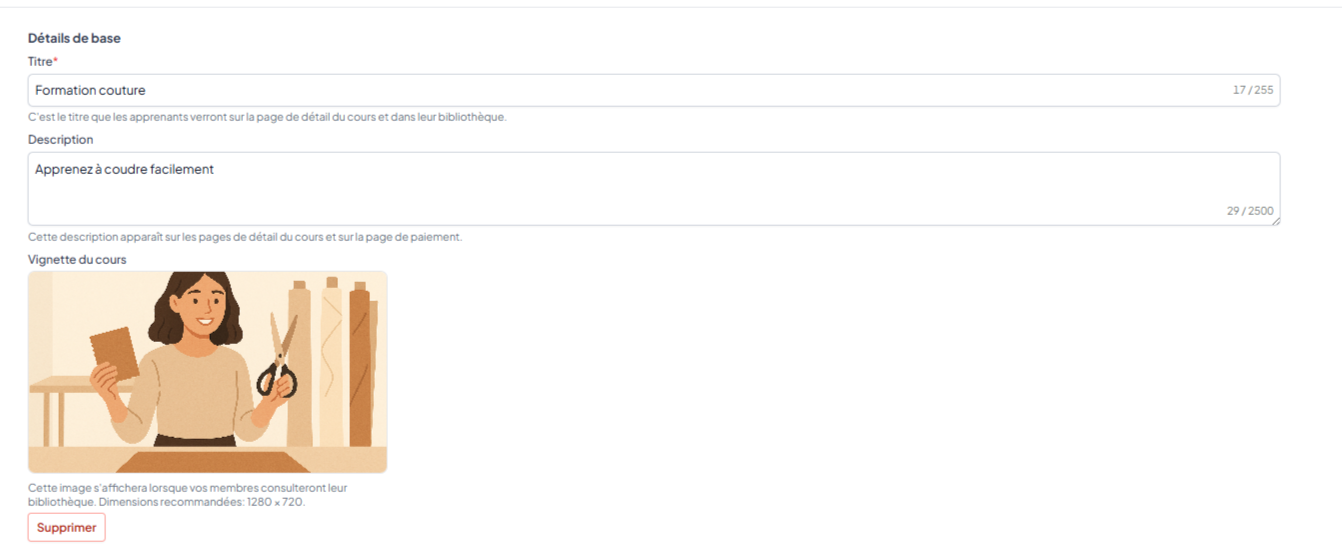
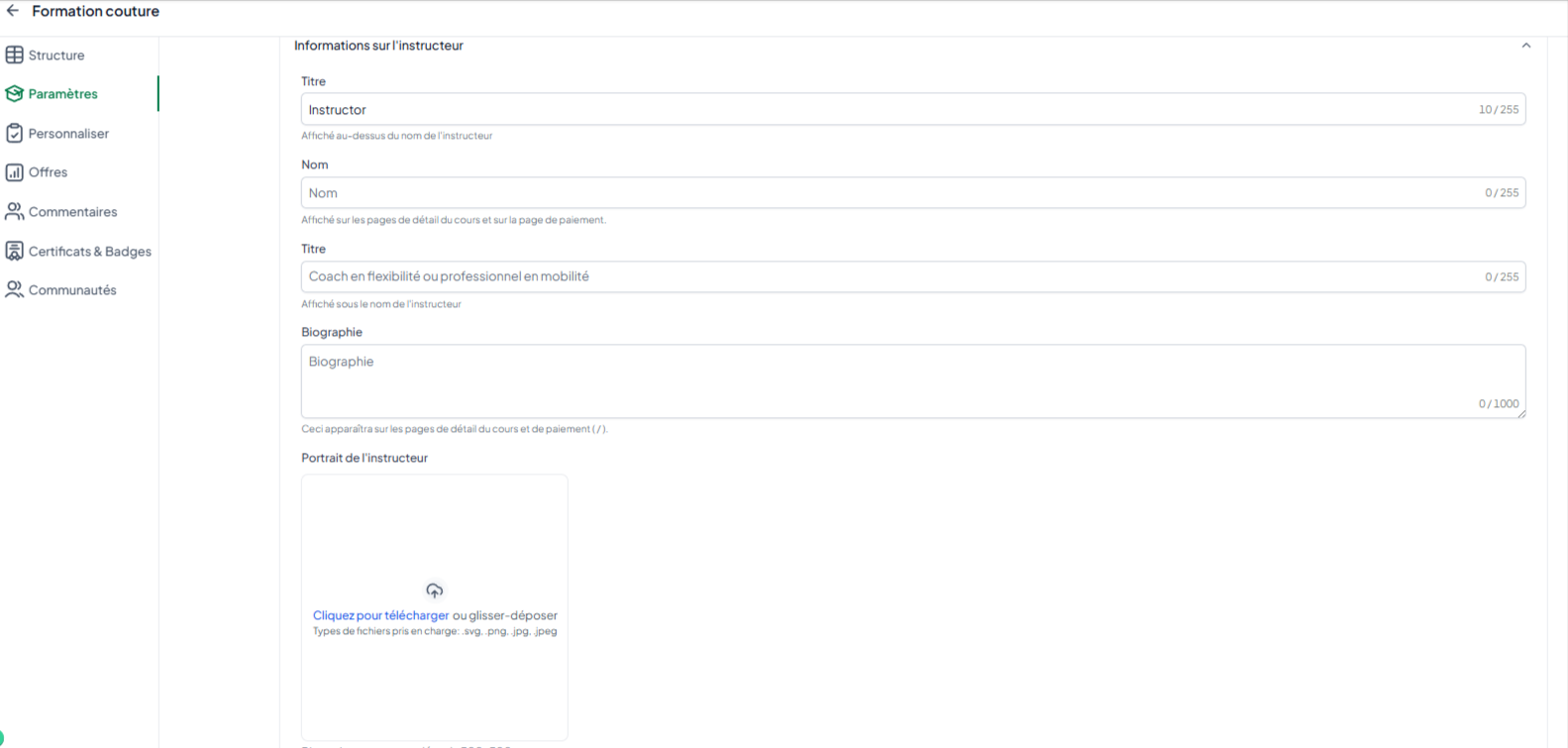
Customize instructor information:
You can add details about the instructor (or trainer), including:
In the header, you can include the description or position (for example, "Teacher" or "Trainer")
A photo of the instructor/trainer
Name and title of the instructor/trainer,
A biography to give the learner more context.
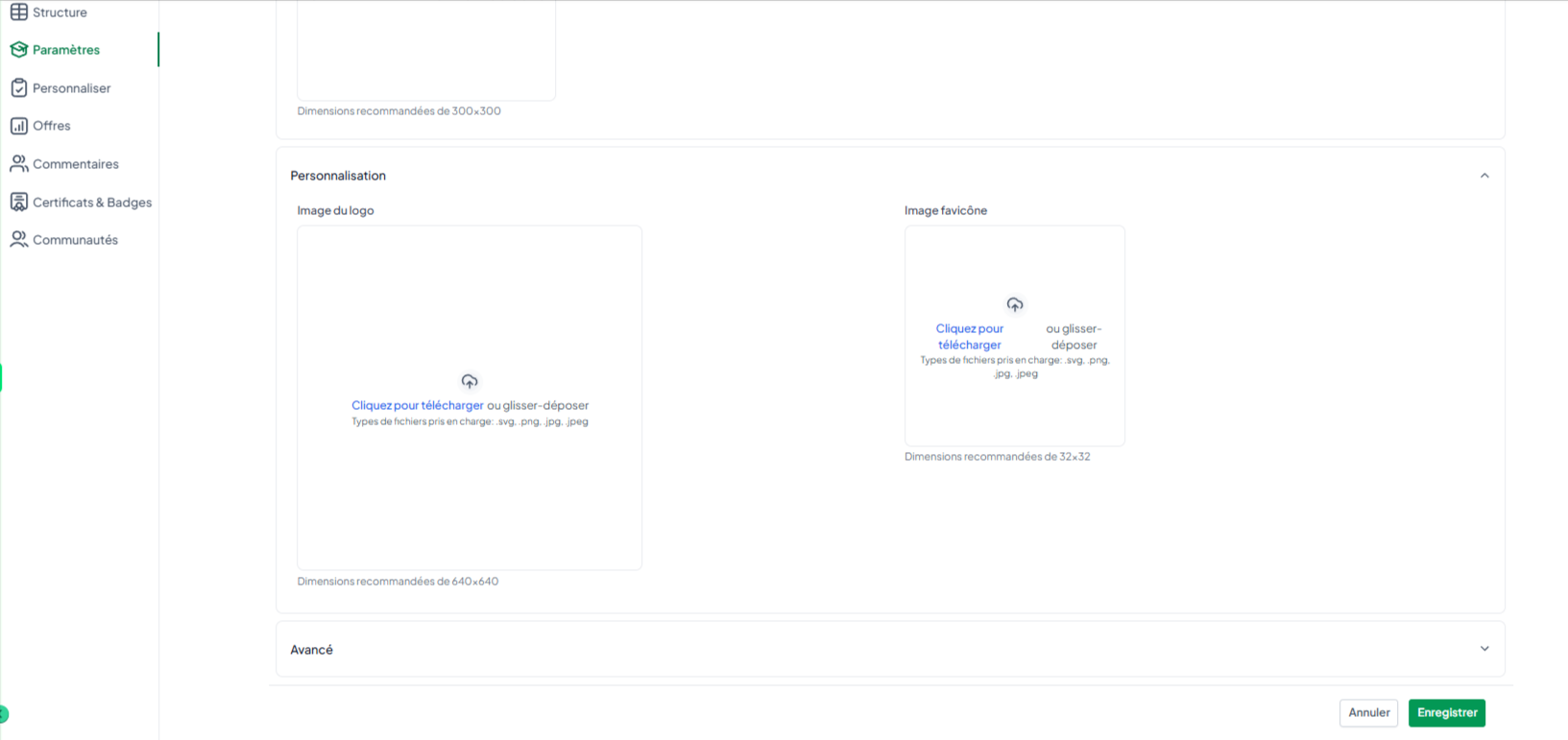
Add the logo and favicon:
Add your company logo, which will appear at the top left of the training course.
Also add a favicon, the small icon visible to the left of the page title in the browser tab.
Add custom code (optional):
If necessary, you can insert JavaScript or CSS to further customize the appearance or functionality of your training course.
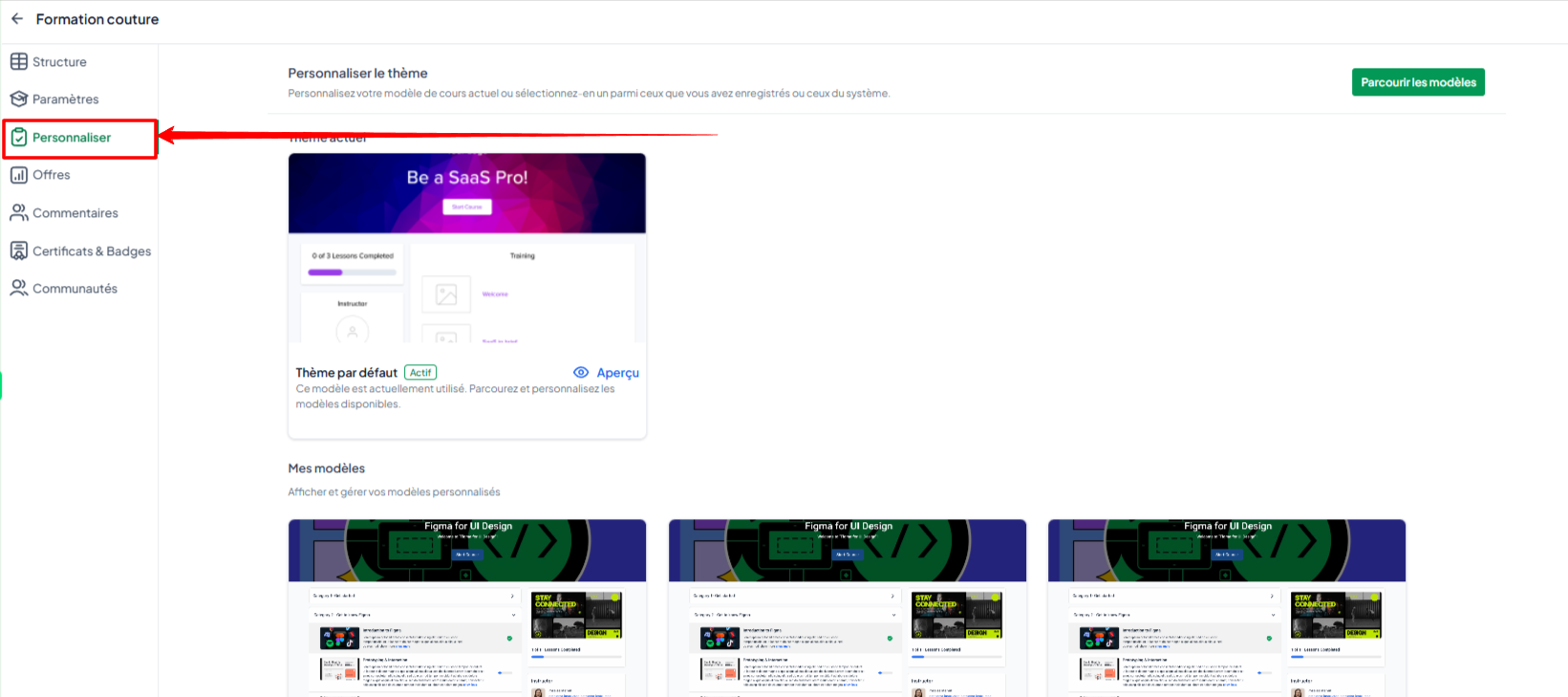
Access the "Customize" tab:
Once you have created your courses, go to the Customize tab of your training course.
Here, you can choose a theme and customize several key elements of the training course: title, description, image, instructor information, logo, custom code (CSS, JS), etc.
Step 2: Customize the overall appearance of the training course
Go to the "Customize" tab
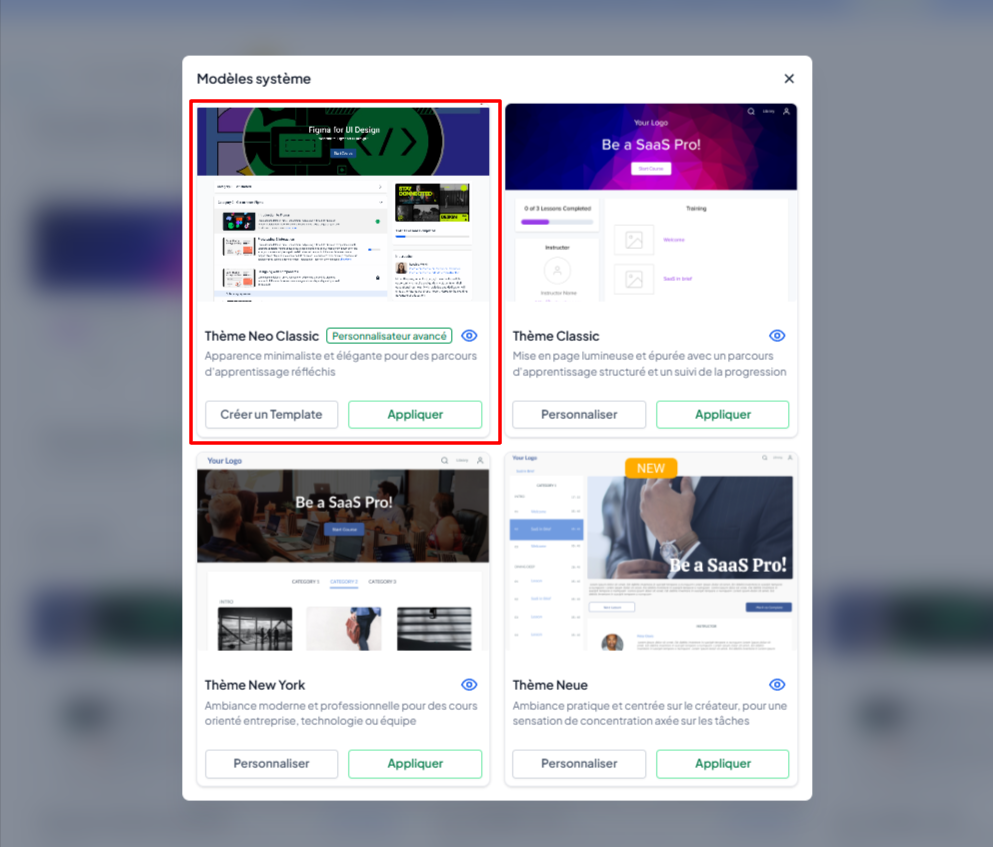
Choose a theme:
Click on "Browse templates."
Select the theme that suits your needs
Click on Use Template.
⚠️ We recommend using the Neo Classic theme to fully customize your training courses
Theme settings:
You can adjust all settings for the "Product" page (the training course home page) and the "Lesson" page (the courses)
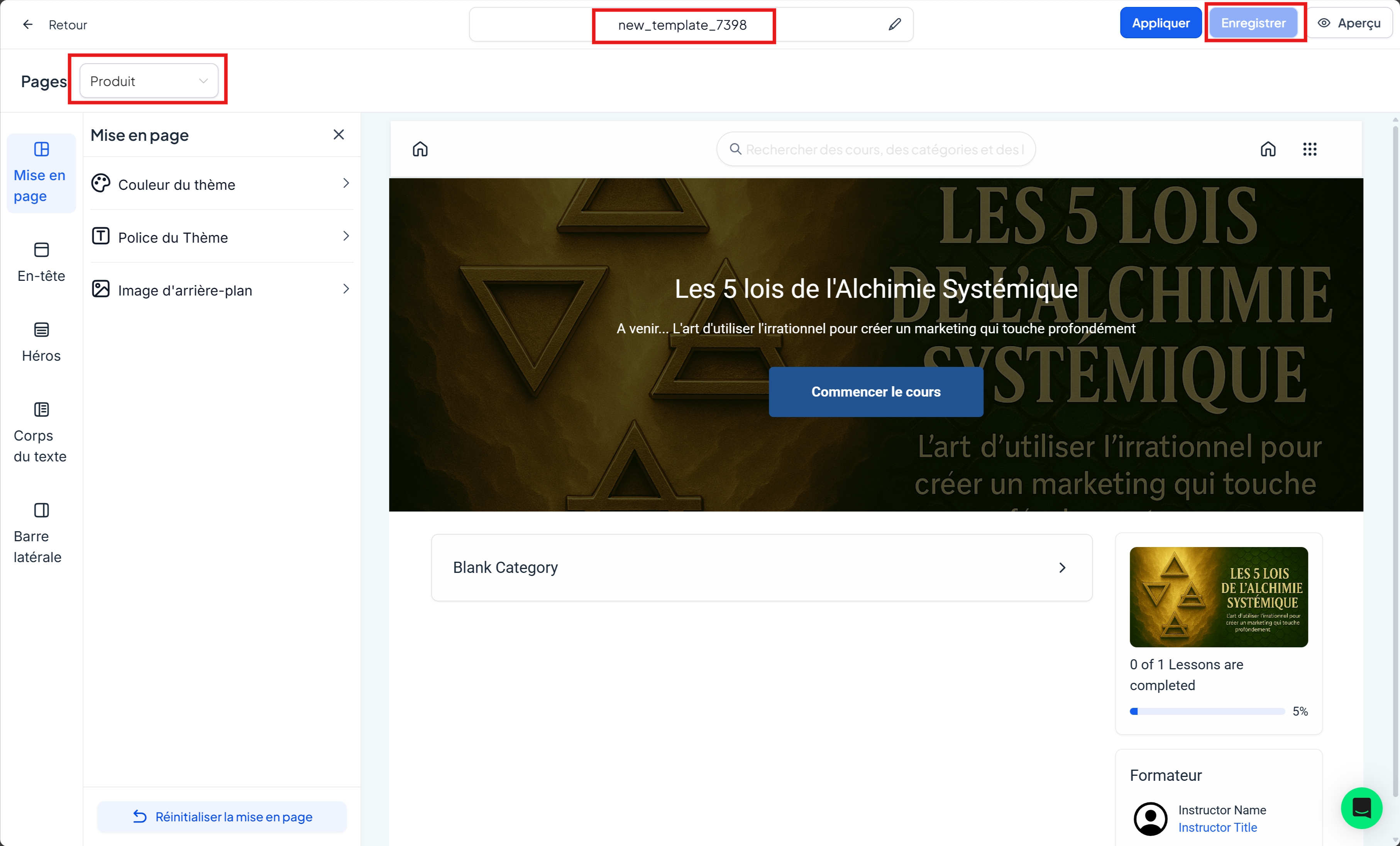
💡 TIP: Once you have configured the settings, click Save to save the template.
Step 3: Apply the template to the training course
From the Customize tab, locate the "My Templates" area
Hover over the desired template to display the actions, then click Activate.
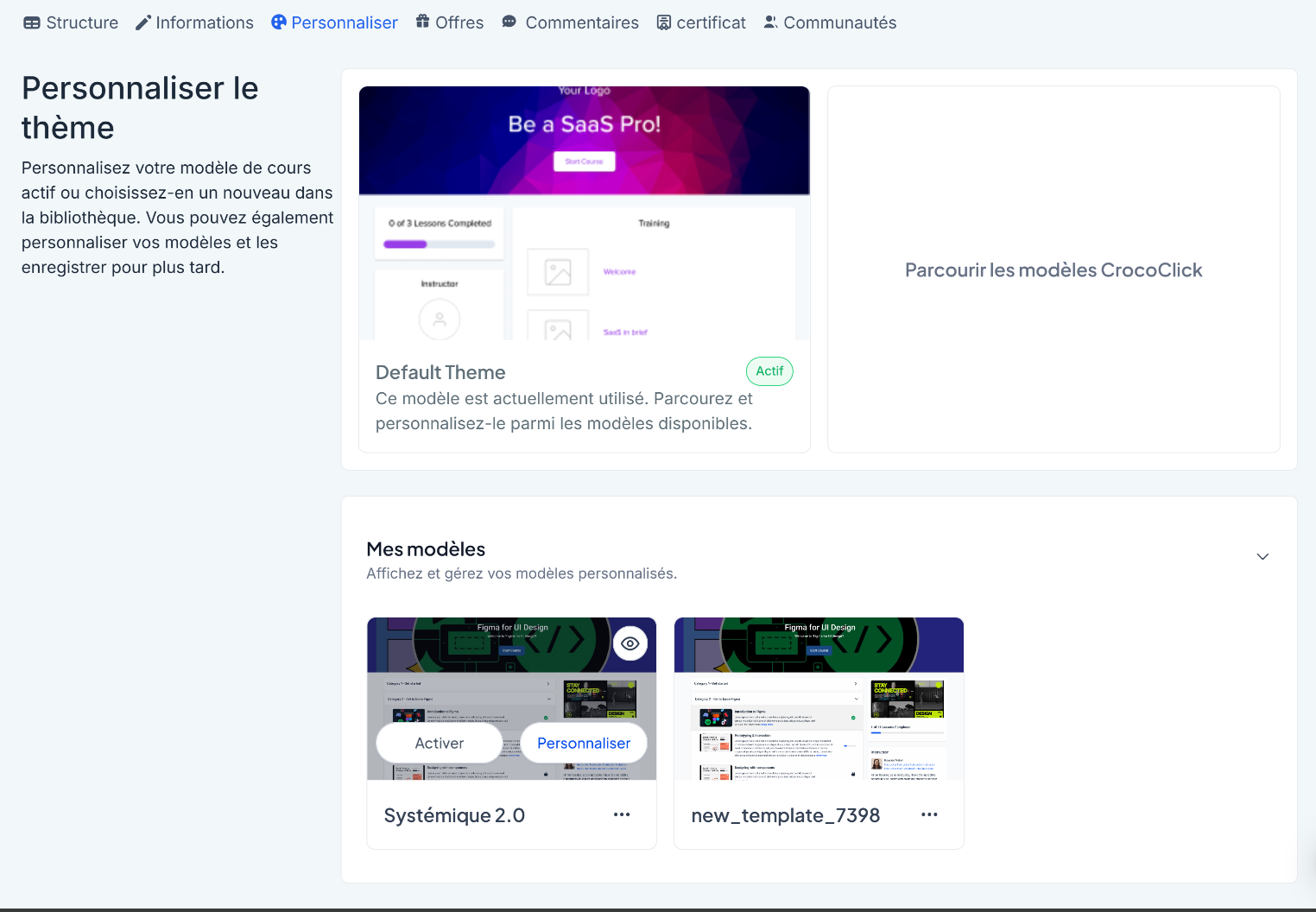
Click on Confirm
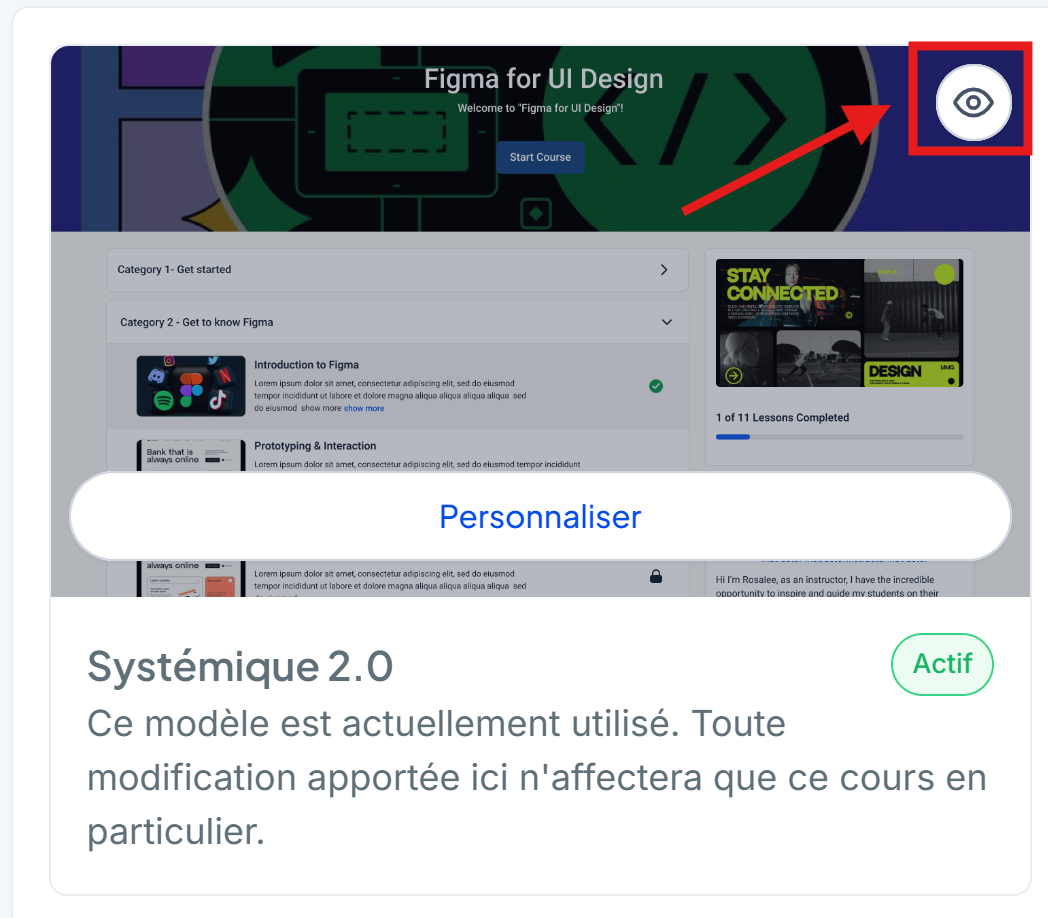
The preview will refresh; check the rendering by clicking on the eye icon.
Step 4: Enable (or disable) comments
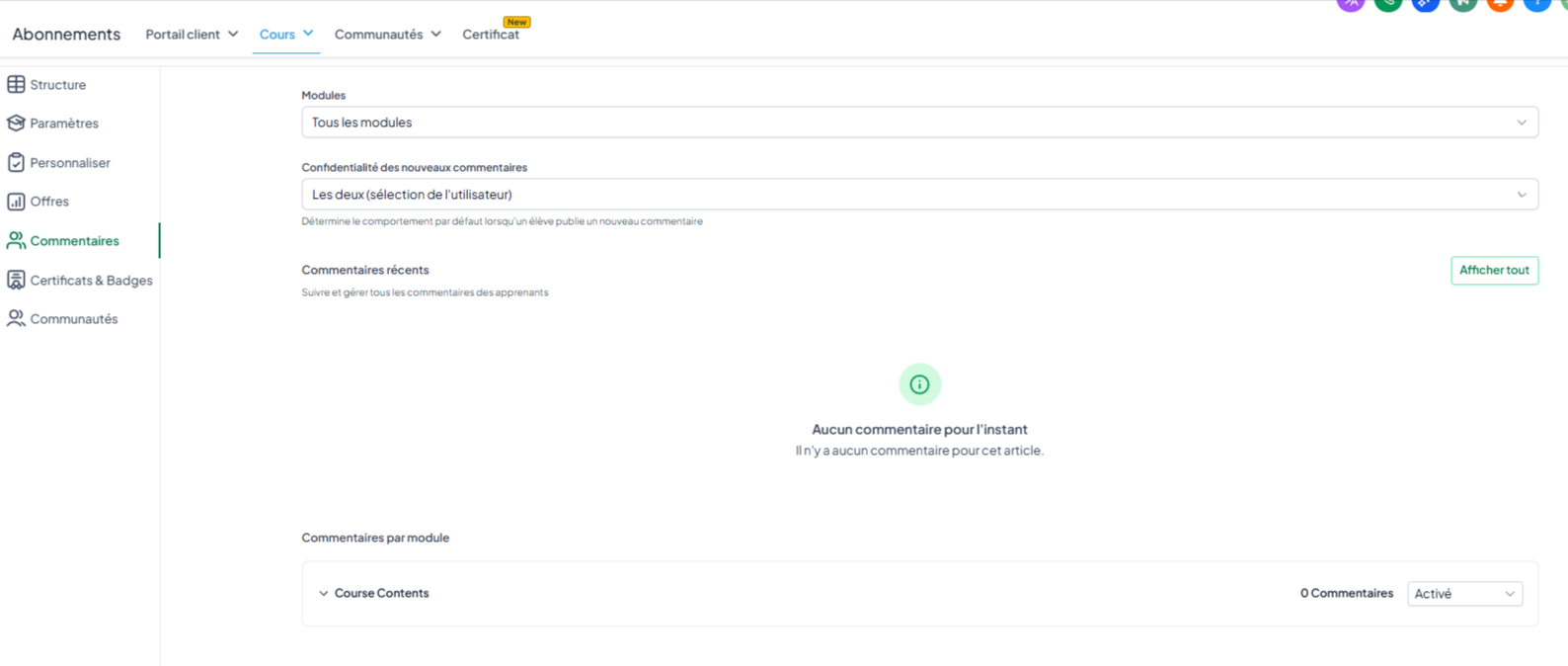
Manage comments:
You have several options for managing comments:
Make them visible only to instructors,
Make them public (visible to all learners),
Give users the choice to make them public or visible only to instructors.
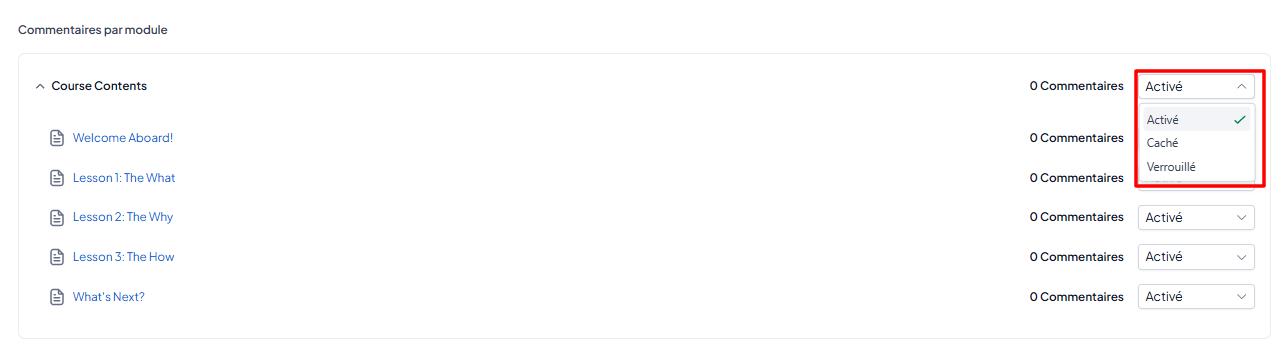
You can also enable or disable comments for each specific lesson.
Step 5: Link a Certificate to the Training (optional)
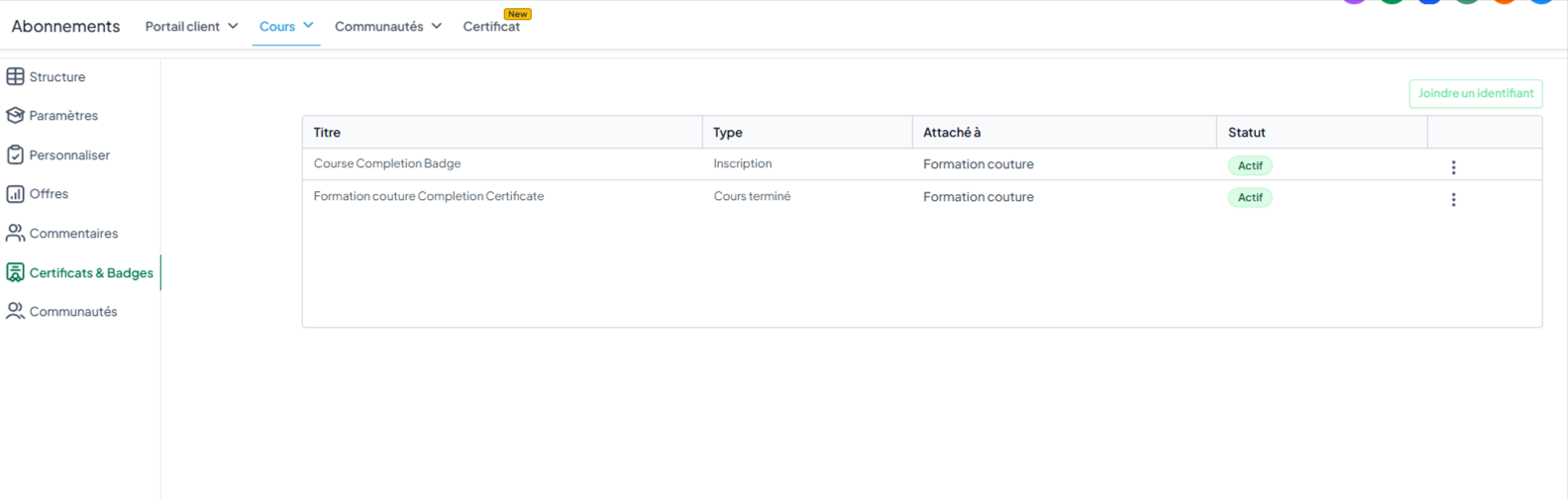
In the Certificate tab of your training course, you can link a certificate template that you have previously created in the general "Certificates" section.
Your learners will then be able to obtain official proof of completion of the training, directly available in the customer portal.
Step 6: Final checks
Preview the training:
Click Preview to see what your final training course looks like. You can navigate through the training course as a learner and check each visual and functional element.
Publish categories and lessons:
Make sure that all the categories and lessons you want to make available are published. If some are in draft form, simply publish them manually.